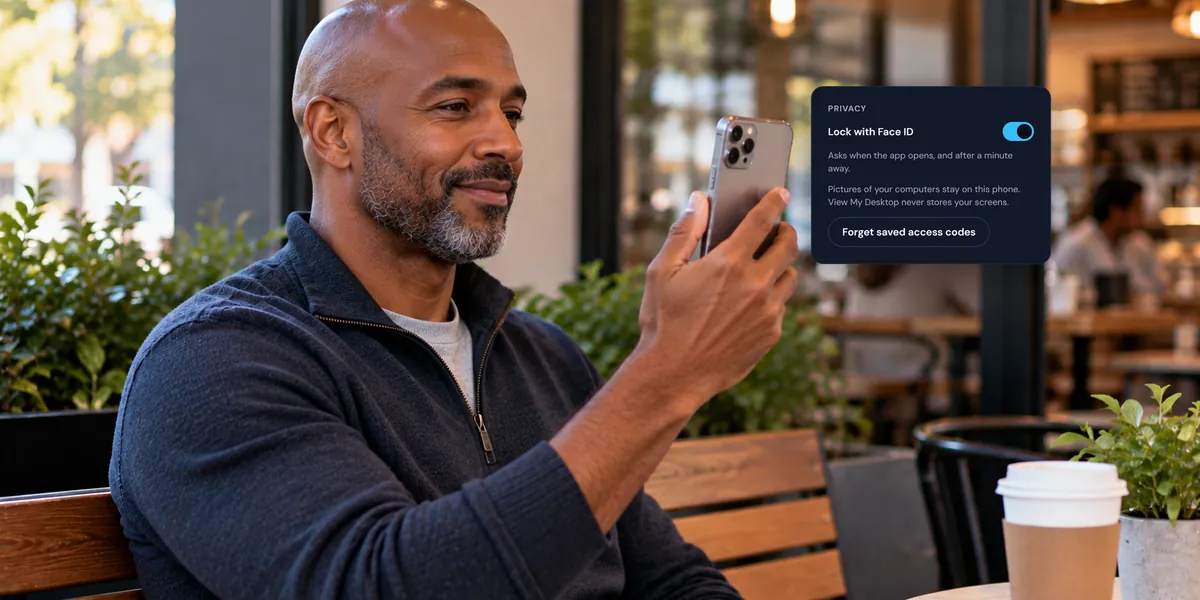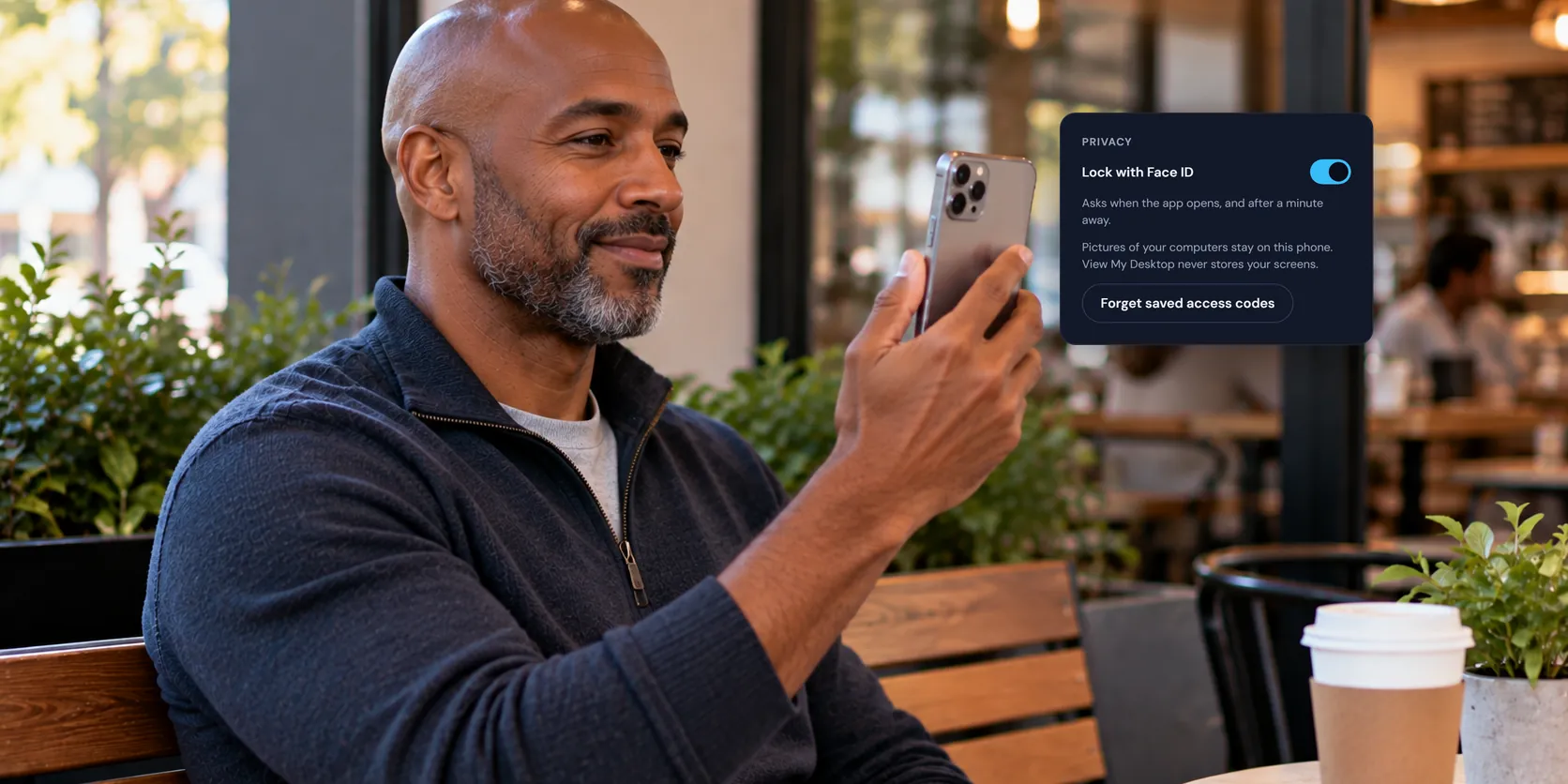
The phone app's settings: Face ID lock, saved codes, and more
A few settings make the app safer and easier on your phone or tablet. Here's what each one does, from locking the app with Face ID to remembering a computer's access code.
How to reach your computers from anywhere, help someone with theirs, and set things up for a team, with steps that actually work. Written by the people who build View My Desktop.
A few settings make the app safer and easier on your phone or tablet. Here's what each one does, from locking the app with Face ID to remembering a computer's access code.
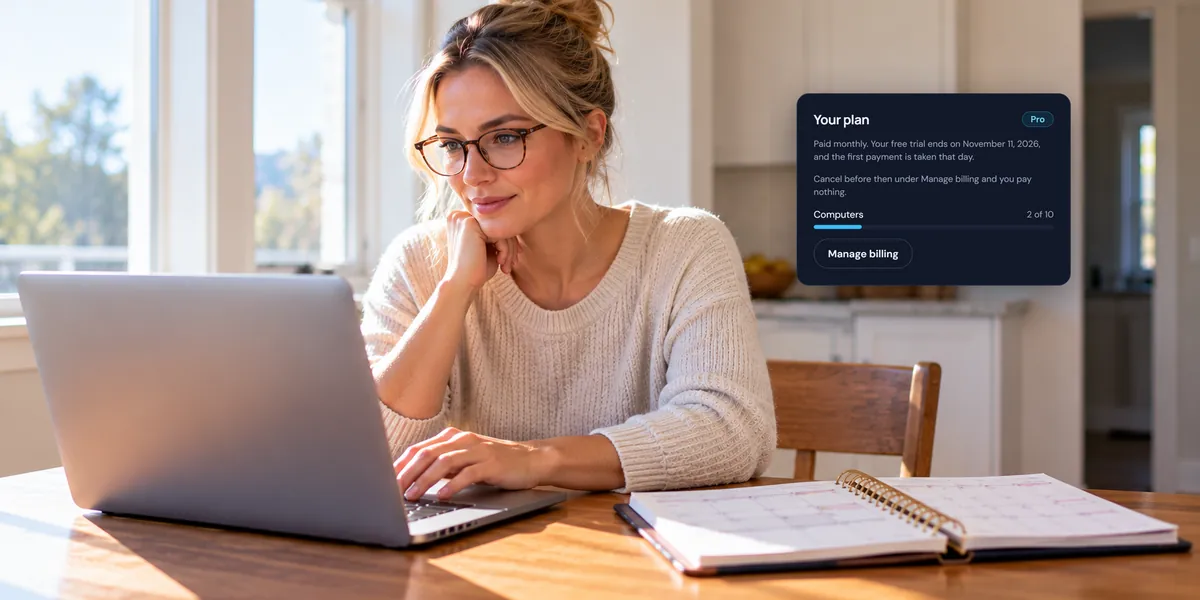
Every plan starts with 14 days free. Here's when you'd be charged, how to cancel before then, how to switch plans, and how billing works for a team.
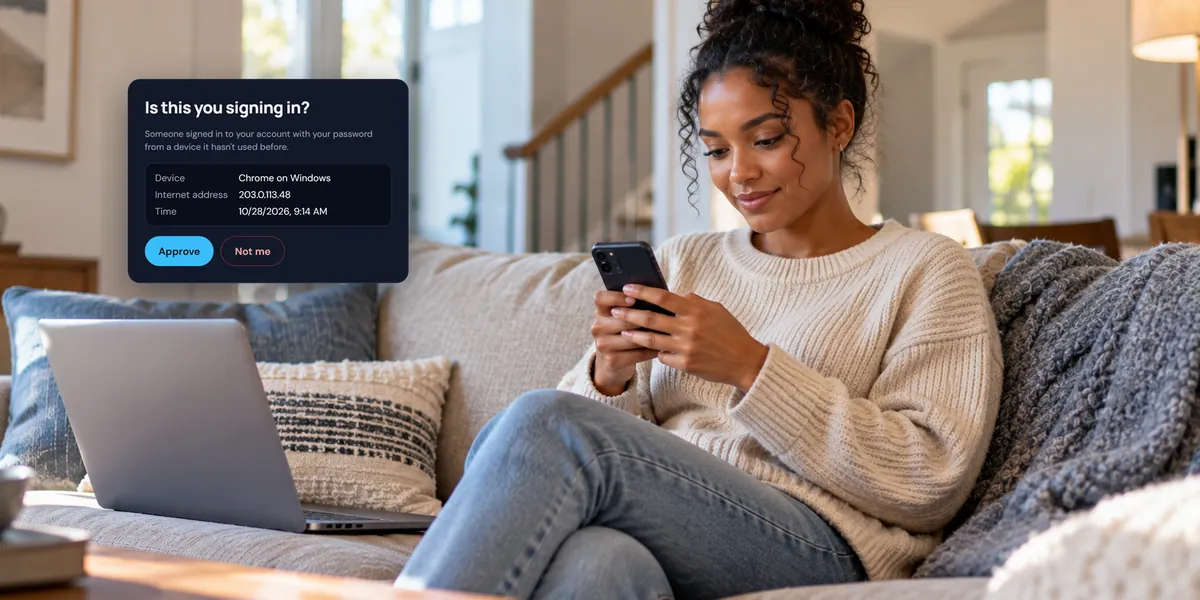
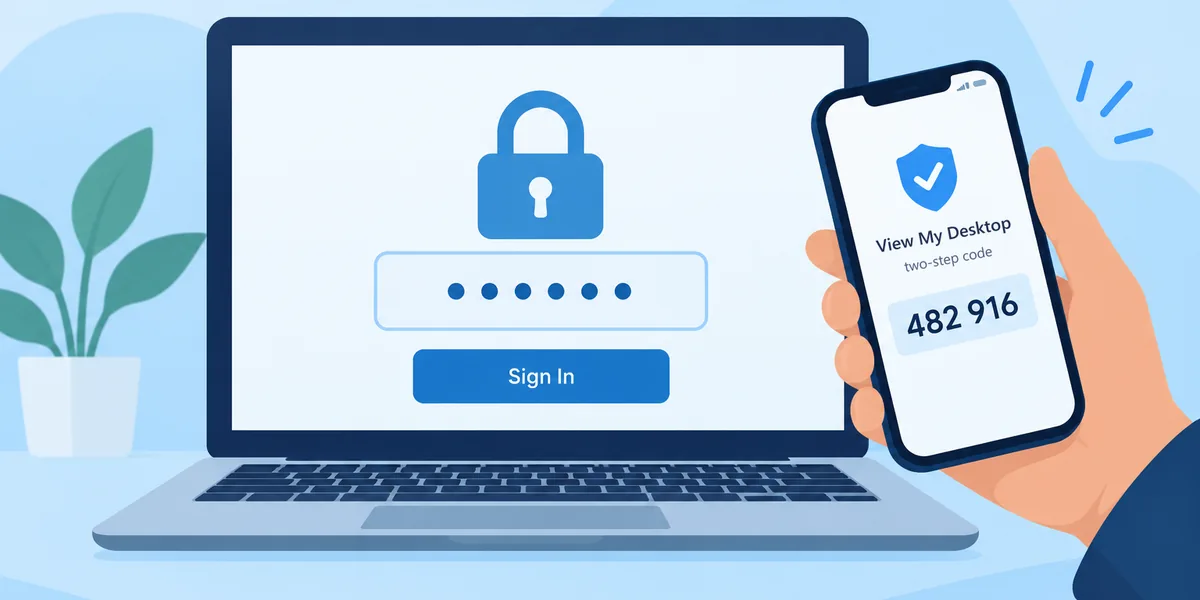
Your account opens every computer you've added, so lock it well. Here's how two-step sign-in works, what the "Is this you signing in?" email means, and how to see your signed-in devices.
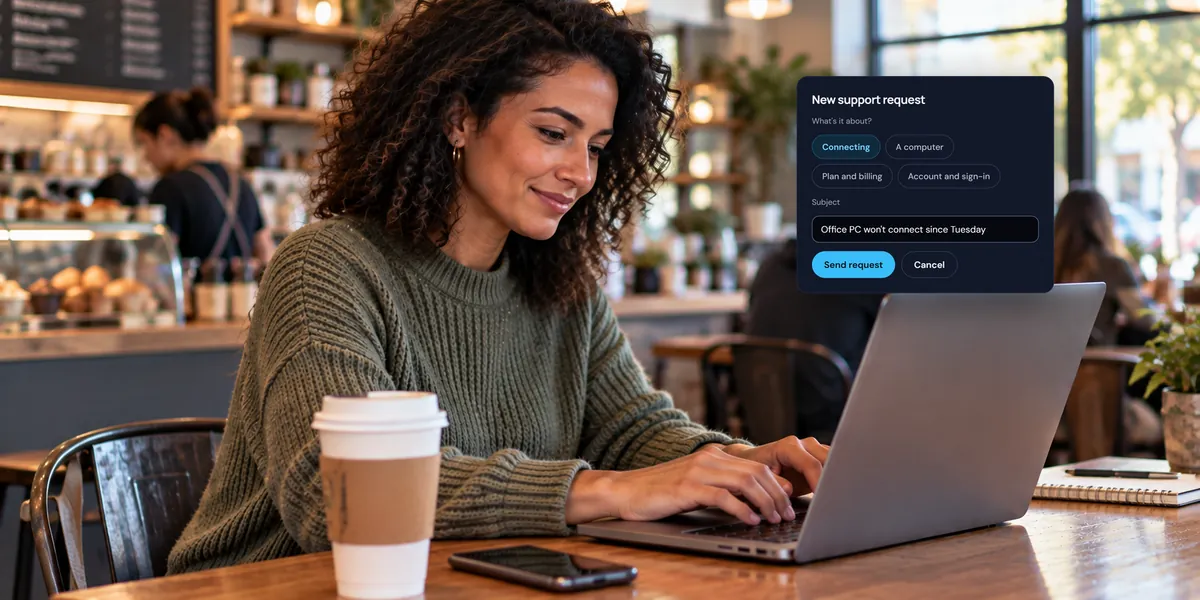
Stuck on something the guides don't cover? Here's how to ask us from your account, what to put in it so we can help the first time, and what happens after you send it.
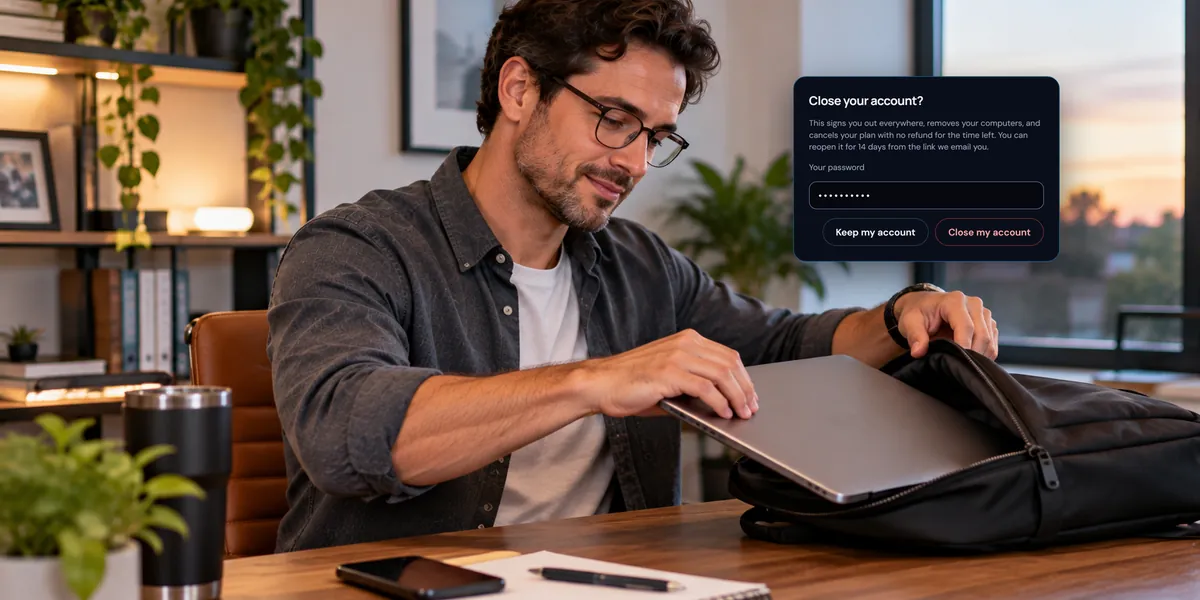
If you're done with View My Desktop, you can close your account yourself. Here's exactly what that removes, how to change your mind within 14 days, and what's deleted after that.
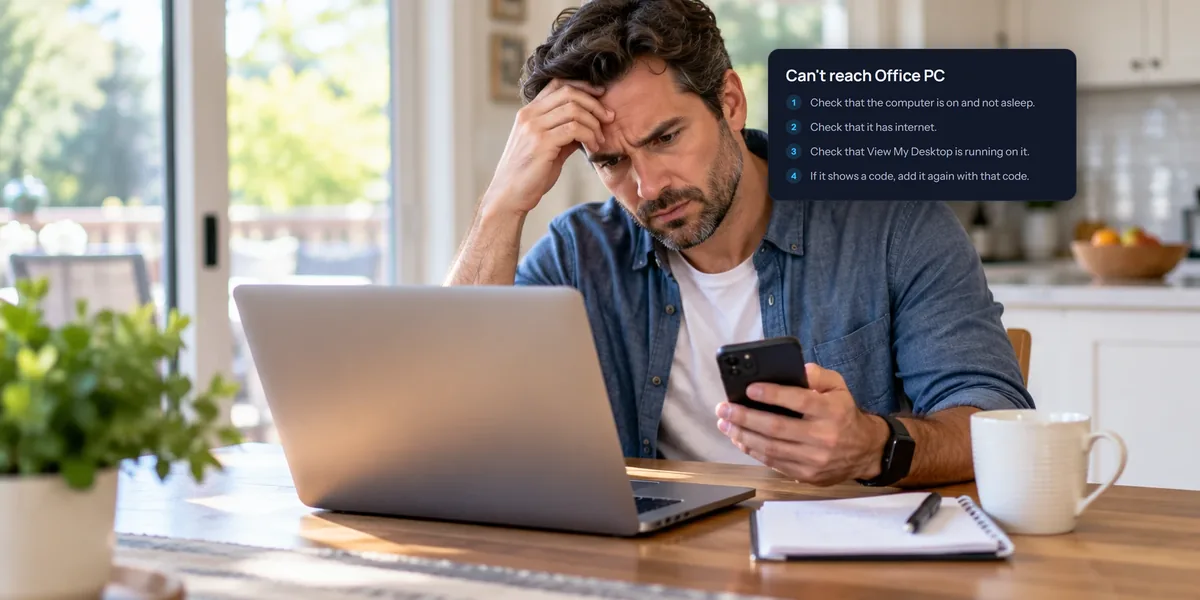
The computer says offline, or the code won't take, or the screen stays black. Find the message you're seeing below, and here's what it means and what to do.
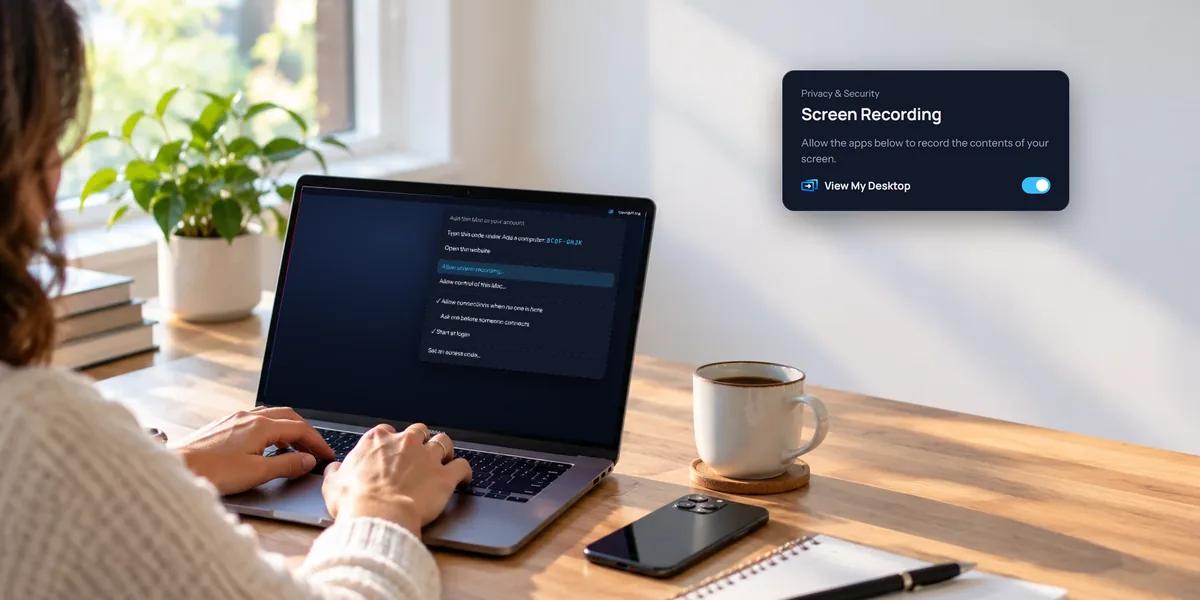
macOS is careful about apps that share the screen, so a Mac takes a few more clicks than a PC. Here's every step, including the permissions, and why each one is needed.
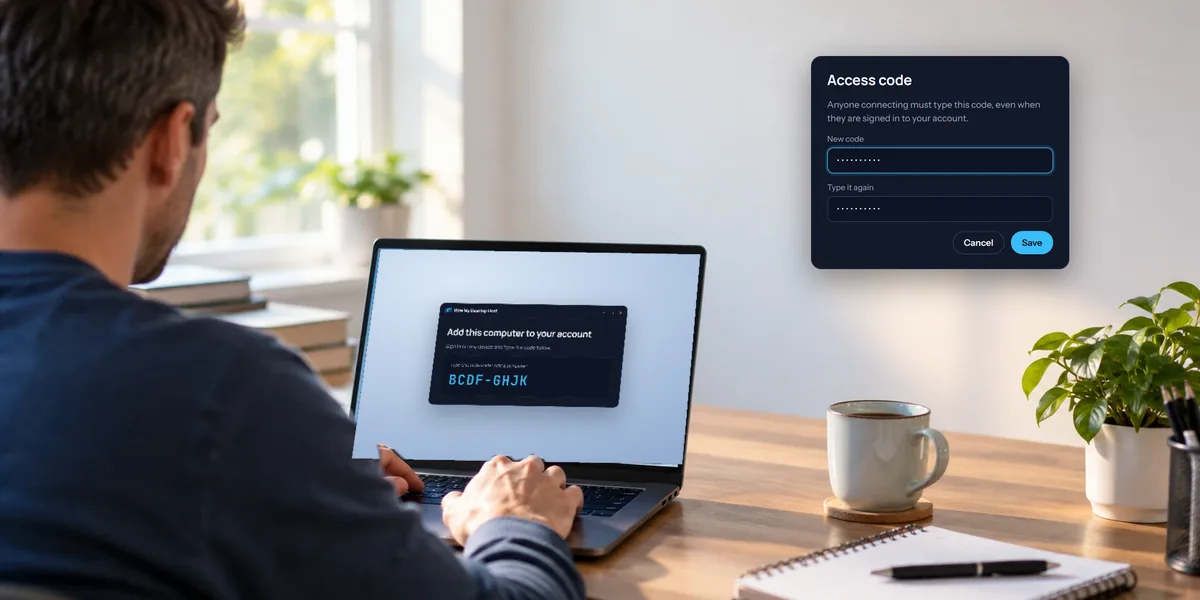
Ten minutes at the PC now saves you a trip later. Here's how to install View My Desktop on Windows, add it to your account, and choose an access code that keeps it yours.
Windows 11 Home can connect to other computers with Remote Desktop, but nothing can connect to it. Here's what you can do instead, and how to pick.
Unattended means the PC lets you in with nobody sitting at it, even at the sign-in screen and after a restart. Here's how to set that up, and how to keep it safe.
A few settings make the app safer and easier on your phone or tablet. Here's what each one does, from locking the app with Face ID to remembering a computer's access code.
Your programs, files, and settings are all on the office PC. Instead of copying everything home, reach the PC itself. Here's what to check first and how to set it up.
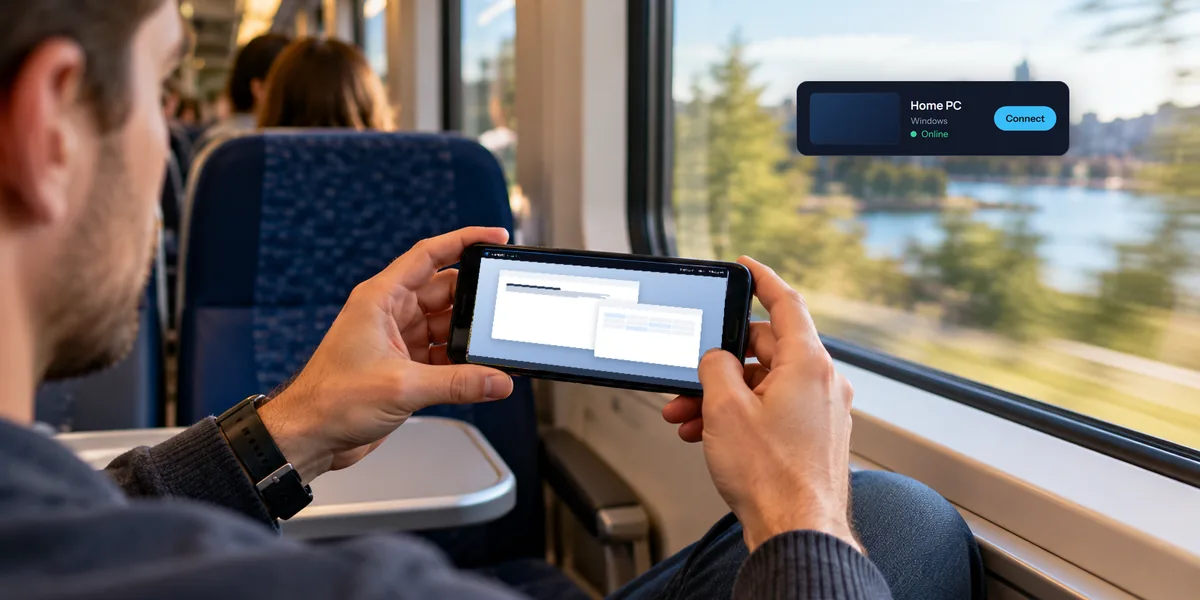
Grab a file, check on a download, or click the button only your home computer has, all from your phone. Here's how to set it up and get around once you're in.
Windows has Remote Desktop and the Mac has Screen Sharing, and they don't talk to each other out of the box. Here are two ways to bridge the gap.
Microsoft's own app works if the PC runs Windows Pro and you're on the same network. Here's that route, the one that works from anywhere, and how the keyboard behaves.
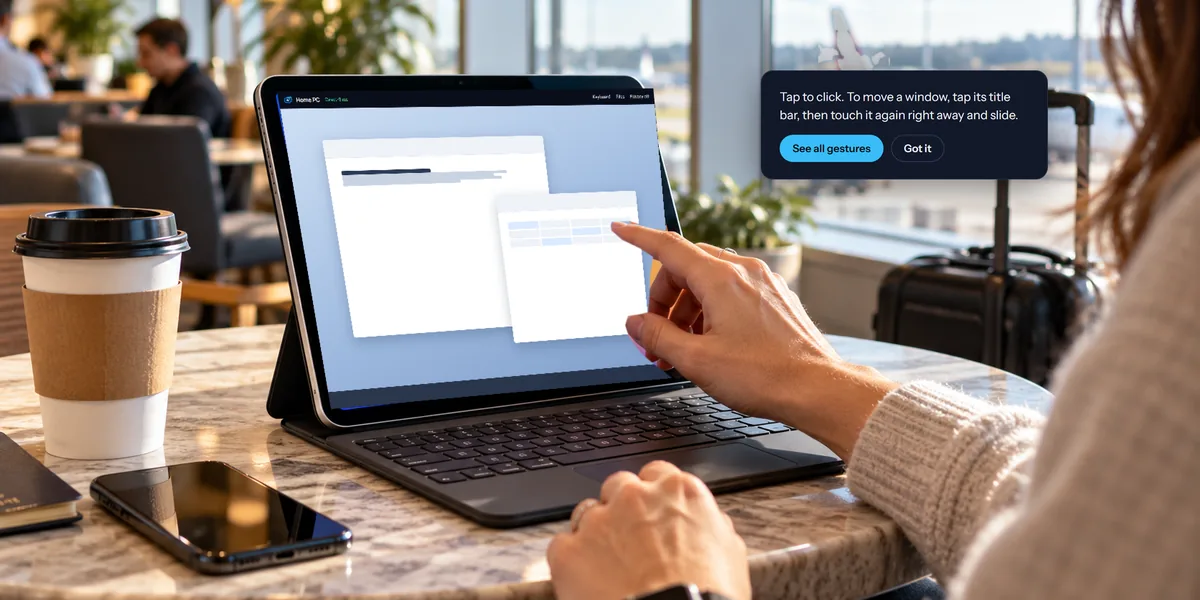
An iPad is a good size for remote desktop: big enough to read, light enough to carry. Here's how to set it up, and how to work a desktop with touch or a keyboard.
A Chromebook can't run Windows programs, but it can show you a computer that does. All it takes is Chrome and about ten minutes.
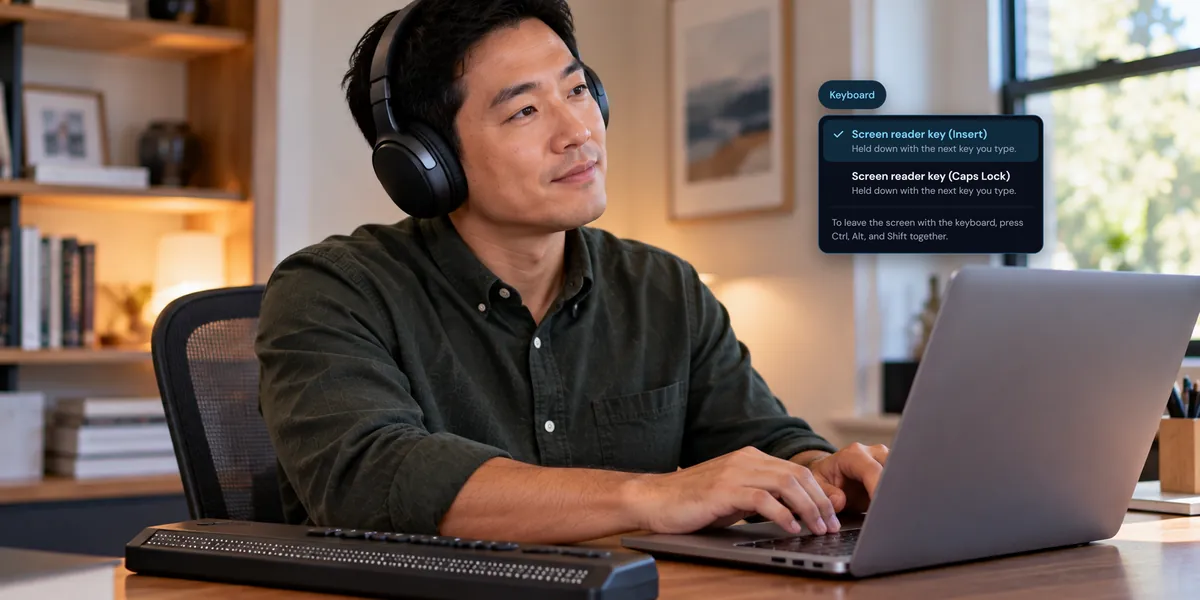
A screen reader can't read a remote computer's picture, but the computer can read itself to you. Here's how to set that up, send the screen reader's keys, and find your way back to the toolbar.
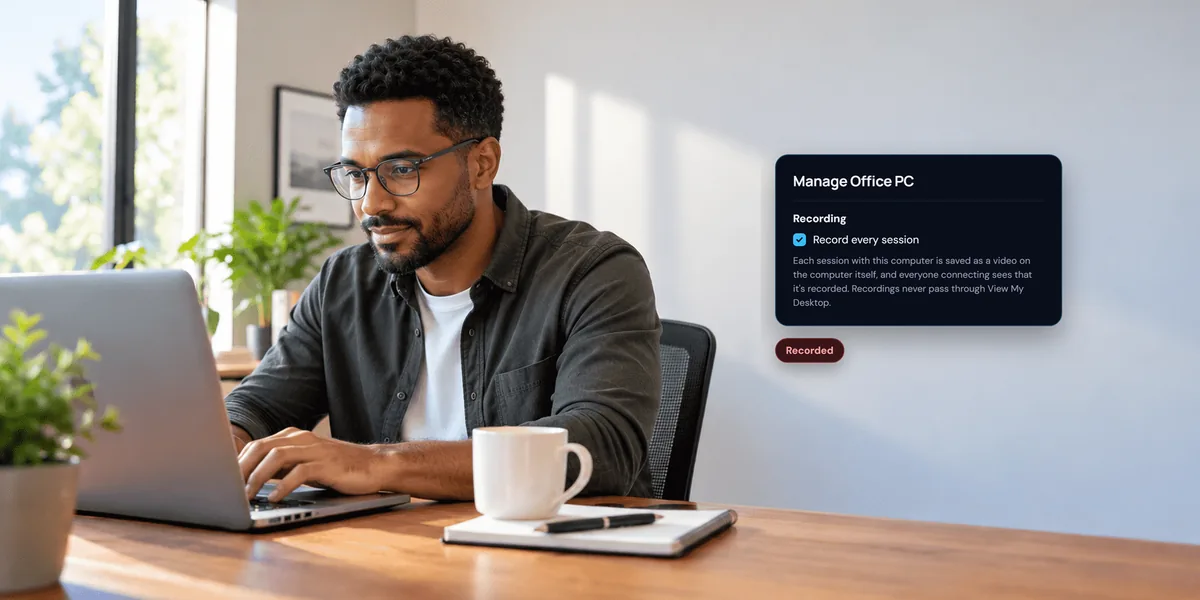
Turn on recording and every session with a computer is saved as a video on that computer. Here's how to turn it on, what people connecting see, and where to find the recordings.
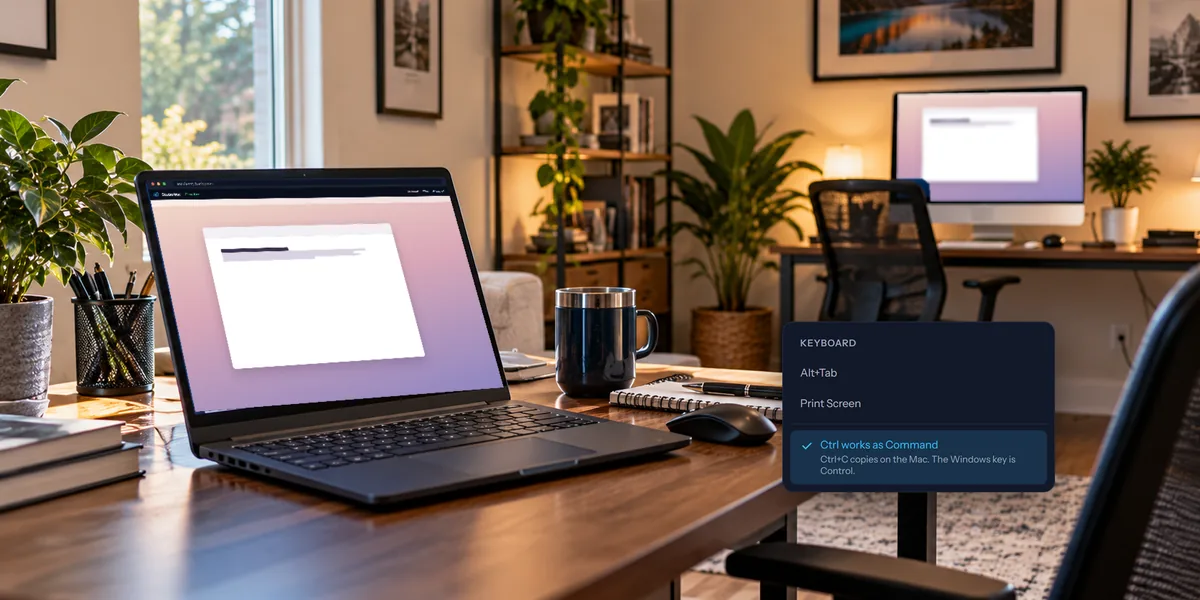
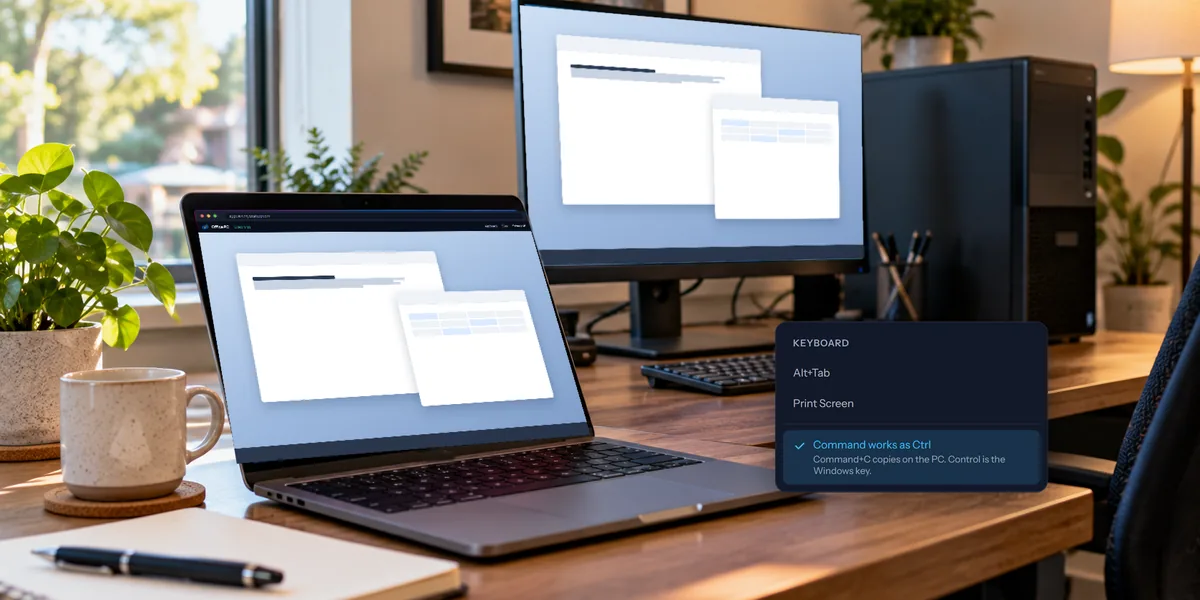
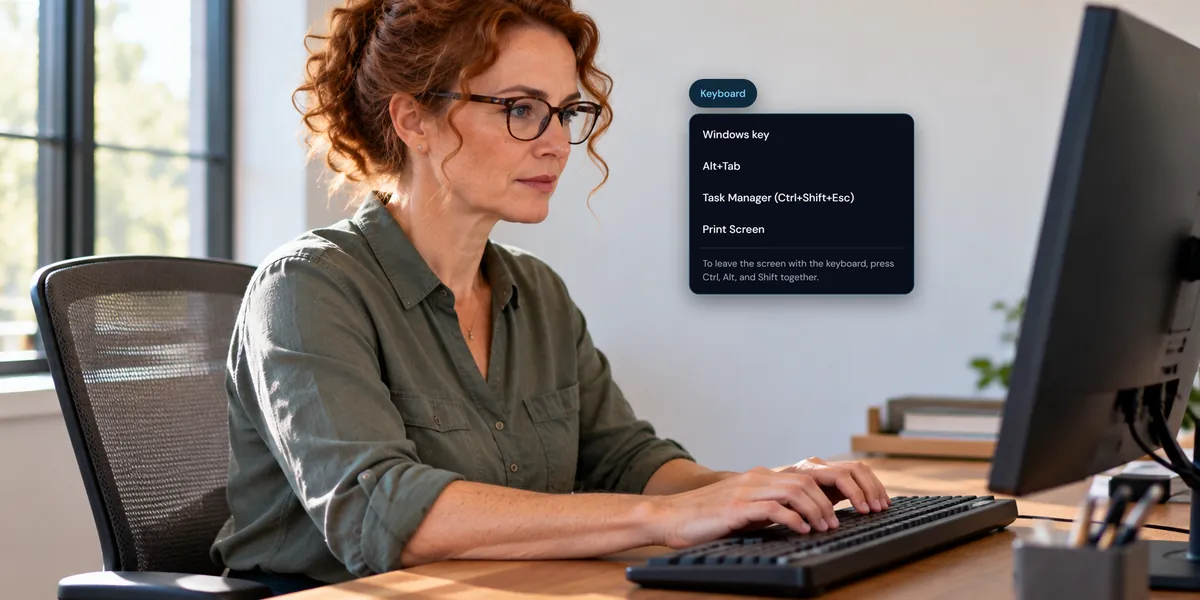
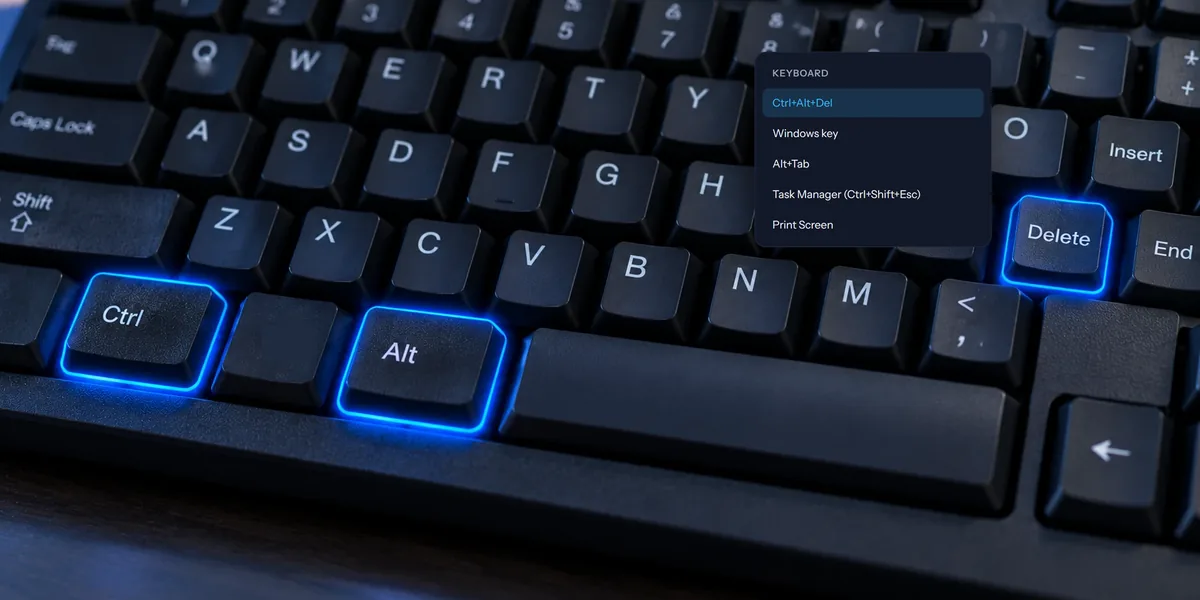
Most shortcuts just work on the remote computer. A few belong to your own computer or browser, and here's how to send those, plus how Ctrl and Command work between a PC and a Mac.
When a phone call isn't handy, type instead. Your messages pop up on the remote computer's screen, and the person there can type back.
Press Ctrl+Alt+Del during a remote session and your own computer answers, not the one you're working on. Here's how to send it where you meant it to go.
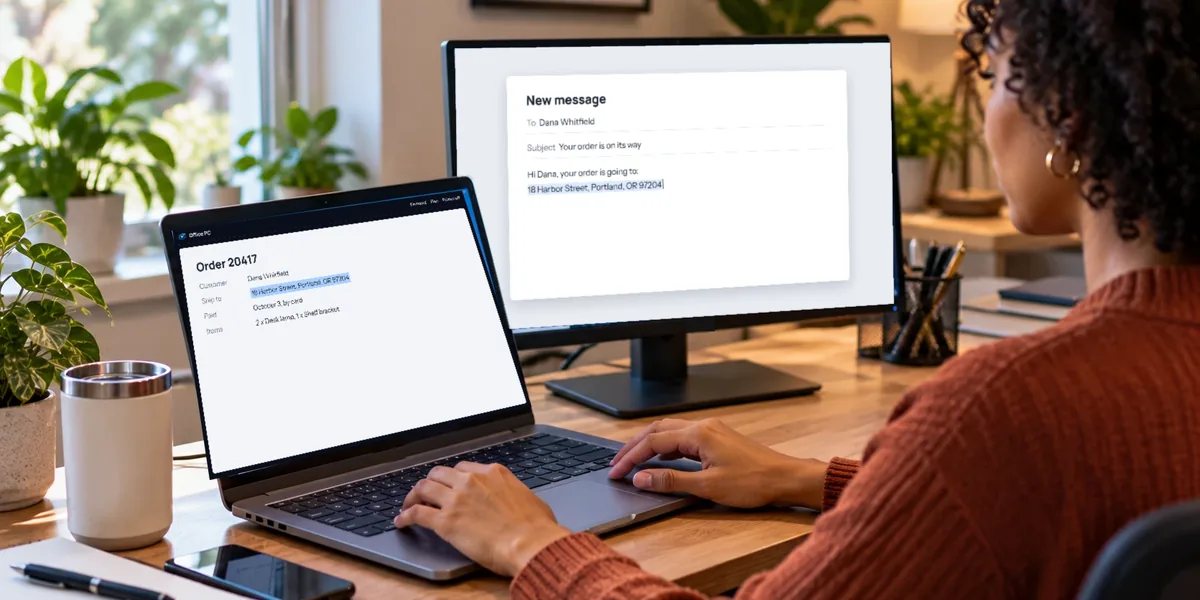
Copy a line on the office PC, paste it into an email on your laptop. Here's how copy and paste works across a remote session, in both directions.
Your work PC has two screens and you're connecting from one. Here's how to switch between its monitors, or see them all at once.
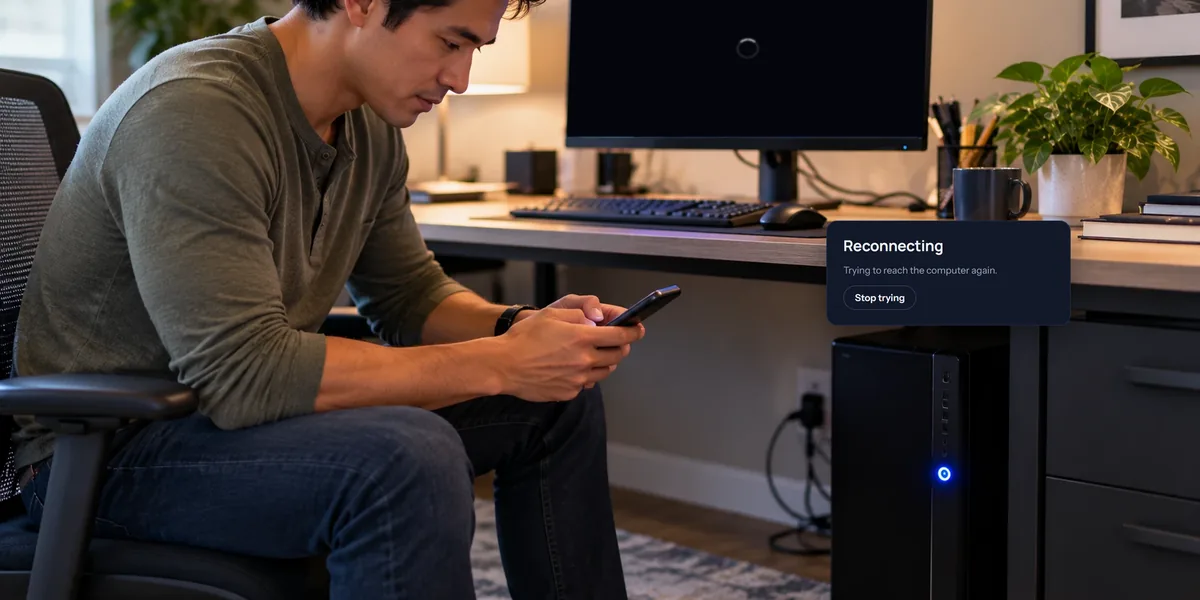
An update wants a restart, or a program has frozen solid. Here's how to restart the computer from where you are, and how to be sure you can get back in afterwards.
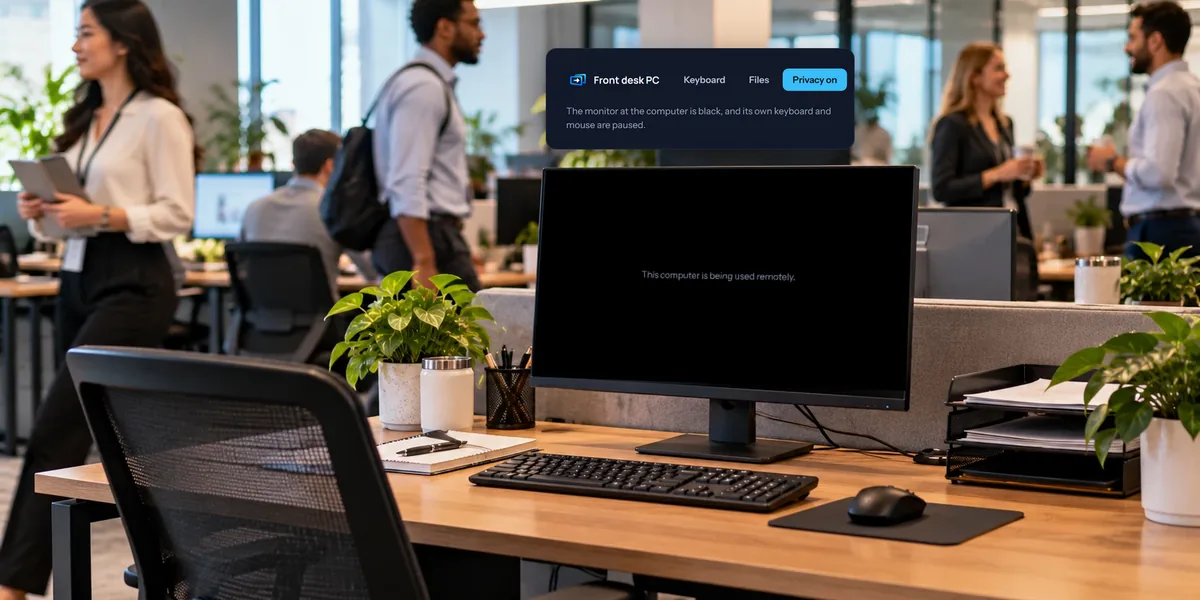
You're working on the office PC from home, and the monitor on its desk shows everything you do. The privacy screen turns that monitor black until you're done.
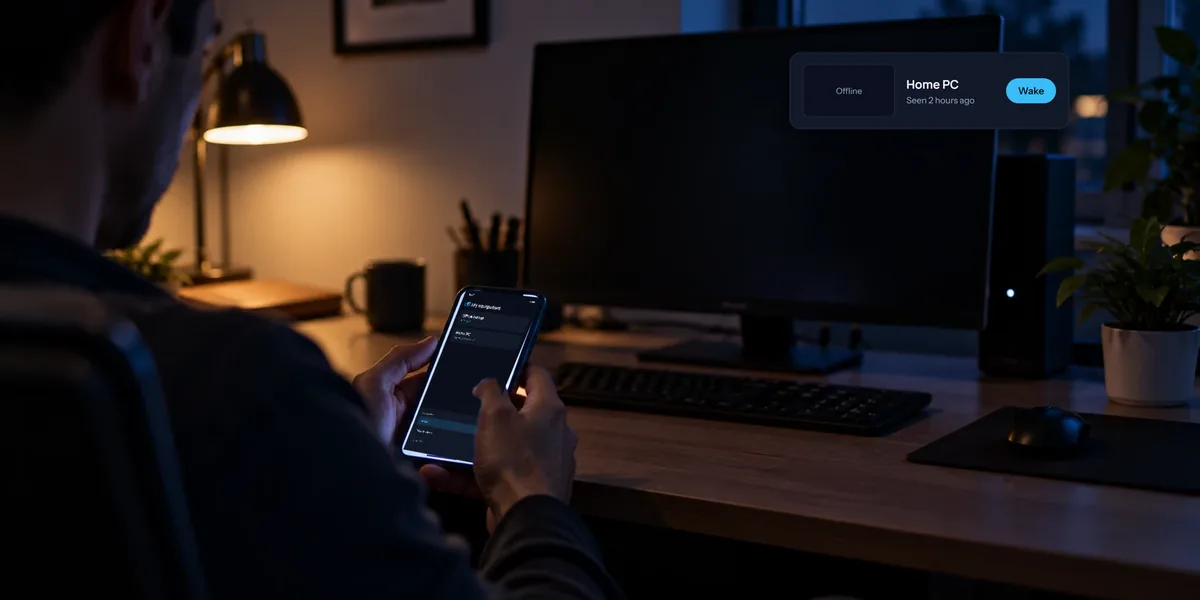
A computer that's asleep can't answer a remote connection. Wake on LAN gets another computer on the same network to nudge it awake. Here's what to set up.
Need a file from the office PC, or one sent to it? You can move it while you're connected, straight between the two computers, with nothing kept in the cloud.
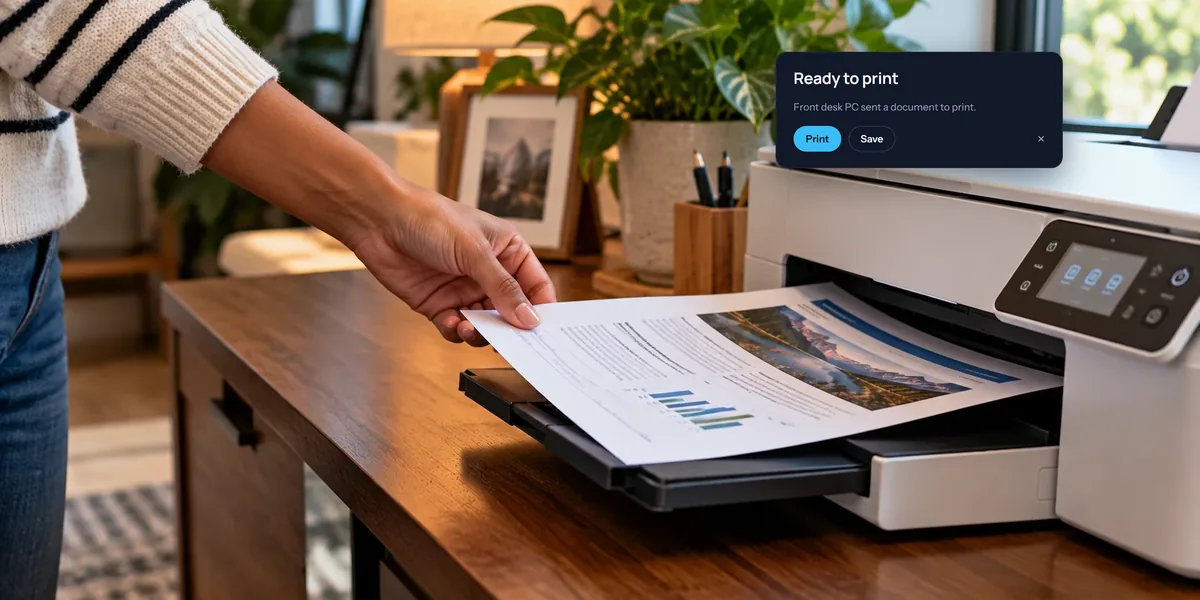
You're connected to the office PC and need a paper copy at home. Print to the View My Desktop printer on the PC, and the document comes to you, ready for your own printer.
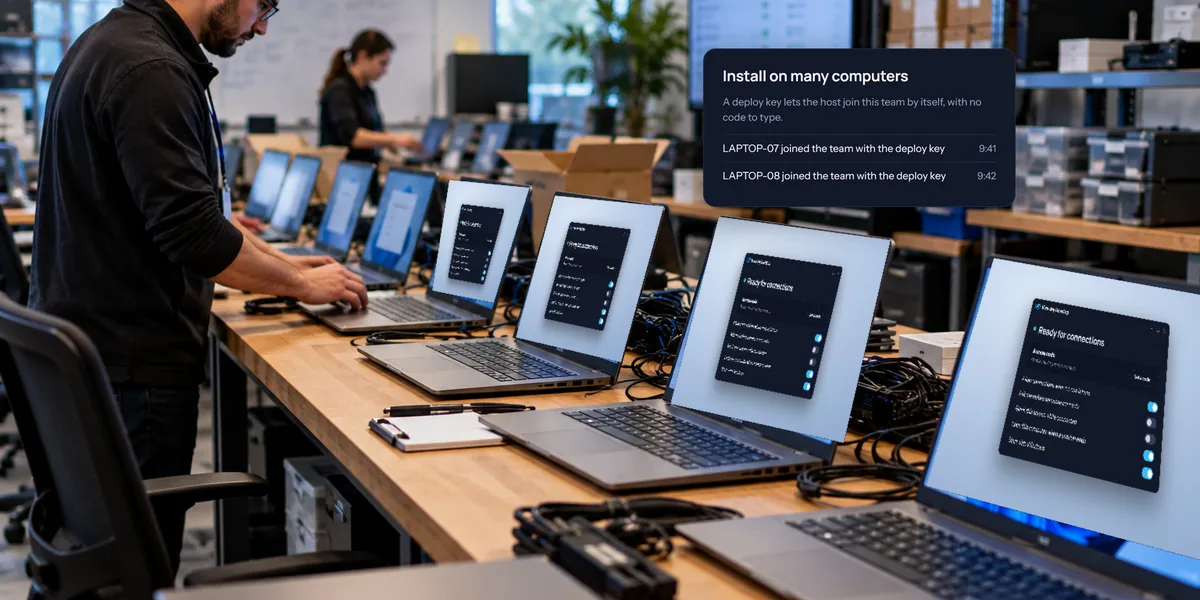
Typing a code on twenty PCs gets old fast. With a deploy key, each Windows PC joins your team by itself as it's installed. Here's how to roll it out.
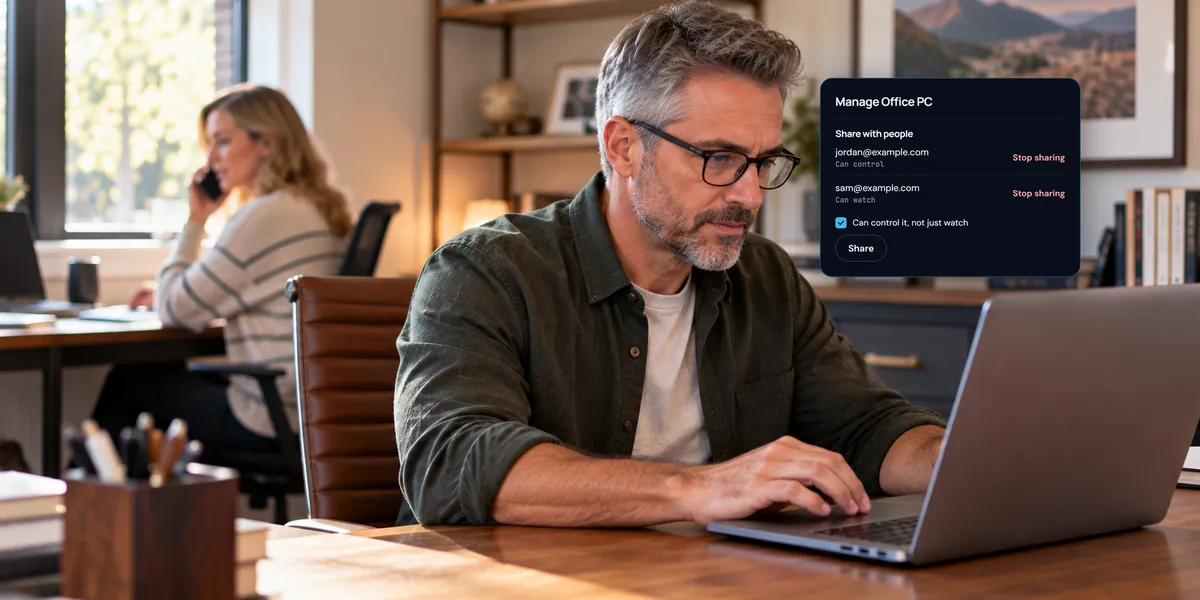
Once more than one person needs the office computers, you want a say in who reaches what. Here's how to set that up for a small business in an afternoon.
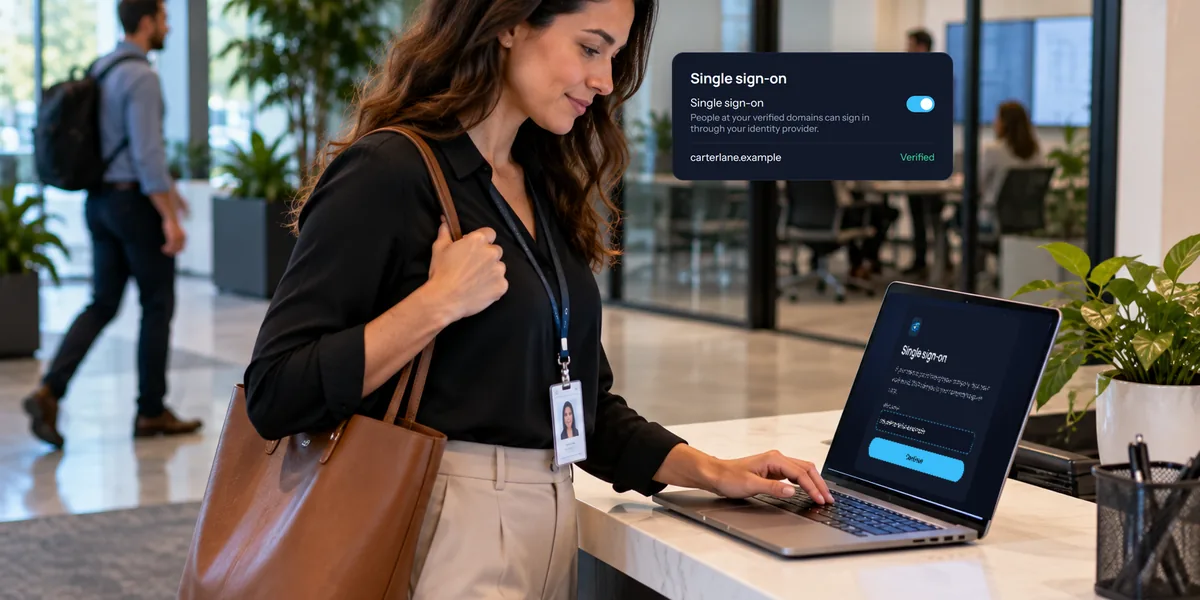
With single sign-on, your team signs in with the work account they already have, and leaving the company ends their access. Here's the setup, start to finish.
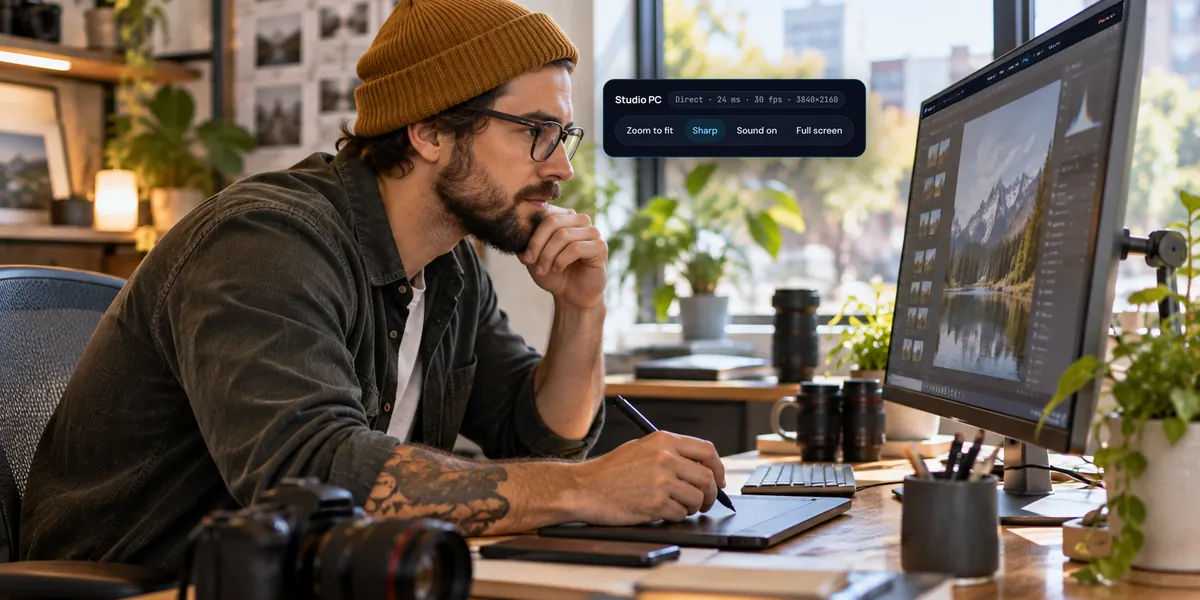
A soft or jumpy picture usually comes down to the connection, not the computer. Here's how View My Desktop picks the picture's size, what Smooth and Sharp do, and what to check when it looks wrong.
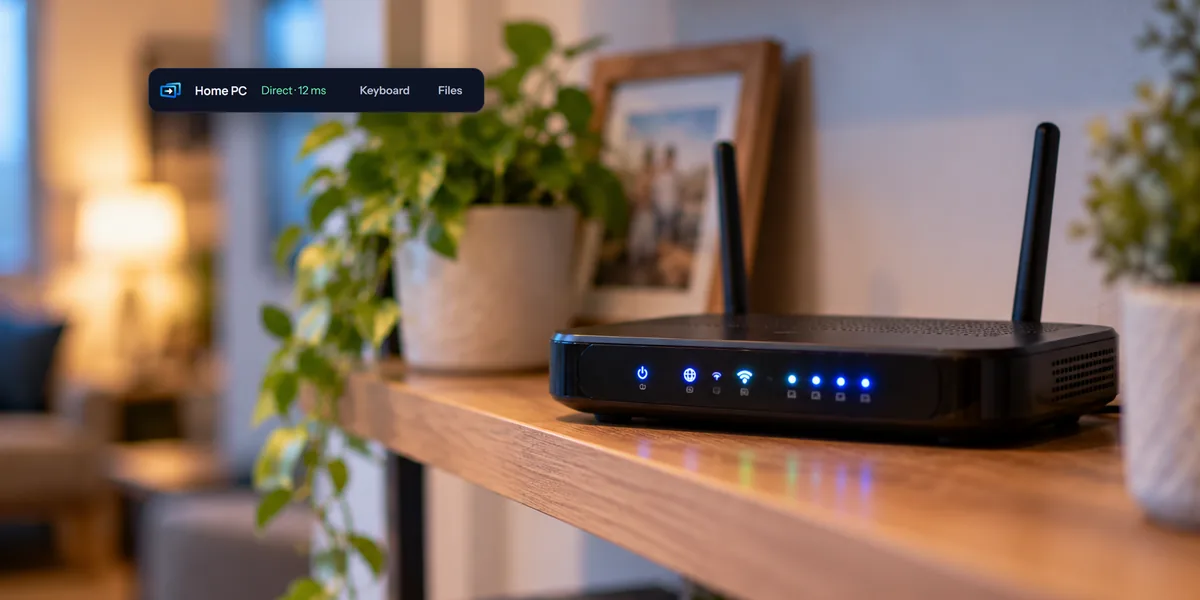
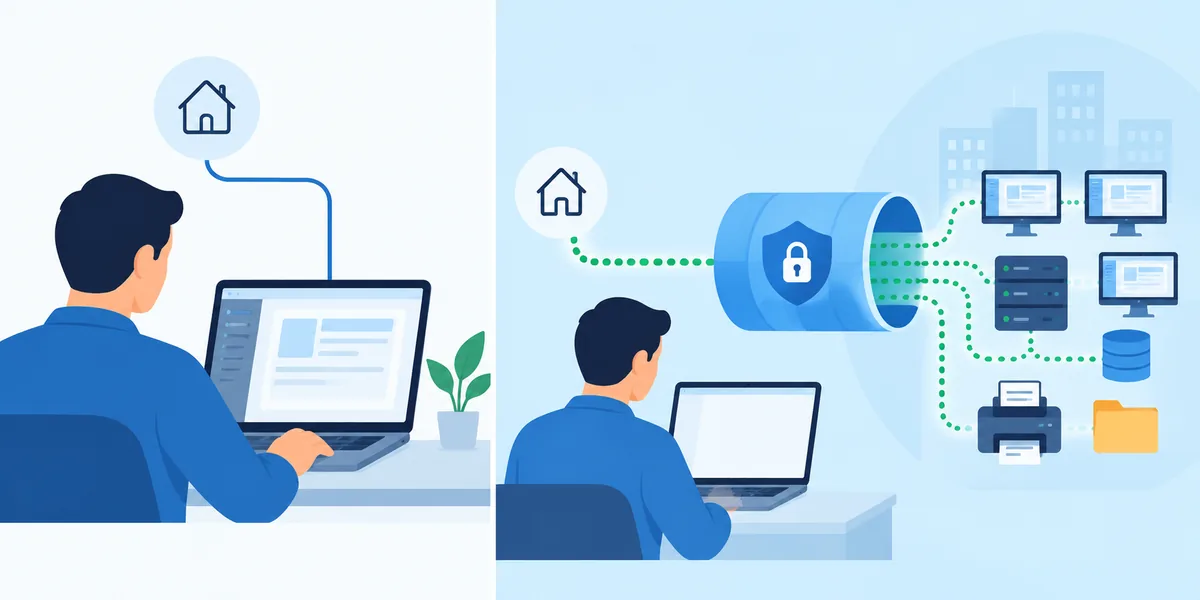
Older remote desktop setups mean forwarding ports, paying for a static IP, and hoping nobody scans your router. Here's how it works without any of that.
They get mixed up all the time, but they do different jobs. Here's the difference in plain terms, and how to tell which one you actually need.
Remote desktop hands someone your screen, keyboard, and mouse, so it's fair to ask. Here's what makes it safe, what makes it risky, and the scam everyone should know about.