Restarting a computer you're sitting at is nothing. Restarting one that's two hundred miles away takes a little more thought, because the session you're using to restart it goes away with it. The question is whether you can get back in once it's up again.
With View My Desktop, the answer is usually yes, and the app tells you before you restart when it's no.
Restart it
From a web browser:
- Choose Restart in the session's toolbar.
- Read the question and confirm.
From the phone or tablet app:
- Tap More.
- Tap Restart followed by the computer's name, and then Restart again to confirm.
Save your work on the computer first. On Windows, programs close without saving. On a Mac it's the same as choosing Restart from the Apple menu, so an app with unsaved work may stop and ask what to do, and nobody's there to answer.
What happens next
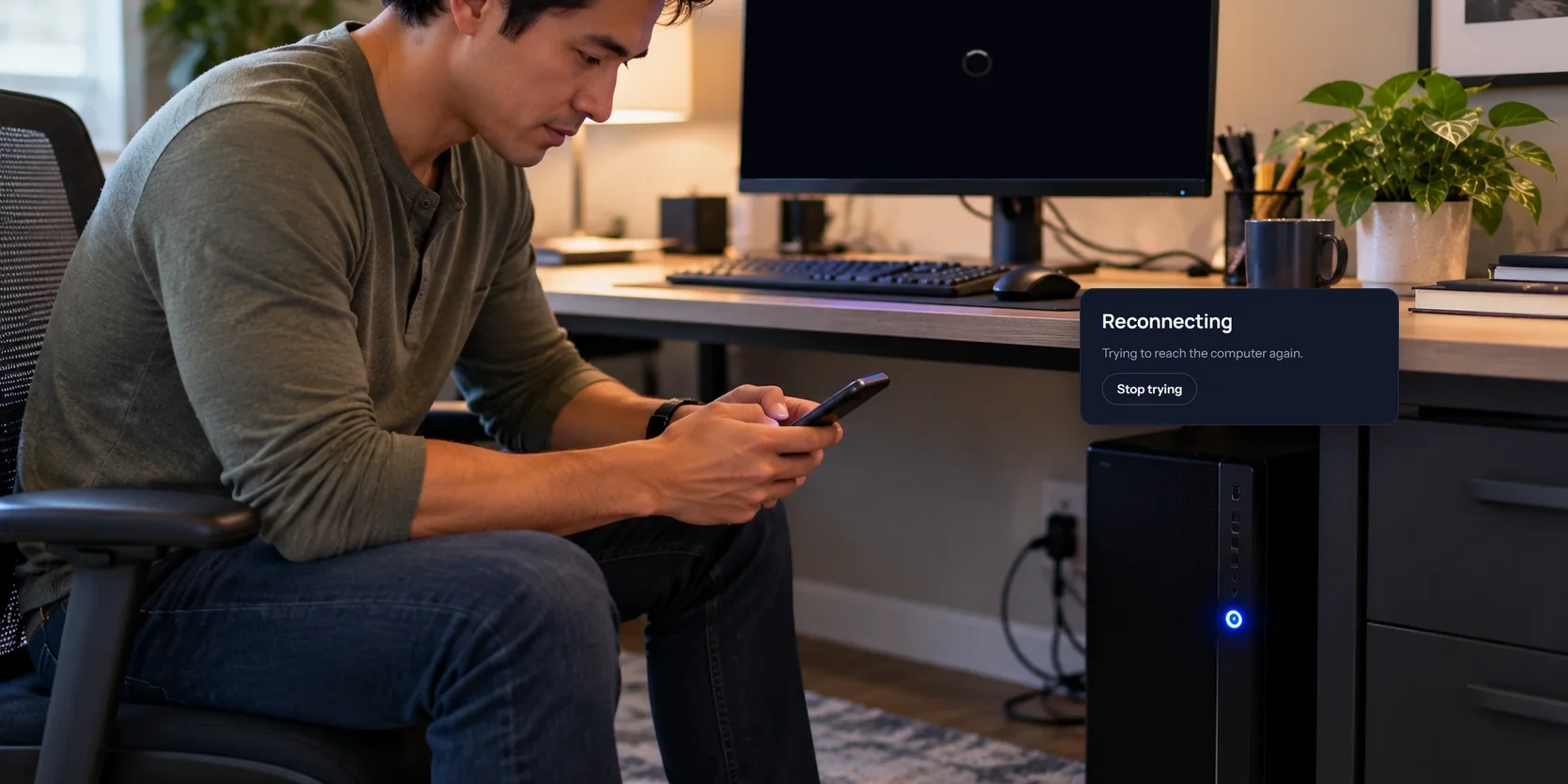
The session tells you the computer is restarting and switches to Reconnecting. It keeps checking for the computer every few seconds for up to ten minutes, and as soon as the computer is back online, you're back in. You don't have to do anything.
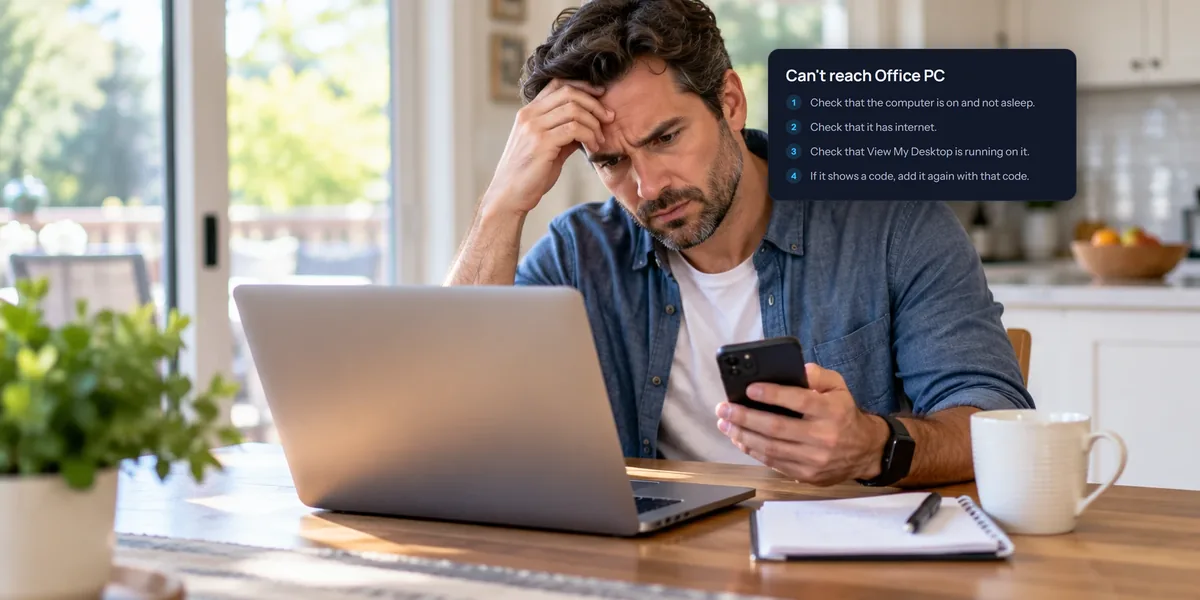
If you'd rather not wait, choose Stop trying. If ten minutes go by first, which can happen when Windows installs a big update, you'll see that the computer didn't come back in time. Connect again from your list a little later.
Windows: make sure it comes back by itself
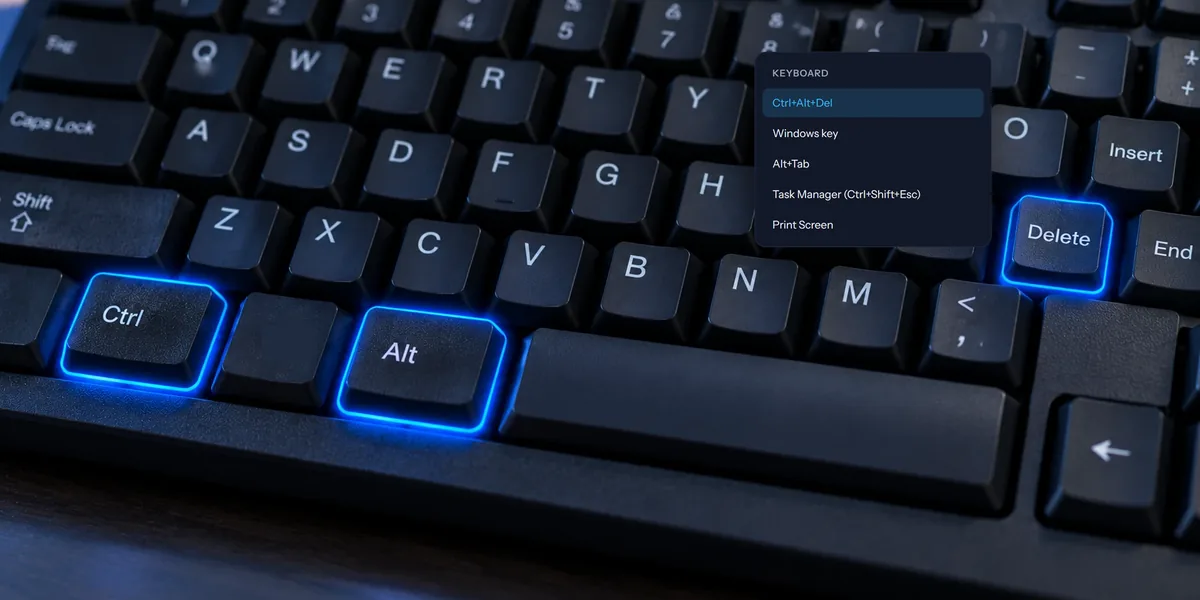
A Windows PC comes back on its own when View My Desktop runs as a service, which is how the installer sets it up. The service starts with Windows, before anyone signs in, so the PC is online again at its sign-in screen. To sign in from there, open Keyboard in the toolbar and choose Ctrl+Alt+Del. Our Ctrl+Alt+Del guide has more on that.
If the host is running without the service, the restart question warns you that the PC will wait at its sign-in screen and you won't be able to reconnect until someone signs in there. Installing the host with the installer fixes that.
Mac: automatic login
The Mac host lives in the menu bar, so it only starts once someone has logged in. After a restart, that happens by itself only if the Mac logs in automatically.
To turn that on, open System Settings on the Mac, go to Users & Groups, and set Automatically log in as to your account. Make sure Start at login is on in the View My Desktop menu too, so the host starts once you're logged in.
There's a catch. macOS only allows automatic login when FileVault, the Mac's disk encryption, is turned off. Whether that trade is worth it is your call. Lots of people keep FileVault on and accept that a restart needs someone at the Mac.
When automatic login is off, View My Desktop warns you before it restarts the Mac, says someone will have to log in there, and tells you how to change it.
The first time you restart a Mac this way, macOS may ask someone at the Mac to let View My Desktop control System Events. That's how it asks the Mac to restart, so the answer needs to be yes.
Who can restart
Anyone who can control the computer. People who can only watch, and guests on a guest link, don't see Restart. On a team, admins can turn restarting off for the team's computers under Rules.
Questions people ask
Can I shut the computer down instead?
No. View My Desktop only restarts, because a computer that's shut down can't be reached again until someone turns it on. If it does end up off or asleep, waking it remotely may help.
Will it restart if someone else is connected too?
Yes. Everyone connected sees that the computer is restarting, and everyone reconnects when it's back.