You open Settings, look for Remote Desktop, and the switch isn't there. Or it's there with a note saying your edition doesn't support it. You didn't miss anything. Windows 11 Home can use Remote Desktop to connect out to another computer, but it can't let anything connect in. Microsoft keeps that half for Windows 11 Pro, Enterprise, and Education.
So if the PC you want to reach runs Home, Remote Desktop is out as it stands. Here are the choices you do have, and what each one asks of you.
Check which edition you have
Open Settings, go to System, then About. Under Windows specifications, the Edition line says Windows 11 Home or Windows 11 Pro. If you'd rather type, press the Windows key and R together, type winver, and press Enter.
Windows 10 Home has the same limit, so everything here applies to it too.
Option 1: Upgrade to Windows 11 Pro
You can buy the upgrade in Settings, under System, Activation, and Upgrade your edition of Windows. Once it's done, Settings, System, Remote Desktop has the switch you were looking for.
That fixes the edition. It doesn't fix the network. Remote Desktop expects both computers to be on the same network, like the same office. To reach your PC from somewhere else, you'd need a VPN into your home network or a port opened on your router. Please don't open the port. An open Remote Desktop port is one of the first things attackers scan the internet for.
Good fit if you work in an office where IT already runs a VPN and manages Pro machines.
Option 2: Quick Assist
Quick Assist comes with every copy of Windows 11, Home included. It's made for helping someone: the person at the PC opens Quick Assist, types in a code you give them, and approves the connection. The person giving help signs in with a Microsoft account.
The catch is in that first step. Someone has to be sitting at the PC to let you in. It's great for sorting out your dad's printer over the phone, and no use for reaching your own computer from work.
Good fit if you're helping someone who is at their computer right now.
Option 3: A remote desktop app
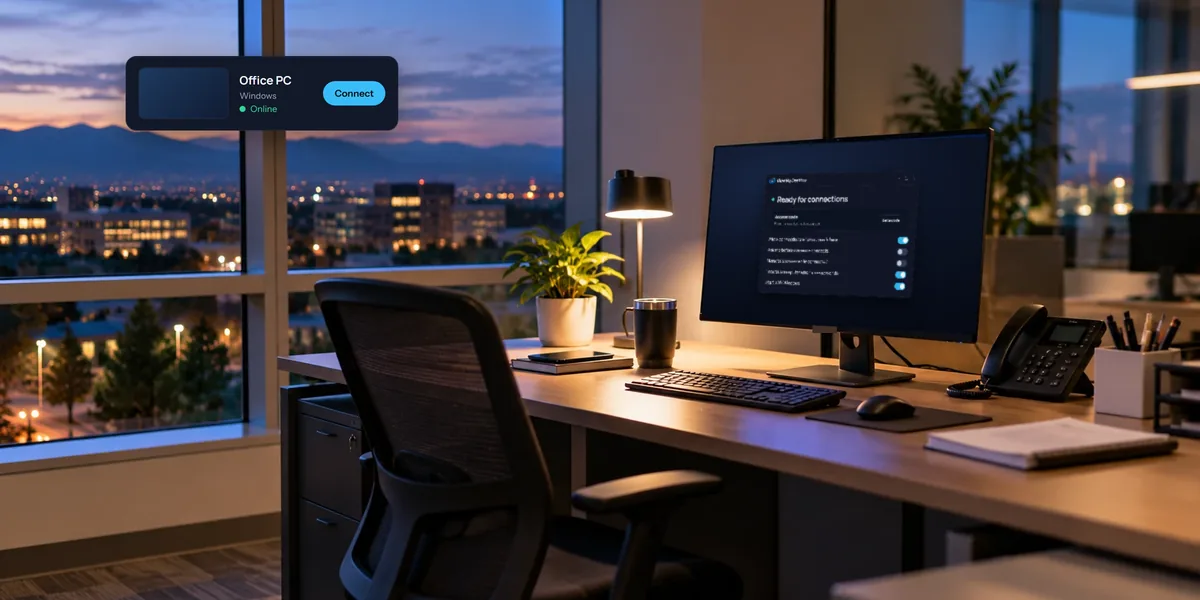
A remote desktop app puts a small program on the PC (ours is called the host) that keeps in touch with the app's service. When you want in, you sign in from another device and connect. Nothing on your router changes, and it works the same on Home and Pro.
There are plenty to choose from, ours included. Whichever you pick, check for these:
- No router changes. If the setup asks you to forward ports, keep looking.
- Encryption the company can't read. Your screen should travel encrypted, and the company shouldn't be able to see it.
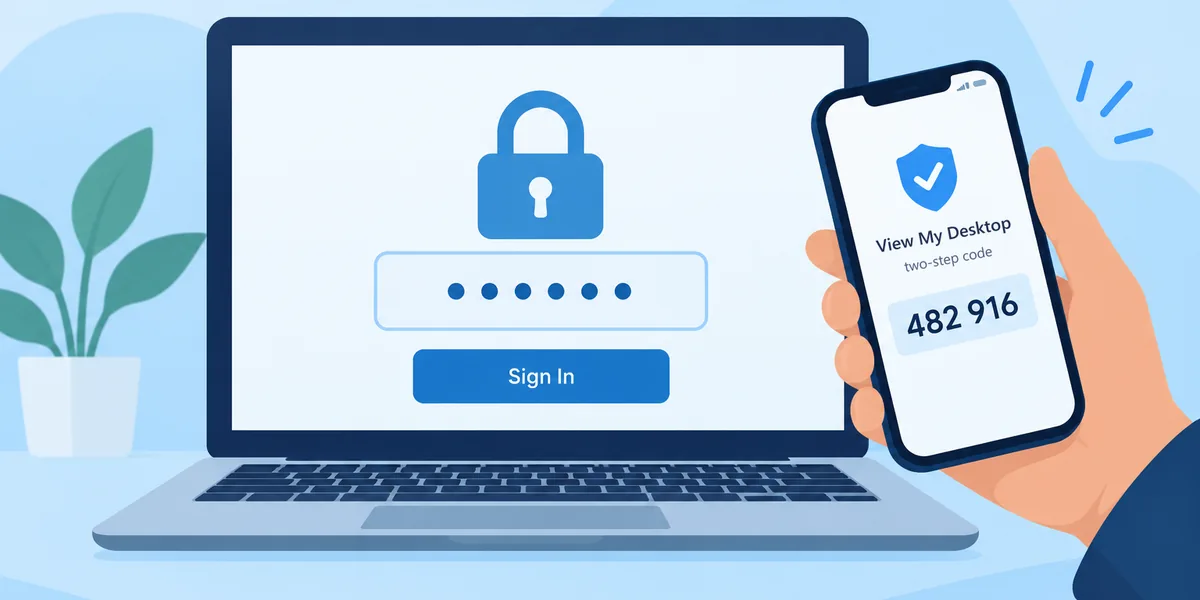
- A code or an approval before anyone connects. Your account password shouldn't be the only thing between a stranger and your desktop.
- The devices you actually have. If you'll connect from a phone, make sure there's a good phone app or that it works well in your phone's browser.
Good fit if you want to reach your own PC whenever you like, from anywhere.
You'll also find tools online that patch Windows files to switch on the Pro version of Remote Desktop. We'd leave them alone. They tend to break when Windows updates, and you'd still have the network problem from option 1.
The three side by side
| Upgrade to Pro | Quick Assist | Remote desktop app | |
|---|---|---|---|
| Works on Windows 11 Home | After a paid upgrade | Yes | Yes |
| Someone has to be at the PC | No | Yes | No |
| Works away from home | Only with a VPN | Yes | Yes |
| What it costs | A one-time upgrade | Free | Usually a subscription |
How to set up View My Desktop on Windows 11 Home
This takes about ten minutes. You'll need the PC and one other device, like your phone or a laptop.
- Make an account. Go to app.viewmydesktop.com, create one, and choose a plan under Plan and billing. Every plan is free for 14 days. Cancel before it ends and you pay nothing.
- Install the host on the PC. On the Windows 11 Home PC, sign in at app.viewmydesktop.com, get the Windows host from Download apps, open the zip, and run the installer inside it.
- Set an access code. The host asks you for one straight away. Pick at least six characters you'll remember. Anyone who connects has to type it, and it never leaves the PC. We can't see it either.
- Add the PC to your account. The host shows a short code. On your other device, sign in, choose Add a computer, and type that code. It works for 15 minutes.
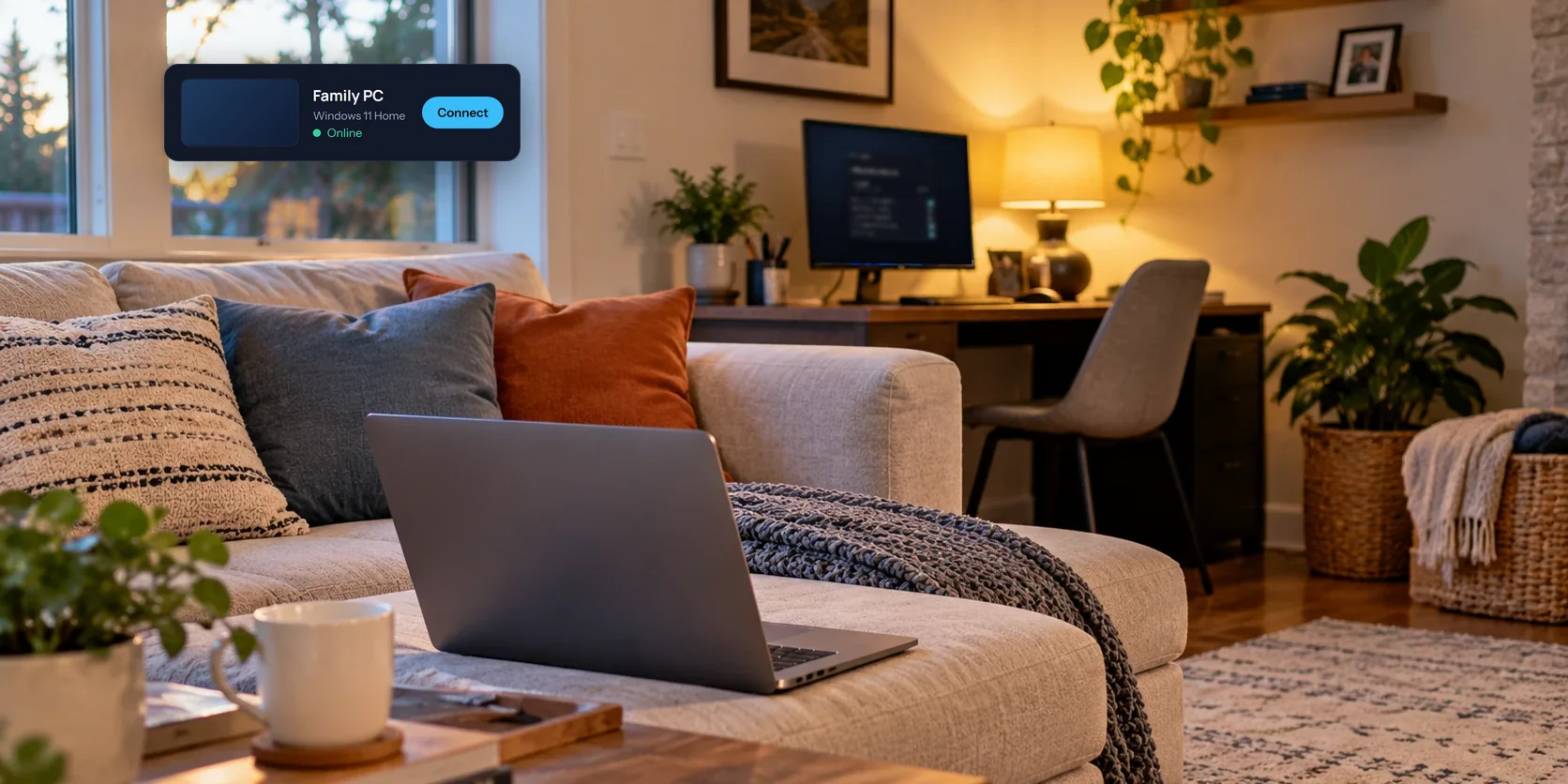
- Connect. On your other device, find the PC under My computers, choose Connect, and type the access code.
That's the whole setup. While you're in the host window, a few of its switches are worth a look:
- When someone connects can put a question on the PC's screen before anyone gets in. Handy on a shared family computer.
- Blank this screen while connected turns the PC's own monitor black while you work, so nobody in the room sees what you're doing.
- Lock this computer when a session ends locks Windows when you disconnect, so the next person at the desk doesn't find you signed in.
Keep the PC ready for when you're away
A remote desktop app can only reach a PC that's on and awake.
- Stop it from sleeping. In Settings, under System, open Power & battery (just Power on some desktops) and set the PC never to sleep while it's plugged in. The screen can still turn off. That's fine.
- Or wake it when you need it. If another of your computers on the same network stays on, View My Desktop can ask it to wake this one. That's called Wake on LAN. It usually needs a wired connection and a setting in the PC's BIOS, so try it once before you count on it.
Questions people ask
Does this work on Windows 10 Home?
Yes. The host runs on Windows 10 and Windows 11, Home or Pro.
Can I reach my Windows 11 Home PC from a Mac?
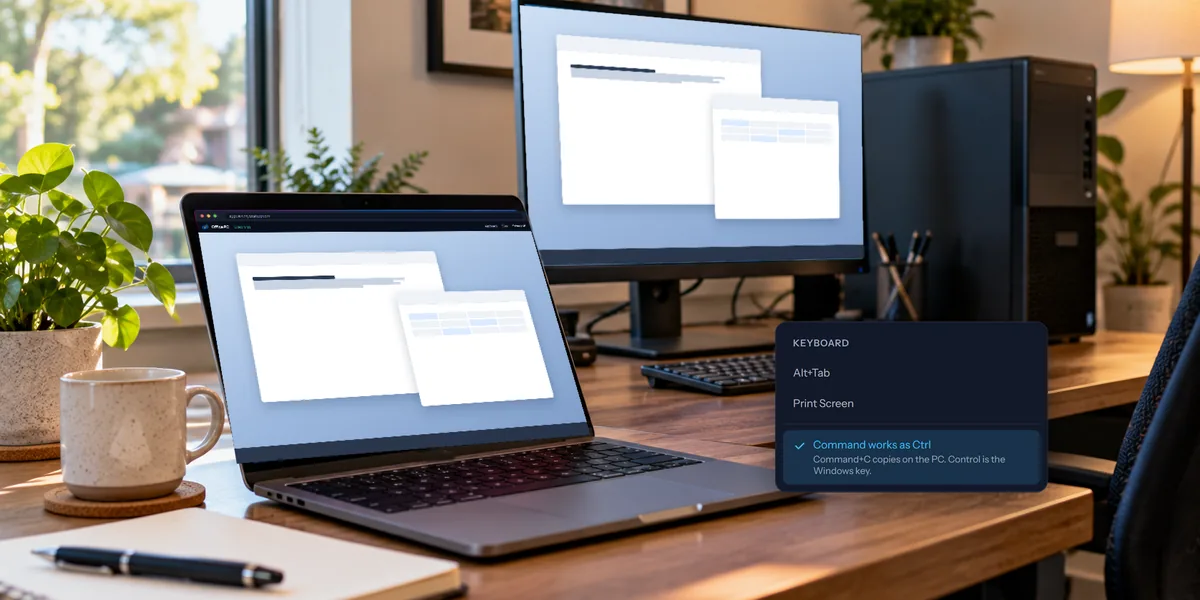
Yes. Open View My Desktop in Safari or any other browser on the Mac, and connect. There's nothing to install on the computer you're connecting from.
Is it safe to leave a PC open to remote connections?
Set up well, it's a lot safer than an open Remote Desktop port. Sessions are encrypted, nobody connects without the access code, and you can require a yes from someone at the PC. Our security page has the details.
What does it cost?
After the free trial, plans start at $5.75 a month, paid yearly. The pricing page has the rest.