Chromebooks are great until you need the one program that only runs on Windows. The tax software, the old accounting package, the printer utility that never got a web version. You can't install those on a Chromebook, but you can reach the PC they live on and use them from there.
Your options
Chrome Remote Desktop is Google's free tool. It works through Chrome on both computers and a Google account, and it's a reasonable choice for occasional use.
View My Desktop also runs right in Chrome on the Chromebook, with nothing to install there. It adds an access code on every computer, approvals from the person at the computer, file transfers, printing to the printer where you are, and controls for teams. It's a paid service after a free trial.
The rest of this guide sets up View My Desktop.
Set up the PC
- Make an account at app.viewmydesktop.com and choose a plan under Plan and billing. Every plan is free for 14 days. Cancel before it ends and you pay nothing.
- On the Windows PC, sign in at app.viewmydesktop.com, get the Windows host from Download apps, open the zip, and run the installer inside it. A Mac works too, with the Mac host.
- Set an access code when the host asks, at least six characters.
- The host shows a short code. On the Chromebook, open Chrome, sign in, choose Add a computer, and type the code.
Connect from the Chromebook
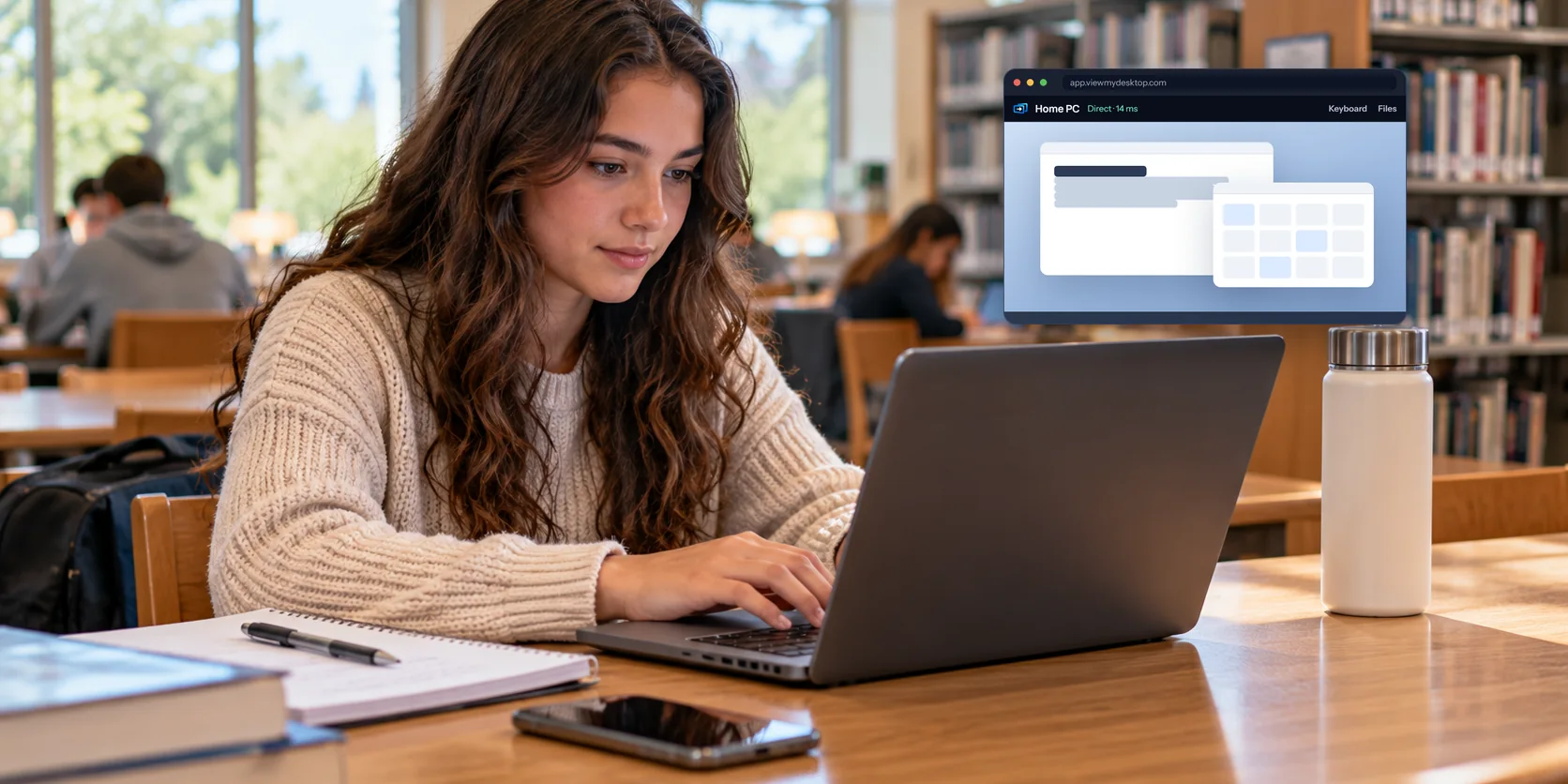
In Chrome, go to app.viewmydesktop.com and sign in. Find the PC under My computers, choose Connect, and type the access code. The PC's screen opens in the tab. Choose Full screen to give it the whole display.
The keyboard
A Chromebook keyboard is close enough to a PC's that most shortcuts just work. Ctrl+C, Ctrl+V, and Ctrl+Z do what they do on Windows.
A few keys are different:
- The Windows key. ChromeOS keeps its launcher key for itself, so use Windows key in the session's Keyboard menu.
- Ctrl+Alt+Del for the Windows sign-in screen is in the same menu.
- Alt+Tab switches windows on the Chromebook, not the PC. The Keyboard menu has an Alt+Tab that goes to the PC.
If the computer you connect to is a Mac, Ctrl works as Command, so Ctrl+C still copies.
Things to know
- The PC has to be on and awake. In Windows Settings, under System, set it never to sleep while plugged in. Or wake it remotely from another PC on the same network.
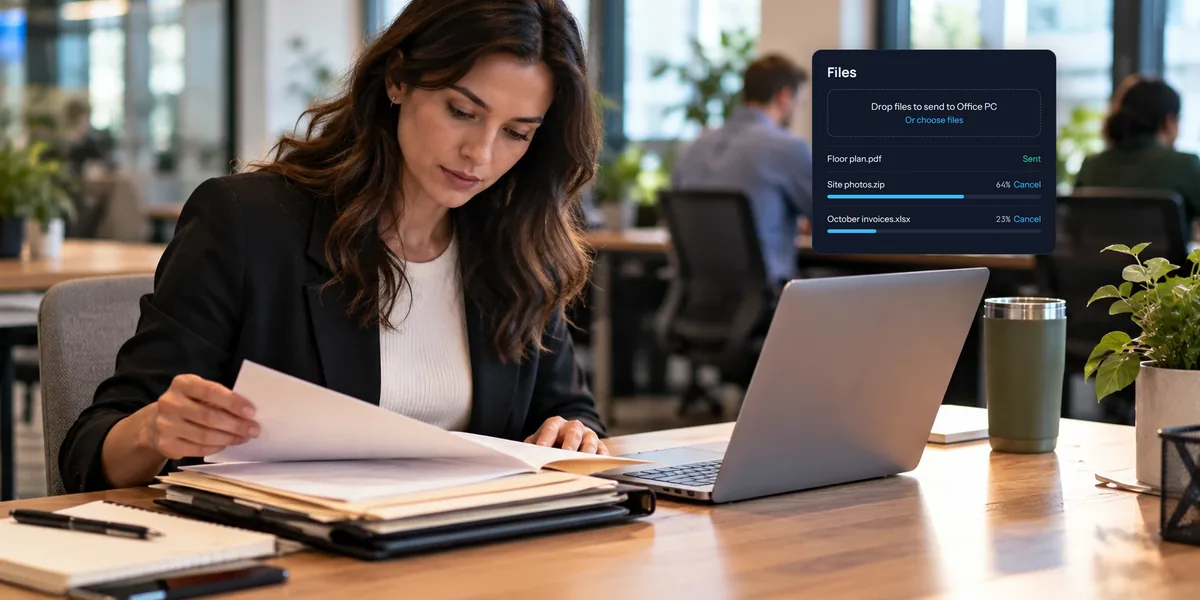
- Files come along. The Files button sends files from the Chromebook to the PC and brings them back to your Downloads. See moving files between computers.
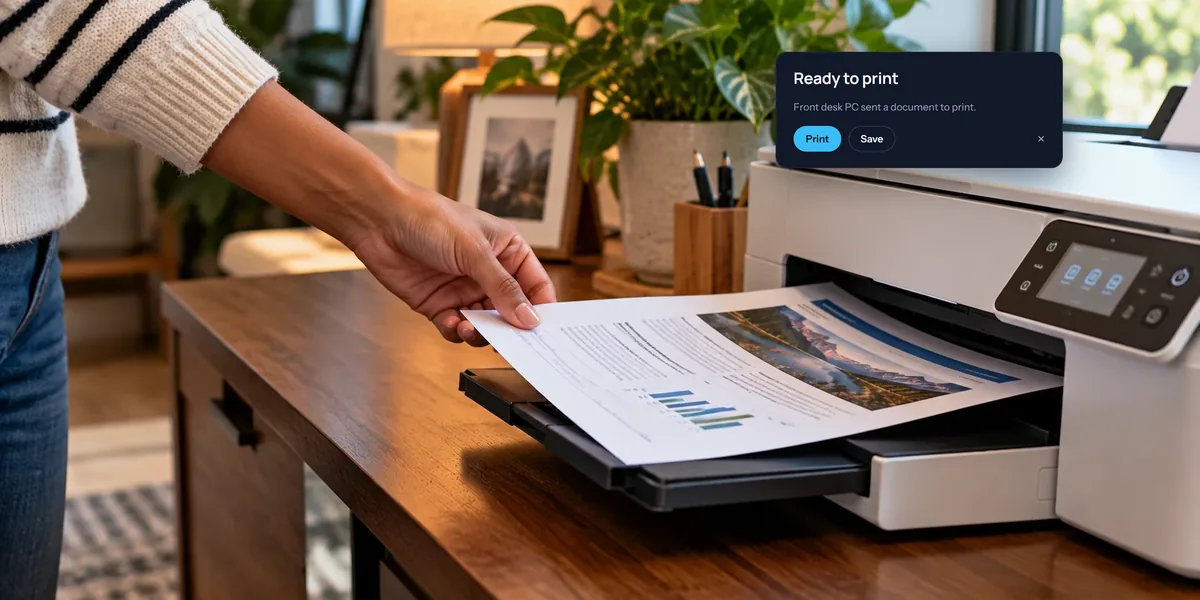
- Printing works too. Print on the PC and the document comes to the Chromebook's printer. See printing from a remote PC.
- School and work Chromebooks are sometimes managed, and the admin may limit which sites you can open. If app.viewmydesktop.com won't load, that's the likely reason.
Questions people ask
Can I install the host on the Chromebook and reach it from elsewhere?
No. The host runs on Windows and Mac. A Chromebook can connect to them but can't be connected to.
Does it work on Windows 11 Home?
Yes. Unlike Microsoft's own Remote Desktop, it works on every edition. Our Windows 11 Home guide explains the difference.