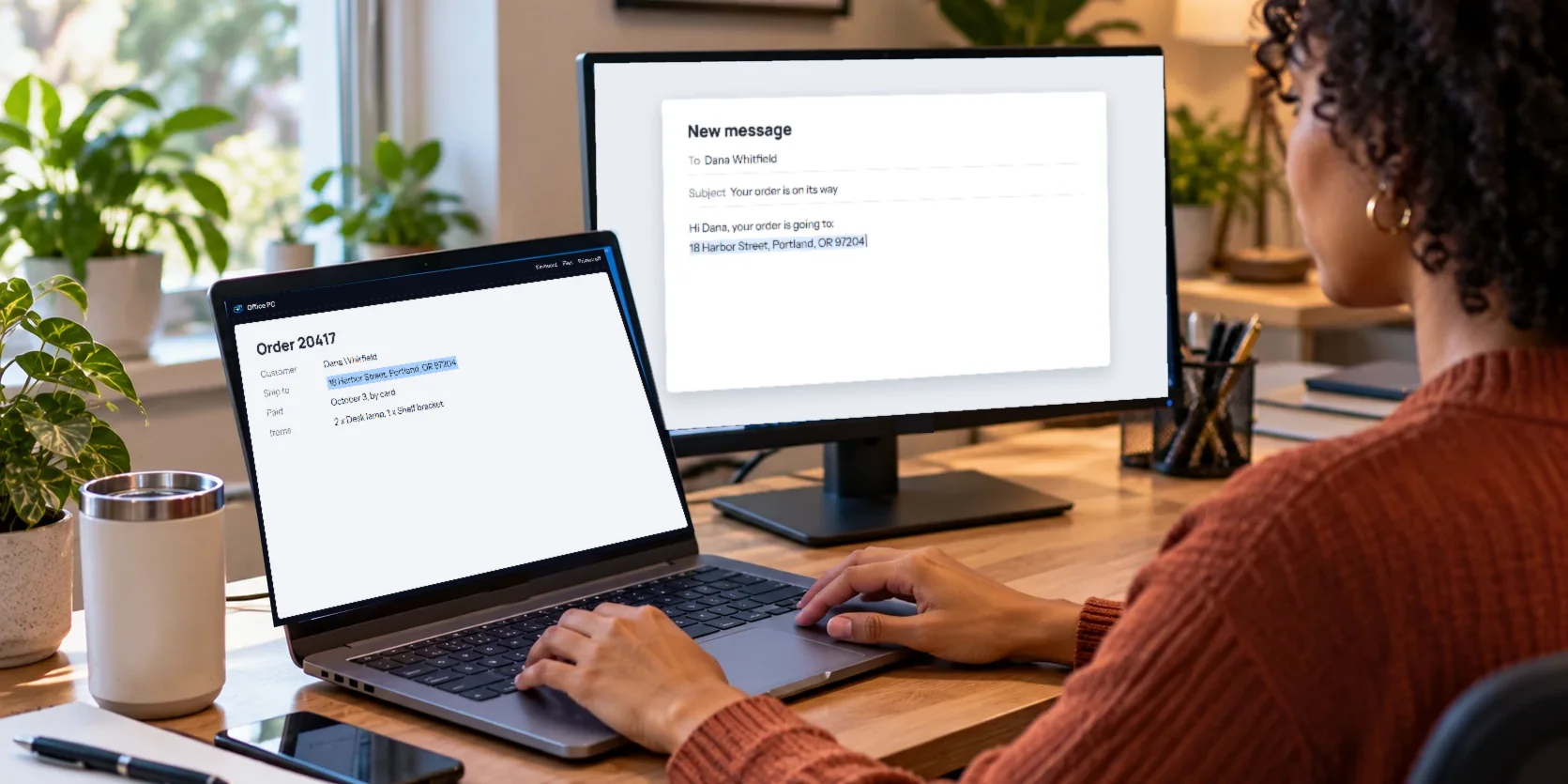
Once you're connected to another computer, the next thing you usually want is to move a bit of text between the two. An order number, an address, a paragraph from a document. You shouldn't have to retype it, and with View My Desktop you don't. Your clipboard works in both directions while you're connected.
From the remote computer to yours
Copy the text on the remote computer the usual way, with Ctrl+C on a PC or Command+C on a Mac. It comes over to your side on its own.
- In a web browser, the text lands on your clipboard the next time you click or press a key in the session. Browsers only let a page put something on your clipboard after you've done something in it, so that one click is the browser's rule, not ours. Then paste it wherever you like.
- In the phone or tablet app, it goes straight onto your phone's clipboard. Switch to another app and paste.
From your computer to the remote one
- In a web browser, click in the session and press Ctrl+V, or Command+V on a Mac. The text on your clipboard goes over first, then the paste happens on the remote computer, so it lands right where the cursor is.
- In the phone or tablet app, copy the text on your phone, then tap More and Paste from this phone. If your phone's clipboard is empty, the app tells you so.
Between a Mac and a PC
A Mac copies with Command+C and a PC with Ctrl+C, which gets confusing when one is controlling the other. So by default, View My Desktop swaps the keys for you:
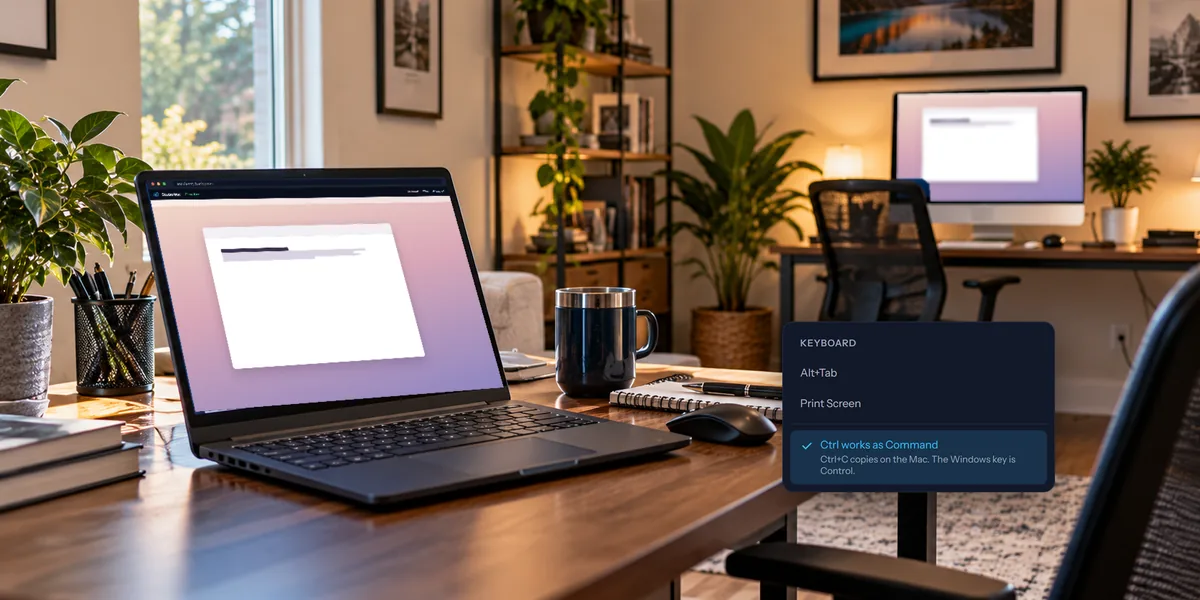
- From a PC to a Mac, Ctrl works as Command. Ctrl+C copies on the Mac, and Ctrl+V pastes.
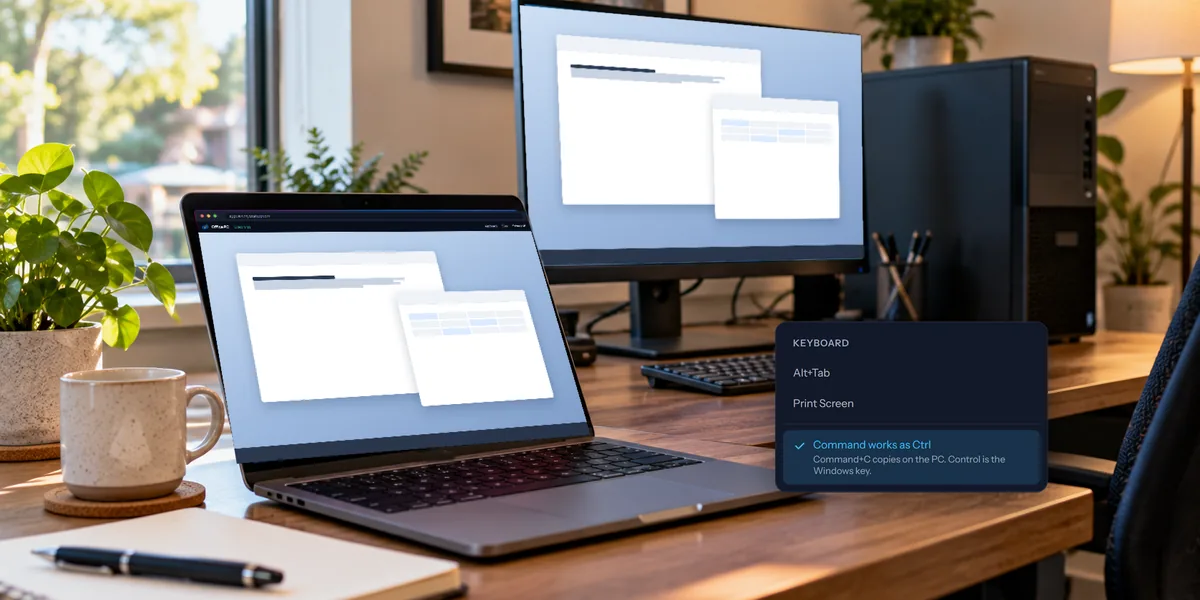
- From a Mac to a PC, Command works as Ctrl. Command+C copies on the PC, as you'd expect.
You can turn it off in the session's Keyboard menu, with Ctrl works as Command or Command works as Ctrl. Your browser remembers the choice. The phone and tablet app swaps the keys the same way for a keyboard attached to a tablet, but doesn't have the switch yet.
What it can carry
Text only. Pictures and files don't travel on the clipboard, so use Files for those, which moves them straight between the two computers. Our guide to moving files between your computers shows how.
There's a limit of a million characters, which is about 500 pages of plain text. Anything longer doesn't go over.
Like everything else in the session, copied text goes directly between your two devices, encrypted. It doesn't pass through our servers.
If it isn't working
- Nothing arrives in your browser. Click once inside the session, then paste again. That click is what lets the browser hand you the text.
- You can only watch. People who were given a computer to watch, and guests on a guest link, can't copy or paste. Ask the owner for control.
- Your team turned it off. A team's admins can switch off Copy and paste for the team's computers under Rules.
- It pastes the wrong thing on a Mac. Check the Keyboard menu. If the swap is off, Ctrl+V reaches the Mac as Control+V, which most Mac apps ignore.
Questions people ask
Does it keep a history of what I copied?
No. Only the latest copy goes over, and nothing is saved on our side.
Can I copy a file with Ctrl+C and paste it on the other computer?
Not through the clipboard. Use Files instead. It's the same idea, a couple of clicks rather than a shortcut.