Once you click into the remote screen, your keyboard belongs to the remote computer. Ctrl+C, Ctrl+Z, F5, the arrow keys, and Tab all go there, just as if you were sitting at it. A few shortcuts are different, because your own computer or browser catches them first.
The shortcuts that just work
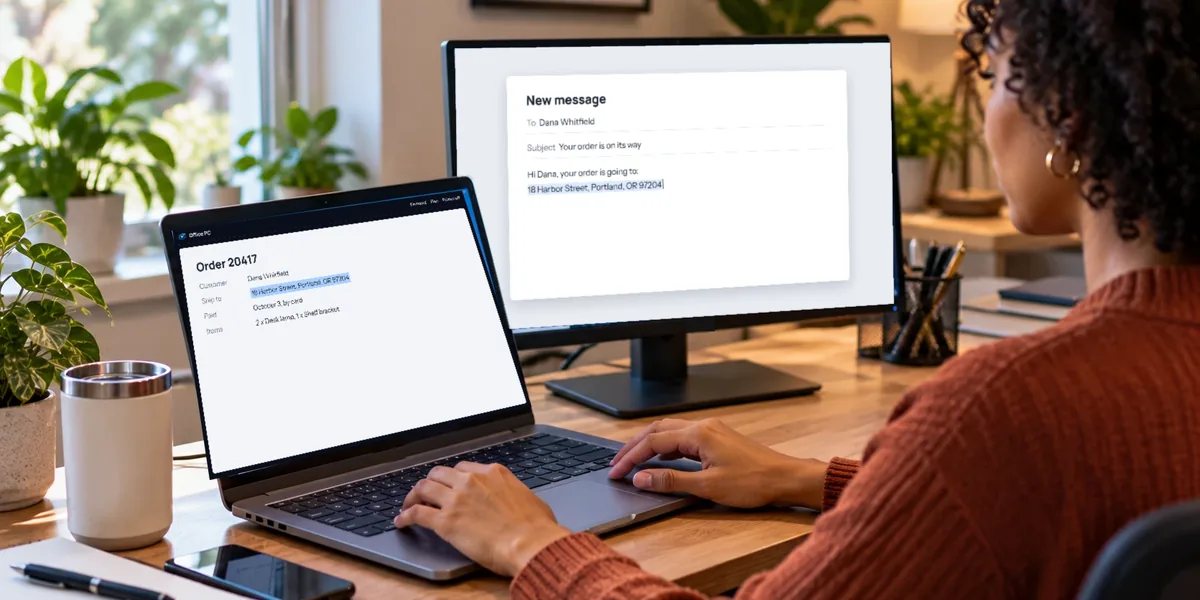
Everything you type on the remote screen goes to the remote computer, including Tab, Escape, and the function keys. Copying and pasting with Ctrl+C and Ctrl+V works between the two computers too, which our guide to copying and pasting explains.
The ones your own computer keeps
Some shortcuts never reach a web page, so they can't reach the remote computer that way either:
- The Windows key, which opens your own Start menu
- Alt+Tab, which switches apps on your own computer
- Ctrl+Shift+Esc, which opens your own Task Manager
- Print Screen, which takes a screenshot of your own screen
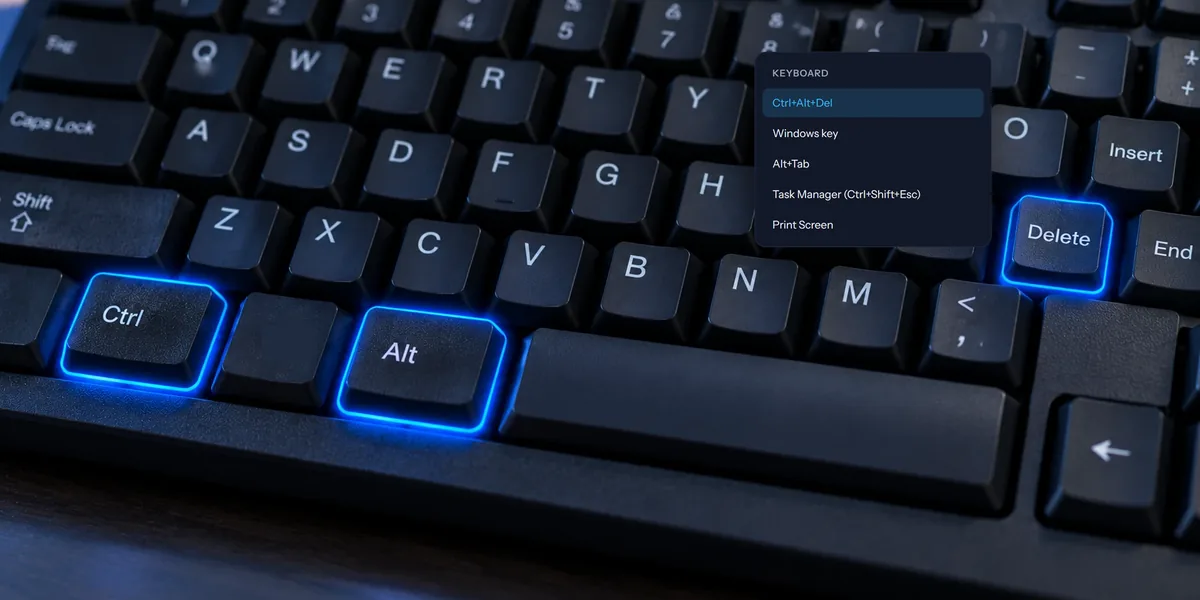
- Ctrl+Alt+Del, which no browser can catch at all
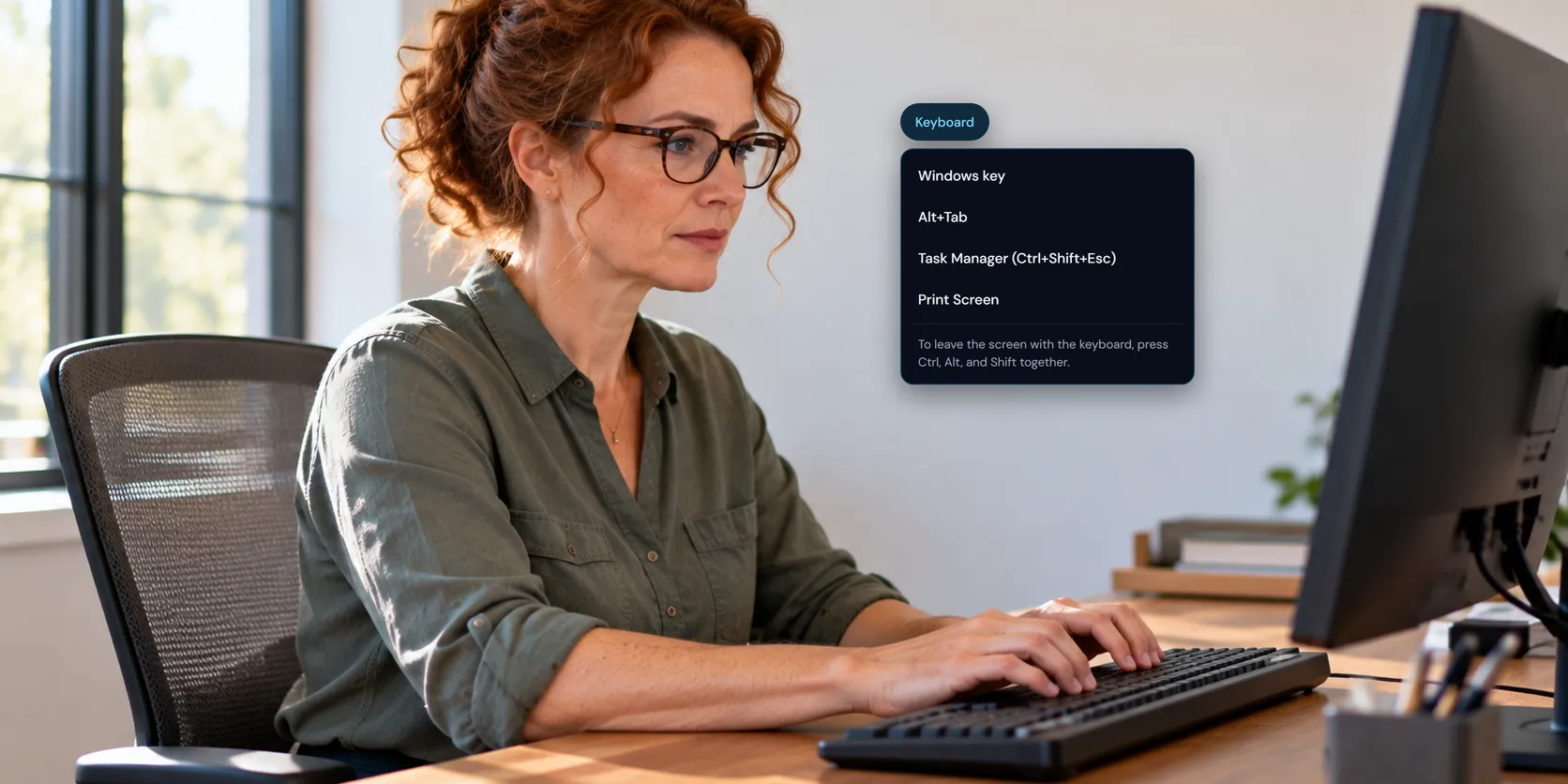
The Keyboard menu on the session toolbar sends each of these to the remote computer instead: Windows key, Alt+Tab, Task Manager (Ctrl+Shift+Esc), and Print Screen. Ctrl+Alt+Del shows there when the remote PC can take it, and our guide to sending Ctrl+Alt+Del explains when that is.
Use full screen for more of them
In Chrome or Edge, choose Full screen on the toolbar. The browser then passes the Windows key and Alt+Tab straight to the remote computer, so you can press them as you normally would. Ctrl+Alt+Del still has to come from the menu.
Get your keyboard back
Since every key goes to the remote computer, Tab won't move you back to the toolbar. Press Ctrl, Alt, and Shift together, then let go. On a Mac keyboard that's Control, Option, and Shift. Your keyboard moves to the toolbar's Keyboard menu, and the remote computer ignores those three keys pressed on their own.
Clicking anywhere outside the remote screen works too.
Between a PC and a Mac
PCs copy with Ctrl+C and Macs with Command+C. So that you can keep using the shortcuts your hands know, View My Desktop swaps the keys for you:
- From a PC to a Mac, your Ctrl key works as Command, so Ctrl+C copies on the Mac. Your Windows key works as the Mac's Control key.
- From a Mac to a PC, your Command key works as Ctrl, so Command+C copies on the PC. Your Control key works as the Windows key.
If you'd rather have the keys as they're printed, open the Keyboard menu and turn off Ctrl works as Command, or Command works as Ctrl from a Mac. Your choice is remembered in that browser for every computer. Our guides to controlling a Mac from a PC and a PC from a Mac cover the rest.
Screen reader keys
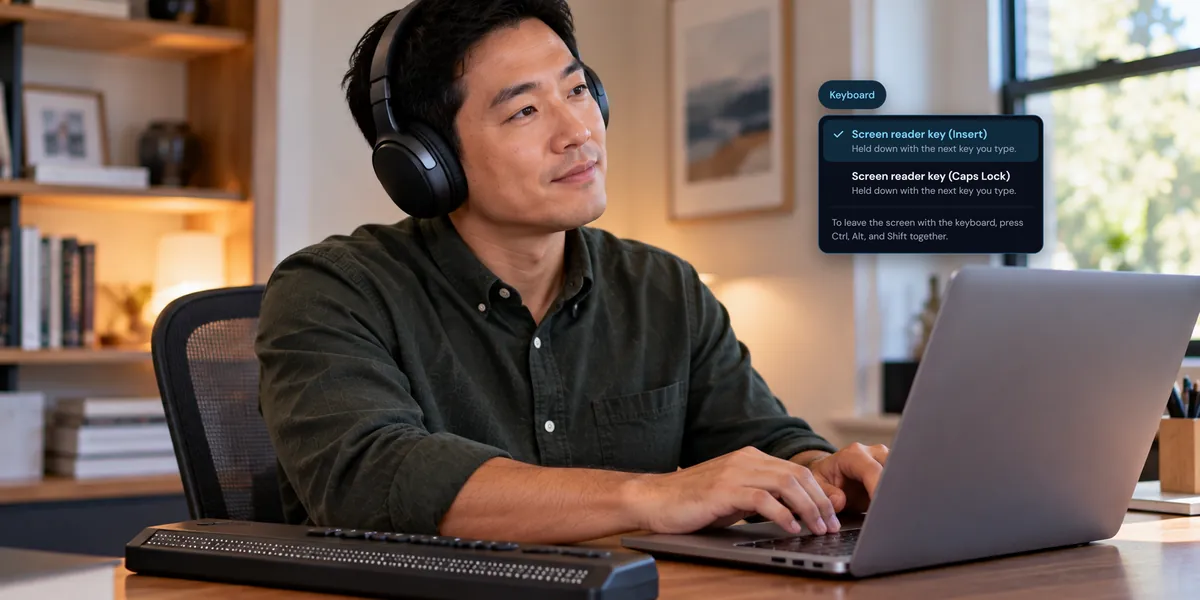
If you use NVDA, JAWS, Narrator, or VoiceOver on the remote computer, the Keyboard menu also sends their Insert and Caps Lock keys. Our guide to using a screen reader with remote desktop explains how.
Questions people ask
Why isn't Ctrl+Alt+Del in the menu?
It only shows for a Windows PC that can take it, which depends on how View My Desktop was installed there. Our guide to sending Ctrl+Alt+Del explains it, and what to use instead.
What happens to a key I'm holding when I switch away?
It's let go on the remote computer straight away, so nothing stays pressed there while you're in another window.
Does the Keyboard menu show when I'm only watching?
No. It's only there when you can control the computer.