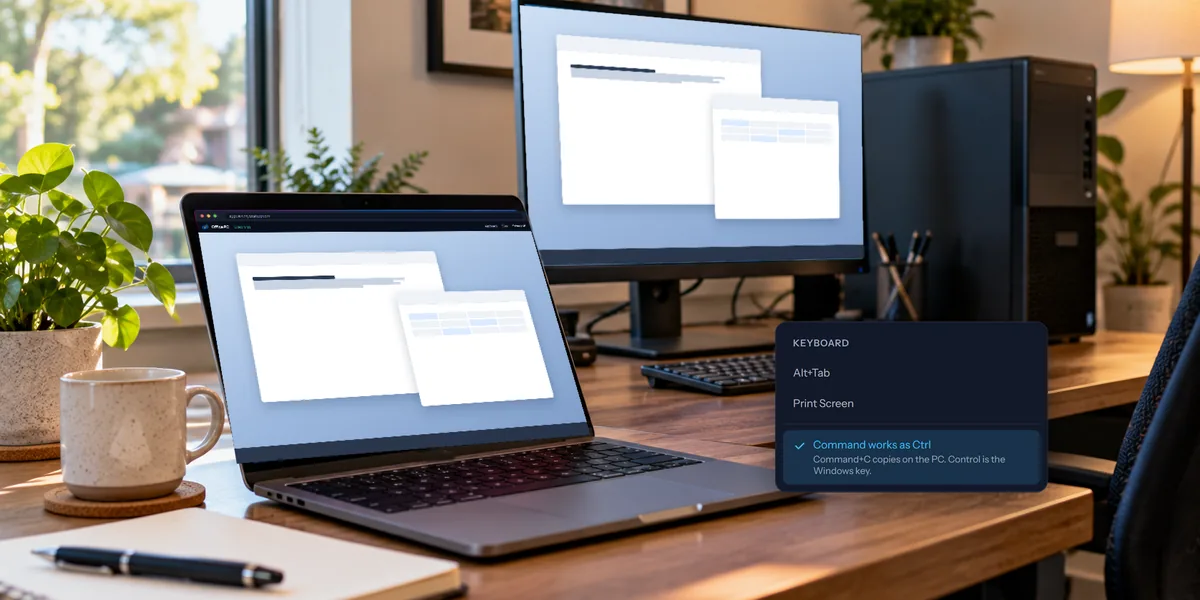
Plenty of desks have two monitors now, sometimes three. That's great at the desk and a puzzle from somewhere else, where you've got one laptop screen, or a phone. View My Desktop handles it in a simple way: you look at one of the computer's monitors at a time, and on a Windows PC you can also see all of them together.
Switch between monitors
When the computer has more than one monitor, a monitor button appears in the session's toolbar. It says which one you're looking at, such as Monitor 1 of 2.
- Click it to move to the next monitor.
- Keep clicking to go through them in turn.
- After the last one, it goes back to the first.
In the phone and tablet app, the same button sits in the toolbar at the bottom and shows something like 1/2. Tap it to move to the next monitor.
The button only appears when there's more than one monitor, so if you don't see it, the computer has just the one.
See all the monitors at once
On a Windows PC, the button has one more stop after the last monitor: All monitors. That puts every monitor in a single picture, laid out the way they sit on the desk, so you can drag a window from one to the other just as you would there. If the monitors are different sizes, the empty space around the smaller one shows as black.
Two monitors side by side make a wide picture, so it helps to have room for it:
- Make the session full screen with Full screen in the toolbar.
- Look closer when you need to. The Zoom to fit button switches to Zoom 100%, which shows the picture at full size and lets you scroll around it. Click it again to fit the picture back in the window. On a touch screen, pinch to zoom instead.
- Use the sharper picture if you see a Smooth button in the toolbar. Clicking it switches to Sharp, which sends a higher resolution picture and makes small text across two monitors easier to read.
All monitors is part of the Pro and Team plans. A Mac shows one display at a time, so the button only steps through them one by one.
When more than one person is connected
Everyone connected to a computer sees the same picture. So the choice of monitor belongs to whoever is in control of it. If you're only watching, the button shows which monitor is on, but it's greyed out and says The person in control chooses the monitor. When nobody in control is connected, a watcher can pick for themselves.
Things to know
- One window per computer. You can't open each monitor in its own window. Use the button to move between them, or All monitors to see them together.
- The mouse follows the picture. When you're on monitor 2, your clicks land on monitor 2.
- Your own second monitor doesn't change anything. You can drag the browser window to whichever of your screens you like, but it still shows one picture of the remote computer.
Questions people ask
Can I see a remote computer's monitors on my two monitors?
Not as two separate windows. The closest is All monitors in full screen, with your browser stretched across, which shows both of the remote computer's monitors together.
What about three monitors?
Same idea. The button steps through Monitor 1 of 3, Monitor 2 of 3, and Monitor 3 of 3, and on a Windows PC, All monitors shows the three together.