The remote computer sends its screen to you as video, and the picture adjusts to the connection between you, much like a video call. Most of the time that's invisible. When text looks soft or the pointer lags, it helps to know what's going on.
Read the toolbar
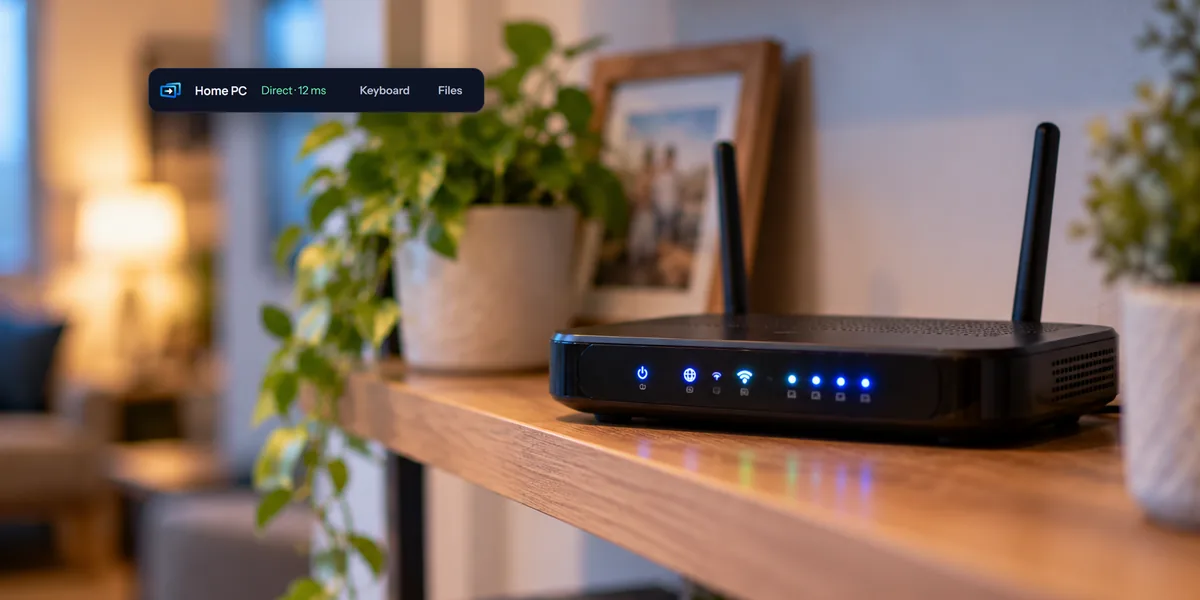
During a session, the top of the screen shows a line like Direct · 24 ms · 30 fps · 1920×1080:
- Direct or Relayed: whether the picture comes straight from the computer or through a relay. More on that below.
- ms: how long a round trip between your device and the computer takes. Lower feels quicker.
- fps: pictures a second, up to 30. When nothing on the screen moves, this drops to about 1. That's normal, and it saves your data.
- The size of the picture you're getting.
Smooth or Sharp
The Smooth button on the toolbar switches to Sharp, and back.
- Smooth is the default. The picture is up to 1080p, which keeps motion fluid on most connections.
- Sharp goes up to 4K, so small text on a big, high-resolution screen stays crisp. It needs a fast connection at both ends.
Sharp only takes effect on a direct connection, and only when everyone connected to that computer has chosen it, because everyone shares one picture. In the phone app, it's Sharper picture under More.
Direct or relayed
Usually your device connects straight to the computer. When a network blocks that, such as some hotel, office, or mobile networks, the picture goes through a relay instead. It still works and stays encrypted, but it's kept to 1080p.
Each plan includes a monthly relay allowance: 50 GB on Personal and 100 GB on Pro, and a team gets 100 GB for each person it pays for. Most people never get near it. Once it's used up, relayed sessions still work with a lighter picture, smaller and with fewer details, until the next month. Plan and billing shows how much you've used under Relay this month. Our guide to remote access without port forwarding explains how the connection is made.
What to check when it looks wrong
- The upload speed at the computer's end. The picture travels up from the remote computer, so its upload speed matters more than your download speed. Home connections often upload far slower than they download.
- Wi-Fi. A computer on weak Wi-Fi drops pictures. A cable, or moving closer to the router, often fixes it.
- Other things using the connection at either end, like a backup, a big download, or someone streaming video.
- Relayed instead of Direct. If the toolbar says Relayed on your home network, a VPN on either computer is a common cause.
- Sharp on a slow connection. Switch back to Smooth.
Text looks small, not blurry
If you're seeing a big screen on a small one, the text is just small. Choose Zoom to fit to switch to Zoom 100%, which shows the screen at its real size so you can scroll around it. On a phone or tablet, pinch to zoom.
Sound
The computer's sound comes with the picture. Sound on on the toolbar turns it off for you. If sound is choppy while the picture is fine, the connection at the computer's end is usually the cause there too.
A guest watching through a link gets no sound. When you help someone with a code, you hear their computer only after they turn sound on in the help app.
Questions people ask
Does the picture get worse when someone else connects?
It can. Everyone connected shares one picture, so it fits the slowest connection, and anyone relayed keeps everyone at the relay's size.
Why does the picture freeze for a second?
Usually a short drop in the connection. If it happens often, check the Wi-Fi and upload speed at the computer's end first.