Remote desktop means letting another device see your screen and use your keyboard and mouse. Put that way, it's reasonable to be wary. The good news is that a well-made remote desktop app, set up sensibly, is very safe. The trouble comes from a few specific mistakes, and one very common scam.
Where the real risks are
- An open door on the router. Microsoft's Remote Desktop listens on a known port, and computers that expose it to the internet are scanned and attacked all day long. Most break-ins blamed on "remote desktop" start here.
- A weak or reused password. If the only thing protecting remote access is a password that's also used elsewhere, a leak somewhere else is a way in.
- Access that was never taken away. A former employee, an old contractor, a support company you stopped using. Remote access tends to outlive the reason it was given.
- Someone talking you into it. More on that below, because it's the one that catches people.
What to check in any app
Whatever you use, these are worth looking for:
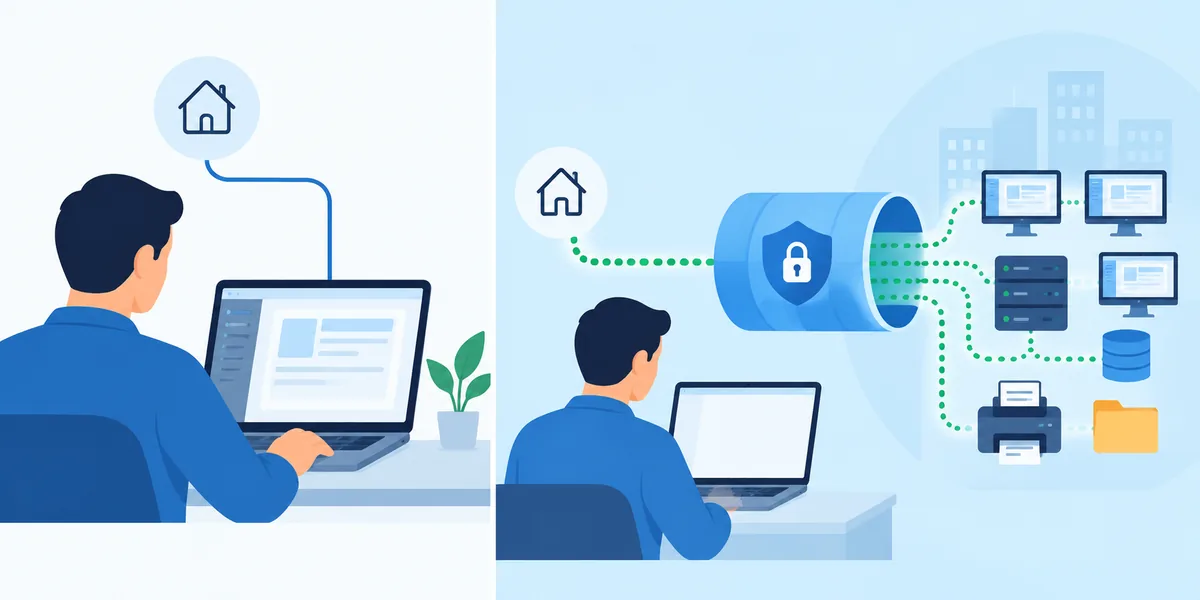
- No ports to open. A good service connects outward from the computer, so nothing on your router has to change.
- Encryption the company can't read. Your screen and typing should be encrypted all the way between your devices.
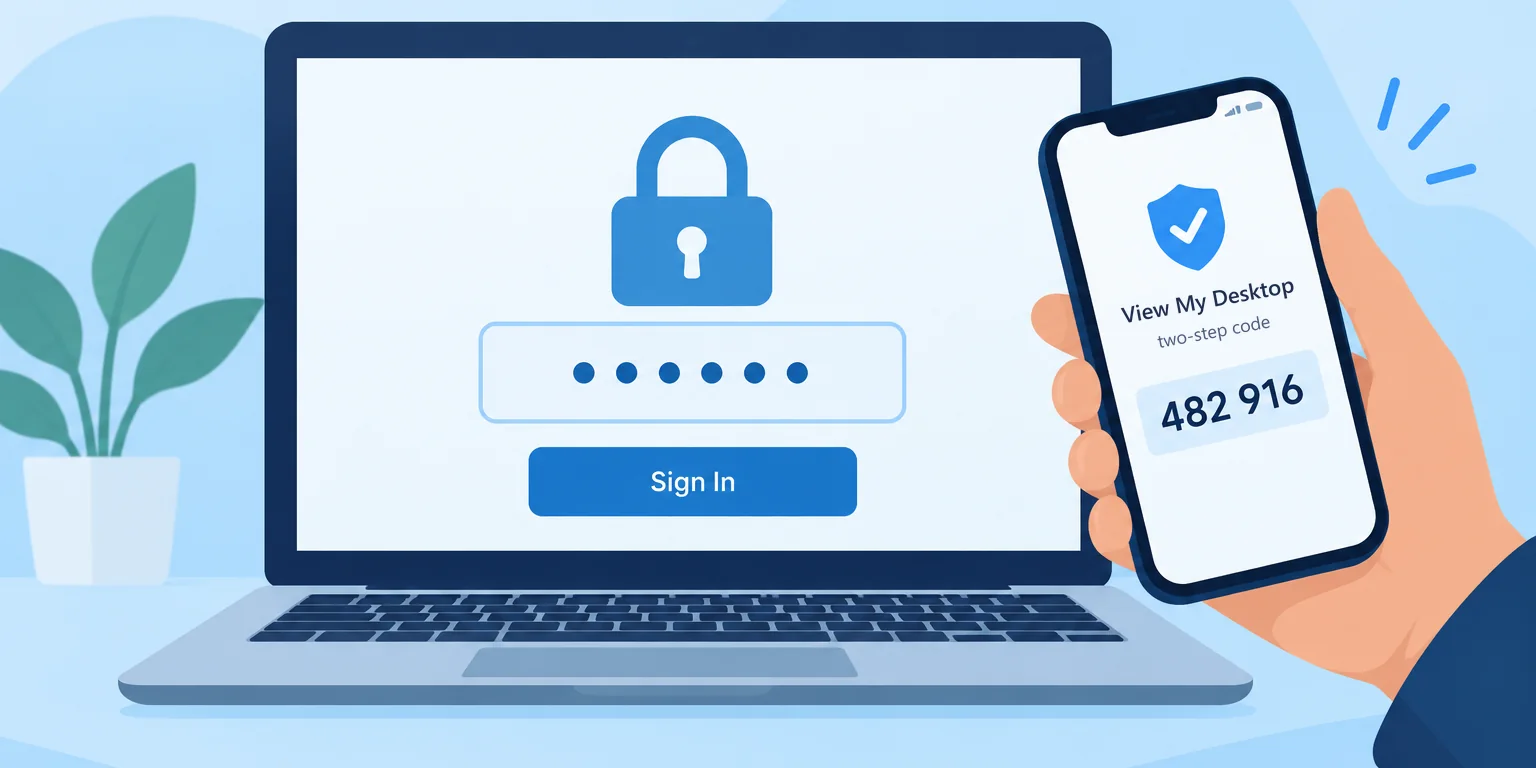
- A second lock on each computer. Your account password shouldn't be enough by itself. Look for a code on each computer, an approval from the person at it, or both.
- Two-step sign-in for your account, with an authenticator app.
- A record of who connected and when, especially if more than one person has access.
- Updates you can trust, signed by the maker and checked before they install.
How View My Desktop handles them
- Nothing to open. The host on each computer connects out to our service. Your router stays shut.
- Direct and encrypted. Sessions go straight between your devices whenever possible, encrypted with the same standards browsers use for video calls. When a network forces a relay, it can't read what passes through.
- An access code on every computer. Nobody connects without it, and it never leaves the computer, not even to us. Wrong guesses pause new connections for a while.
- The person at the computer stays in charge. They can be asked before anyone connects, blank the screen with the privacy screen, and have the computer lock when a session ends.
- Strong sign-in. Two-step sign-in, an email to approve any new device that signs in with a password, and passwords known from data breaches refused.
Our security page goes into each of these in more depth.
The scam to know about
It usually starts with a phone call or a scary pop-up. Someone says they're from Microsoft, your bank, or your internet provider, and that your computer has a virus or your account is at risk. They ask you to install a remote desktop app and read them a code, so they can fix it.
There is no problem to fix. Once they're in, they look for banking details, install something nasty, or lock your files and ask for money.
The rules are simple:
- Never let someone you didn't contact first control your computer. Real companies don't call out of the blue asking for remote access.
- Never read out an access code to someone who called you.
- If it already happened, disconnect the computer from the internet, change your passwords from another device, and have the computer checked.
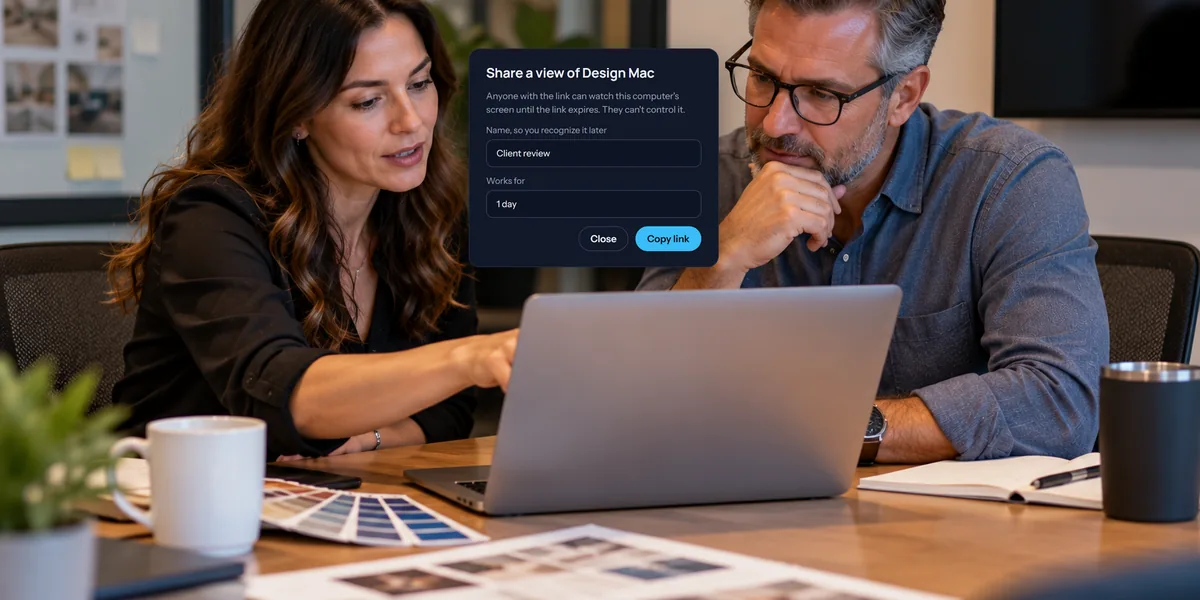
If you just want to show someone your screen, use a link that can only watch. Our guide to letting someone watch without control explains how.
Settings worth turning on today
- Two-step sign-in on your account.
- A long access code on every computer, especially ones nobody watches.
- One of the Ask me choices under When someone connects, on shared or family computers.
- Lock this computer when a session ends, on a Windows PC, so the desktop isn't left open behind you. It's on unless you turned it off.
Questions people ask
Can View My Desktop staff see my screen?
No. Sessions don't pass through our servers, the access code never reaches us, and we never record or store anyone's screen.
Is it safe to leave a computer available all the time?
With a long access code and two-step sign-in, yes. Our guide to unattended access on Windows walks through doing it safely.