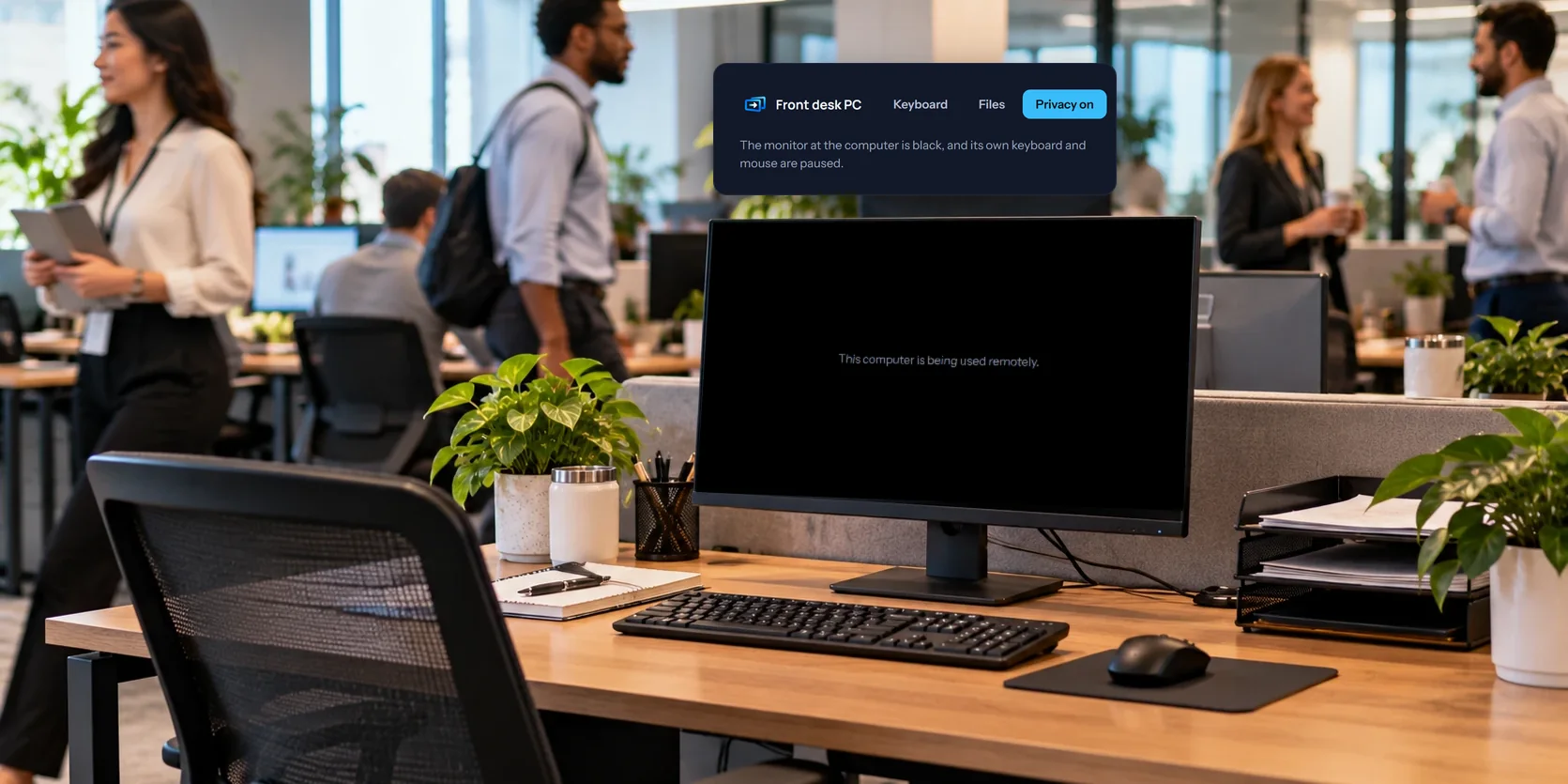
When you connect to a computer remotely, its own monitor usually keeps showing everything. That's fine at home. It's less fine on a desk in a shared office, at a front counter, or anywhere someone could walk past and read your email over the computer's shoulder.
The privacy screen fixes that. While it's on, the computer's own monitors go black, and you keep working as normal from wherever you are.
What it does
- The computer's monitors go black. All of them. A short note in the middle says the computer is being used remotely, so nobody thinks it's broken.
- You still see everything. The black cover is only on the computer's own monitors. Your view of the desktop doesn't change.
- The computer's own keyboard and mouse stop working. So nobody at the desk can type into what you're doing, or move the mouse while you're using it.
- It turns off when you leave. Once everyone who turned it on has disconnected, the monitors come back.
Turn it on
From a web browser: choose Privacy off in the session's toolbar. It changes to Privacy on, and the computer's monitors go black. Choose it again to turn it off.
From the phone or tablet app: tap More, then Turn privacy screen on. The same place has Turn privacy screen off.
If you reconnect after a dropped connection, the privacy screen comes back on by itself.
Turn it on every time
If you always want it, set it on the computer instead. In the host window on Windows, or the View My Desktop menu in a Mac's menu bar, turn on Blank this screen while connected. Then the monitors go black whenever anyone connects, without anyone having to remember.
On a Mac
The Mac gets the same black cover, with a note that the Mac is being used remotely. Blocking the Mac's own keyboard and mouse needs the Accessibility permission, the same one View My Desktop needs for you to control the Mac at all. Without it, the screen still goes black, but someone at the Mac could still type.
Its limits
- Windows sign-in and administrator prompts show through. Windows draws its sign-in screen and its "Do you want to allow this app to make changes" prompts on a separate, protected screen of their own, and nothing can cover that. If you sign in or approve an administrator prompt while the privacy screen is on, those show on the computer's monitor.
- It isn't a lock. It hides the screen and stops the computer's own keyboard and mouse while you're connected. When you leave, the computer is as you left it. On Windows, the PC locks itself when the last person in control disconnects, which covers that. Our guide to unattended access explains the setting.
- Watchers can't turn it on. People who can only watch, and guests on a guest link, don't get the button.
- Old versions of Windows can't use it. Keeping the black cover out of your picture needs Windows 10 version 2004 or later. On an older one the privacy screen stays off, and a note tells you so.
Questions people ask
Can someone at the computer turn it off?
Not by typing or clicking, since those are blocked while it's on. Windows always lets Ctrl+Alt+Del through, though, so someone at a PC could still lock it. And anyone can switch a computer off at the power button, which ends your session too.
Does it work on every plan?
Yes. Every plan includes the privacy screen.