Windows has Remote Desktop. The Mac has Screen Sharing. They come from different companies with different ideas, and neither one opens the other out of the box. If you work on a Windows PC and need something that lives on a Mac, there are two good ways to get there.
Option 1: Screen Sharing and a VNC app
The Mac's built-in Screen Sharing speaks a common language called VNC, and plenty of Windows apps speak it too.
- On the Mac, open System Settings, go to General, then Sharing, and turn on Screen Sharing.
- Allow VNC. Click the info button next to Screen Sharing, turn on the option that lets VNC viewers control the screen with a password, and set the password.
- Note the Mac's address. The Screen Sharing settings show it, something like
vnc://192.168.1.20. - On the Windows PC, install a VNC viewer such as RealVNC Viewer or TightVNC, and connect to that address.
This works well when both computers are on the same network, at home or in the office. From anywhere else it gets harder. You'd need a VPN into that network, or a port opened on your router, which leaves the Mac open to anyone who finds it. VNC was also built for local networks, and it shows: over a home internet connection the picture tends to lag.
Good fit if both computers are in the same building.
Option 2: An app that runs in your browser
With View My Desktop, the Mac runs a small app and you connect to it from a web browser on the Windows PC. Nothing gets installed on the PC, and it works the same from the next room or another country.
On the Mac
- Make an account at app.viewmydesktop.com and choose a plan under Plan and billing. Every plan is free for 14 days. Cancel before it ends and you pay nothing.
- On the Mac, sign in at app.viewmydesktop.com, get the Mac host from Download apps, drag it into Applications, and open it. It lives in the menu bar at the top of the screen.
- macOS asks for two permissions. Allow Screen Recording, so the app can show the Mac's screen, and Accessibility, so your clicks and typing reach it. Both live in System Settings, under Privacy & Security. If you skip one, the menu bar icon offers Allow screen recording and Allow control of this Mac later.
- The menu shows a short code. On the Windows PC, sign in, choose Add a computer, and type it.
- From the same menu, set an access code. Anyone who connects has to type it.
macOS also asks whether View My Desktop may use your Desktop, Documents, and Downloads folders. Say yes if you want to send files back and forth.
On the Windows PC
Open Edge, Chrome, or Firefox, go to app.viewmydesktop.com, and sign in. Find the Mac under My computers, choose Connect, and type the access code. The Mac's screen opens right there in the browser.
Good fit if you want to reach the Mac from anywhere, or from more than one PC.
Ctrl and Command
This is the part that trips everyone up. Mac shortcuts use the Command key, and a Windows keyboard doesn't have one.
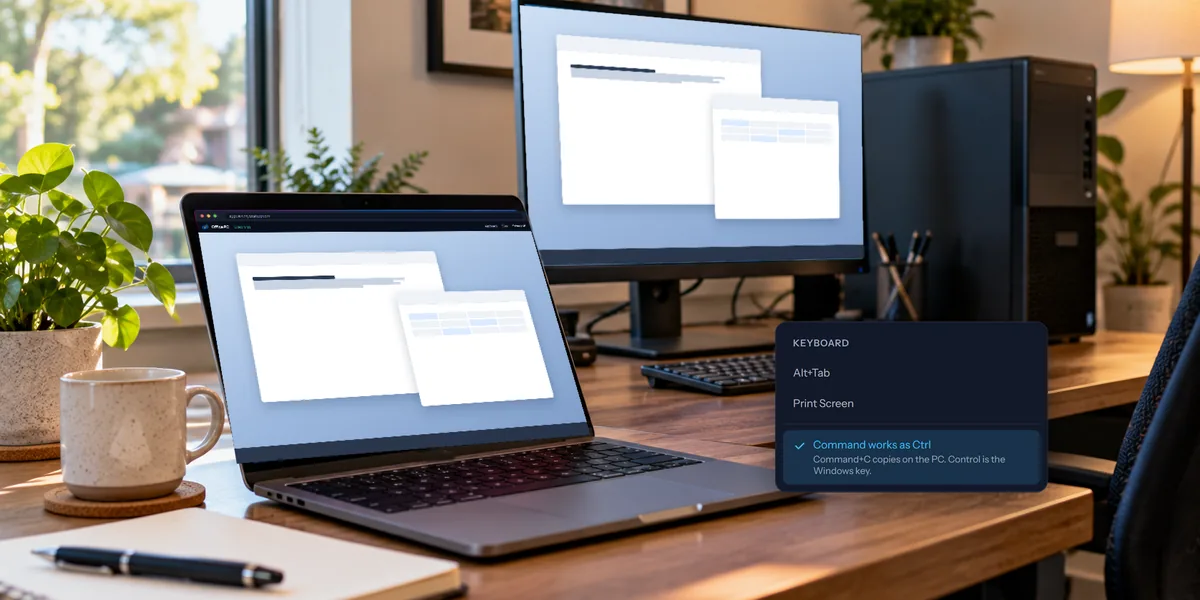
View My Desktop sorts that out for you. When you connect to a Mac from a Windows PC, your Ctrl key works as Command, so Ctrl+C copies and Ctrl+V pastes on the Mac the same way they do on Windows. The Windows key takes Control's place, and Alt is Option.
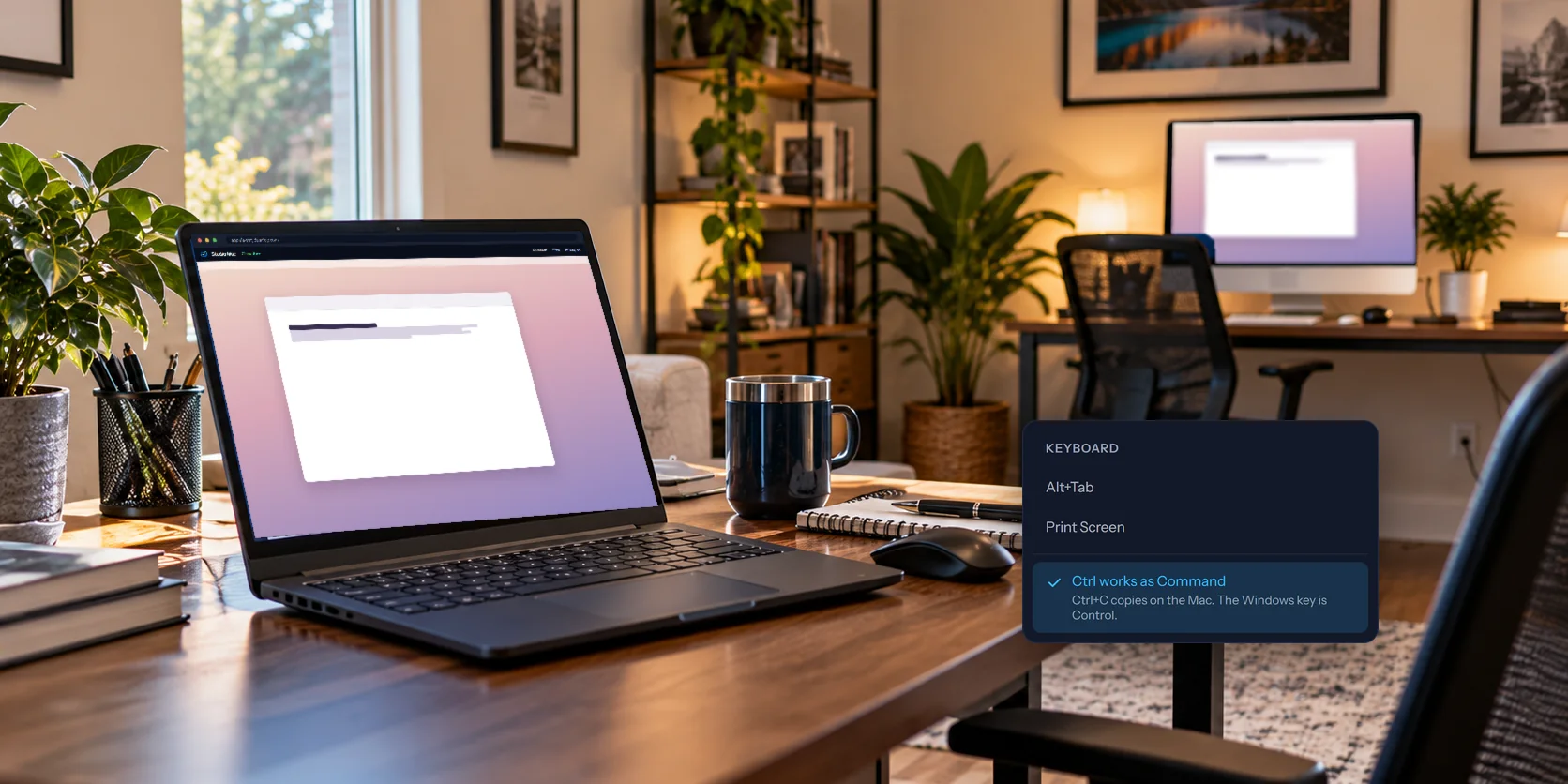
If you'd rather keep Ctrl as Control, open the Keyboard menu during a session and turn off Ctrl works as Command. Your browser remembers the choice for every Mac you connect to.
Things to know about the Mac side
- Keep it awake. A Mac that's asleep can't be reached. In System Settings, look under Energy (or Battery on a laptop) for the option that stops it from sleeping when the display is off.
- Restarts. A Mac only comes back to the desktop by itself after a restart if automatic login is on, and macOS only allows that with FileVault turned off. If yours uses FileVault, someone has to log in at the Mac after it restarts. View My Desktop warns you before a restart when that's the case.
- Which macOS. The Mac app needs macOS 13 Ventura or later.
The two side by side
| Screen Sharing with VNC | View My Desktop | |
|---|---|---|
| Install on the Windows PC | A VNC viewer | Nothing, it runs in the browser |
| Works away from the Mac's network | Only with a VPN or an open port | Yes |
| A code before anyone connects | A VNC password | An access code that never leaves the Mac |
| What it costs | Free | A subscription after the free trial |
Questions people ask
Can I control a Windows PC from a Mac too?
Yes, the same way in reverse: install the host on the Windows PC and connect from a browser on the Mac. If the PC runs Windows Home, our guide to remote desktop on Windows 11 Home explains why Microsoft's own Remote Desktop won't do it.
Can I use my phone instead?
Yes. Our guide to reaching your home computer from your phone covers that, including how to work a desktop with your finger.
What does it cost?
After the free trial, plans start at $5.75 a month, paid yearly. The pricing page has the rest.