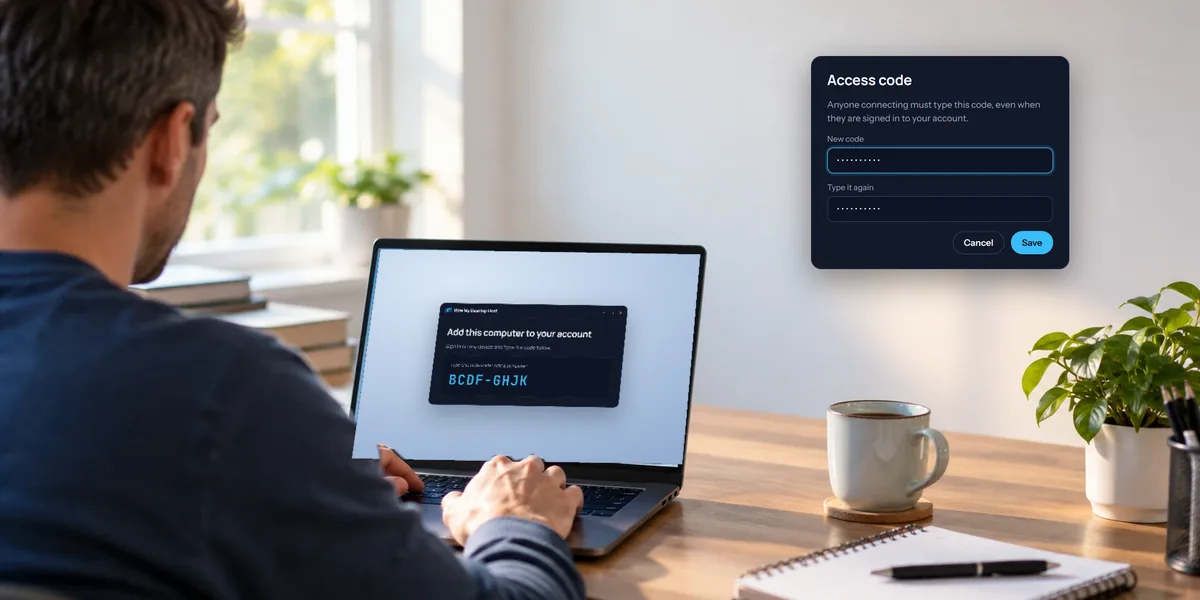
Adding a computer to View My Desktop normally means sitting at it: install the host, read the short code it shows, and type that code on another device. That's fine for two or three PCs. For a whole office, it's a morning gone.
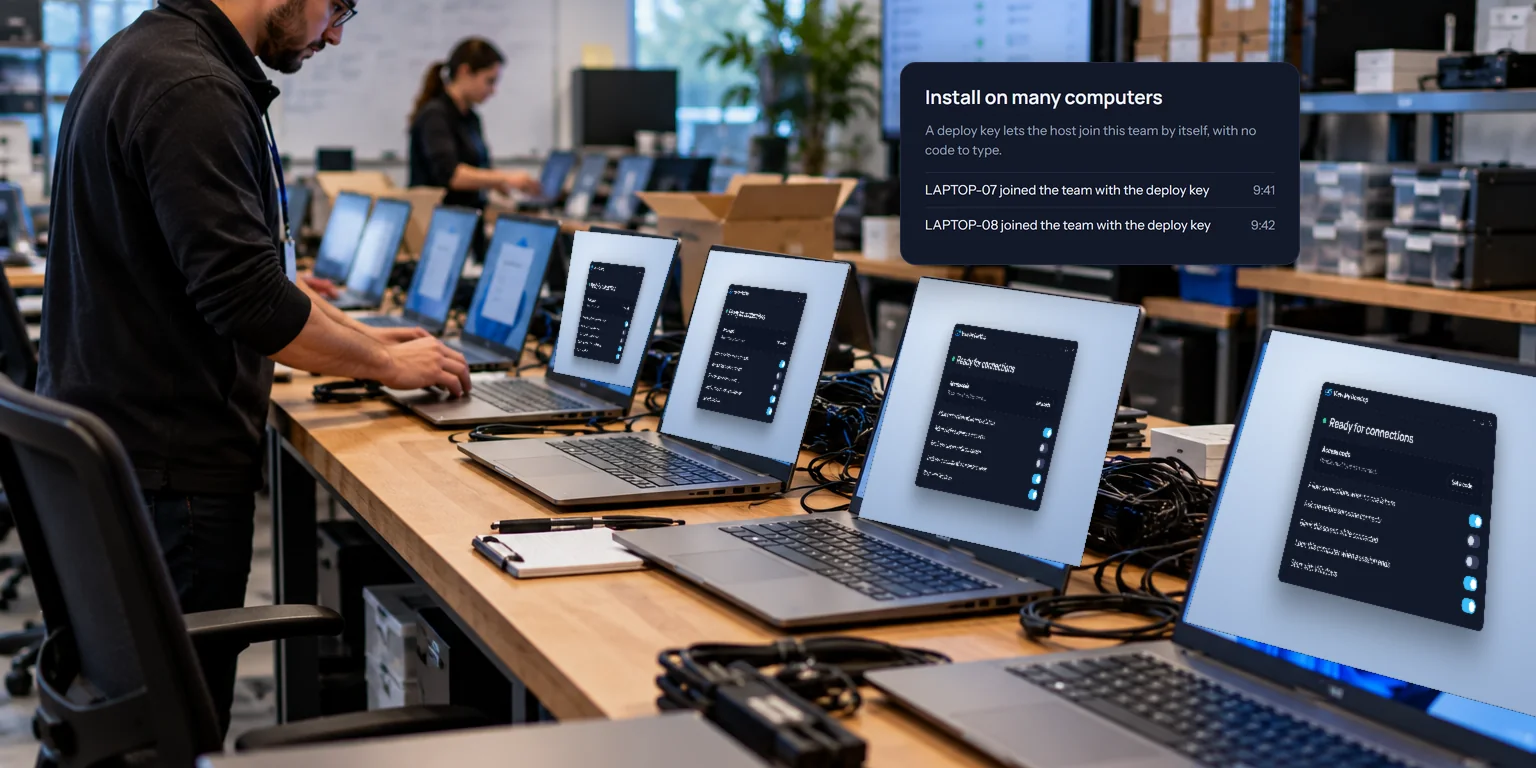
A deploy key skips the code. You make one key for your team, install the host with it, and each PC joins the team on its own, named after the PC.
Deploy keys are for teams, and they work with Windows PCs. A Mac is still added by hand with its code.
Before you start
- A team. If you don't have one yet, our guide to setting up remote access for a small team covers it.
- Pro or Team. Both include deploy keys, from the first day of the free trial.
- Room on your plan. Each seat covers ten computers, shared across the team. Add seats first if you're bringing in more. A PC that finds the team full says it can't join yet, keeps checking, and joins by itself once there's room.
- Admin rights on the PCs, since the host sets itself up as a Windows service.
1. Make a deploy key
- Open the Team page and go to Add computers.
- Under Install on many computers, choose Make a deploy key.
- Copy the key straight away. It's shown only once.
Treat the key like a password. Anyone with it can add a computer to your team.
2. Install the host with the key
Sign in at app.viewmydesktop.com, download the Windows host from Download apps, and unzip it to get ViewMyDesktop-Host.msi. Then install it on each PC with the key, without anyone clicking through it, from an administrator command prompt:
msiexec /i ViewMyDesktop-Host.msi /qn DEPLOYKEY=your-deploy-key
Run it from the folder you unzipped it to, and paste your key in place of your-deploy-key. The /qn part installs it silently.
This is an ordinary Windows installer, so the same command works from whatever you already use to push software to PCs, or from a script.
Already added some PCs by hand?
A PC that's already in someone's list doesn't need the key. Its owner chooses Manage on the PC's card, then Move into the team, and picks a group for it.
3. Set each PC's access code
This is the step people miss. A deploy key adds a PC to the team, but it can't set the PC's access code, and nobody can connect to a PC until it has one.
The next time someone signs in at each PC, View My Desktop asks for an access code. Set it then, and keep the codes somewhere safe, like your password manager. A different code for each PC is safest.
4. Sort the PCs into groups
Each PC joins the team with no group. Until you give it one, only admins and members who can use every team computer can reach it.
To give it a group, choose Manage on the PC's card, pick a Group, and save. Our small team guide explains how groups decide who reaches what.
What you'll see
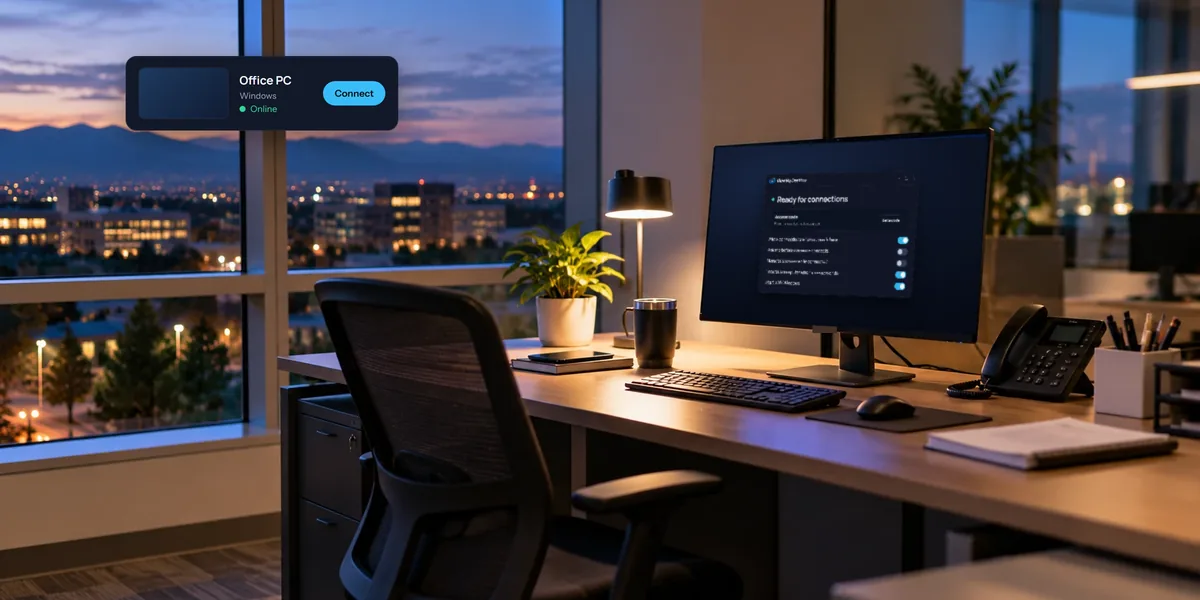
- Each PC appears in the team's list under its Windows computer name, as soon as its host connects.
- The activity log notes each one, saying the PC joined the team with the deploy key.
- The team owner owns the PCs, whoever ran the install.
When you're done
On the Team page, choose Turn off the key. PCs that already joined stay in the team, and nobody can use the old key to add new ones. If you need to install more later, make a new key. Making a new key also stops the old one working.
Questions people ask
What if the key is wrong or turned off?
The PC doesn't join the team. It shows a code instead, so you can still add it by hand under Add a computer, then move it into the team.
Can I name the PCs something else?
They take their Windows computer names. To change how a PC is listed, rename it in Windows before you install, or before it joins.