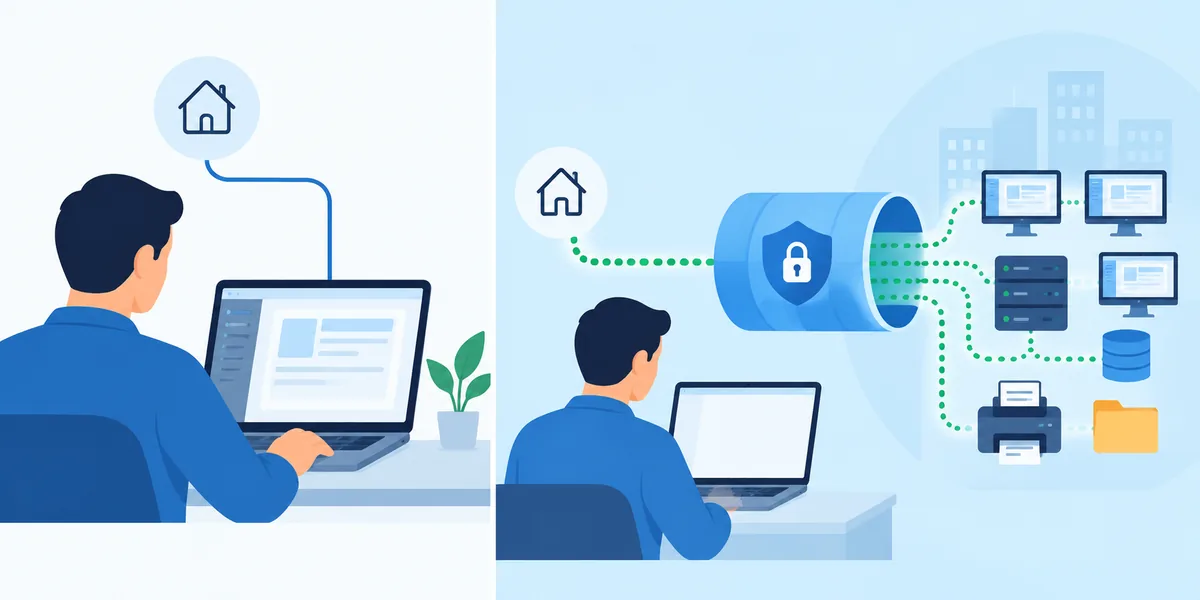
The classic way to reach a computer from outside its network goes something like this. Log in to the router, forward a port to the computer, pay your internet provider for a fixed IP address or set up dynamic DNS, and then hope nobody scanning the internet finds that open port. Plenty of guides still walk you through it.
You don't need any of that. Here's how View My Desktop gets from your phone to your computer with the router left exactly as it is.
The short version
- Nothing to open on the router. No port forwarding, no UPnP, no DMZ.
- No static IP. Your home or office address can change every day. It doesn't matter.
- No dynamic DNS. You find the computer by name in your list, not by address.
How it works
1. The computer reaches out, not in. The host on your computer keeps a secure connection open to View My Desktop, the same kind of connection a web page uses. Because it goes out from the computer, the router allows it, the way it allows any website you visit. Nothing outside can start a connection to your computer on its own.
2. We introduce the two sides. When you choose the computer in your list, our service passes a few setup messages between your device and the computer: who you are, and where each side can be reached. That's all it does.
3. They connect to each other directly. Your device and the computer both reach toward each other at the same moment. Most home and office routers let that through, for the same reason video calls work without any router setup. From then on, the picture, your typing, sound, and files go straight between the two, encrypted. They don't pass through our servers.
On Windows, the installer also adds a rule to Windows Firewall so the PC accepts these direct connections. That's what keeps sessions direct when you're on the same network as the PC.
When a direct connection isn't possible
Some networks won't let two devices connect directly. Strict office and school networks, some hotels, and some mobile carriers are the usual ones. Then the session goes through our relay instead, which passes the data along without being able to read it, since it stays encrypted between your two devices.
You don't have to do anything. The relay steps in by itself when it's needed, and most sessions never need it.
Each plan includes a monthly amount of relay use: 50 GB on Personal and 100 GB on Pro. A team gets 100 GB for each person it pays for, shared across the team. Past that, relayed sessions still work, with a lighter picture until next month. Direct sessions are never counted.
How to tell which one you have
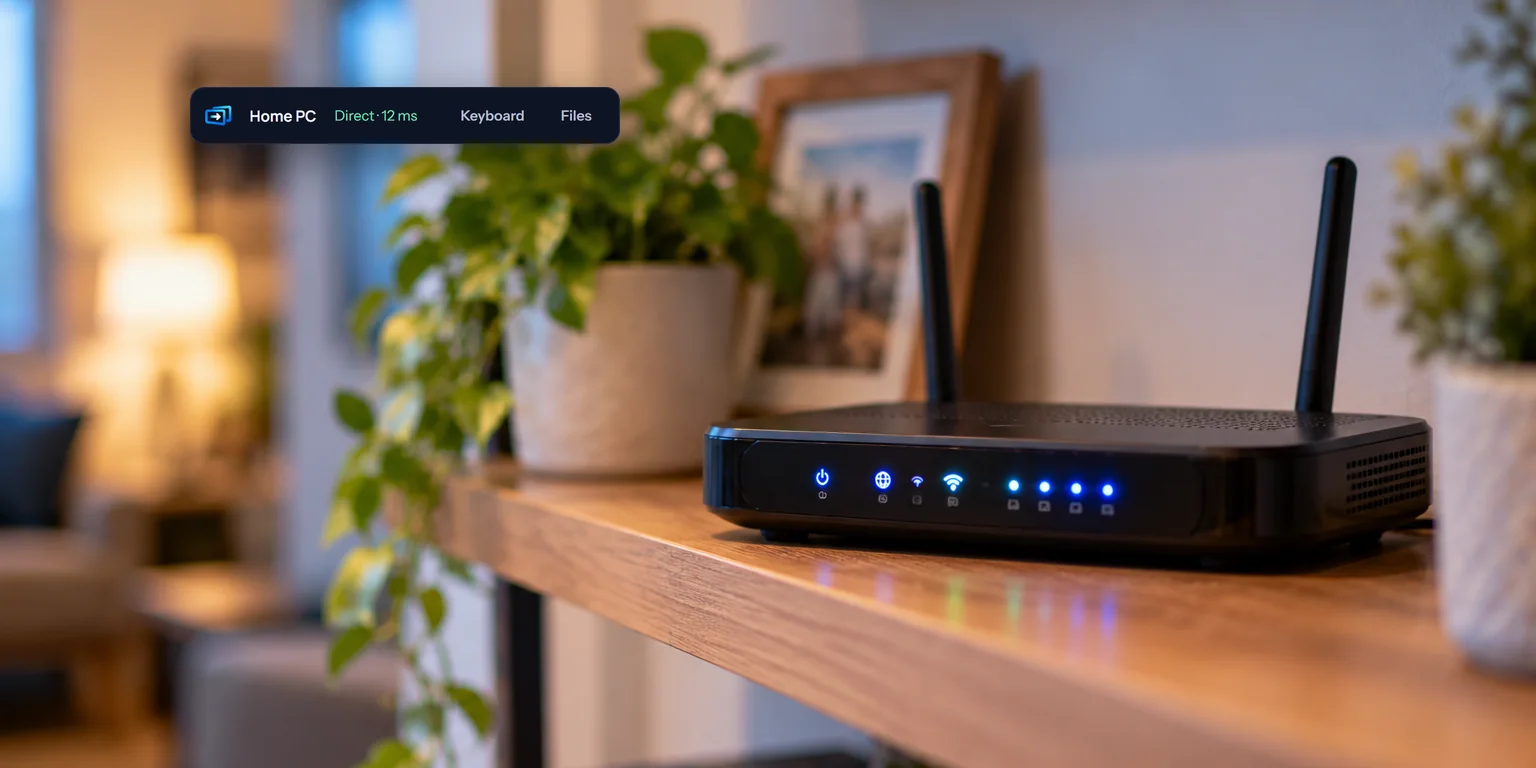
Look at the connection details in the session's toolbar. They start with Direct or Relayed, followed by the delay and the frame rate, like Direct · 24 ms · 30 fps. In the phone and tablet app, the same line sits under the computer's name at the top.
A direct connection is usually a little quicker. If you're always relayed from one place, that network is probably blocking direct connections.
Why this is safer, too
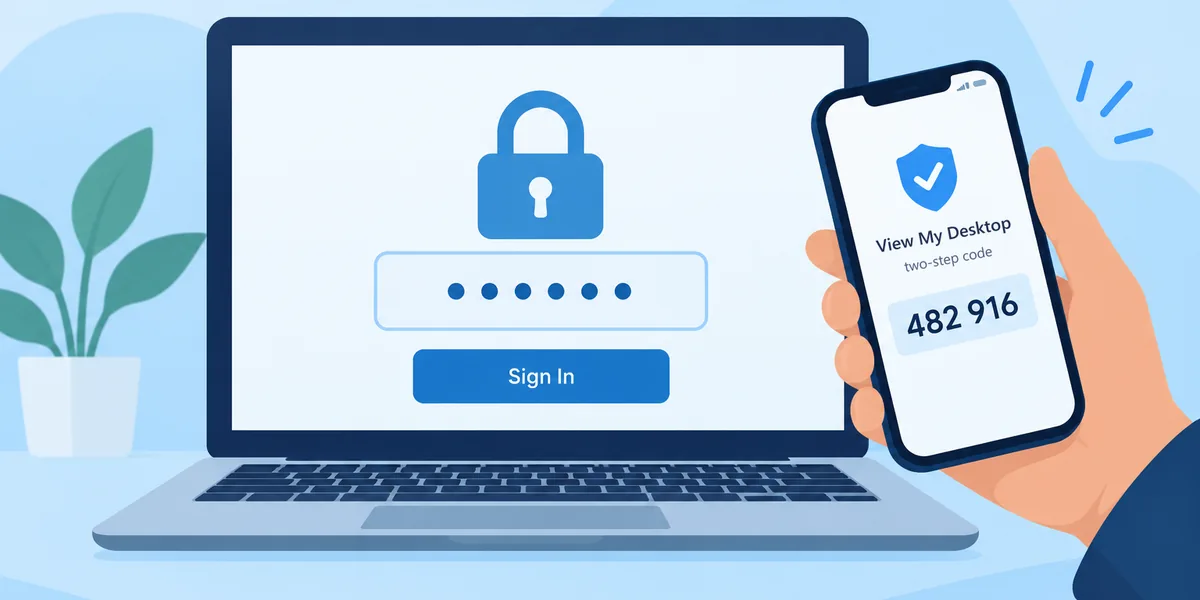
An open port on a router is a door anyone on the internet can knock on, and automated scanners knock all day. Remote Desktop ports left open to the internet are one of the most common ways small businesses get broken into. With nothing forwarded, there's no door to find. On top of that, every computer has its own access code, and only people you've given access to can reach it at all. Our guide to whether remote desktop is safe goes further.
Questions people ask
Do I need a VPN as well?
No. View My Desktop doesn't need one to reach your computer. Whether a VPN suits you for other things is a separate question, and our guide to remote desktop or VPN helps you decide.
What if the computer can't reach the internet at all?
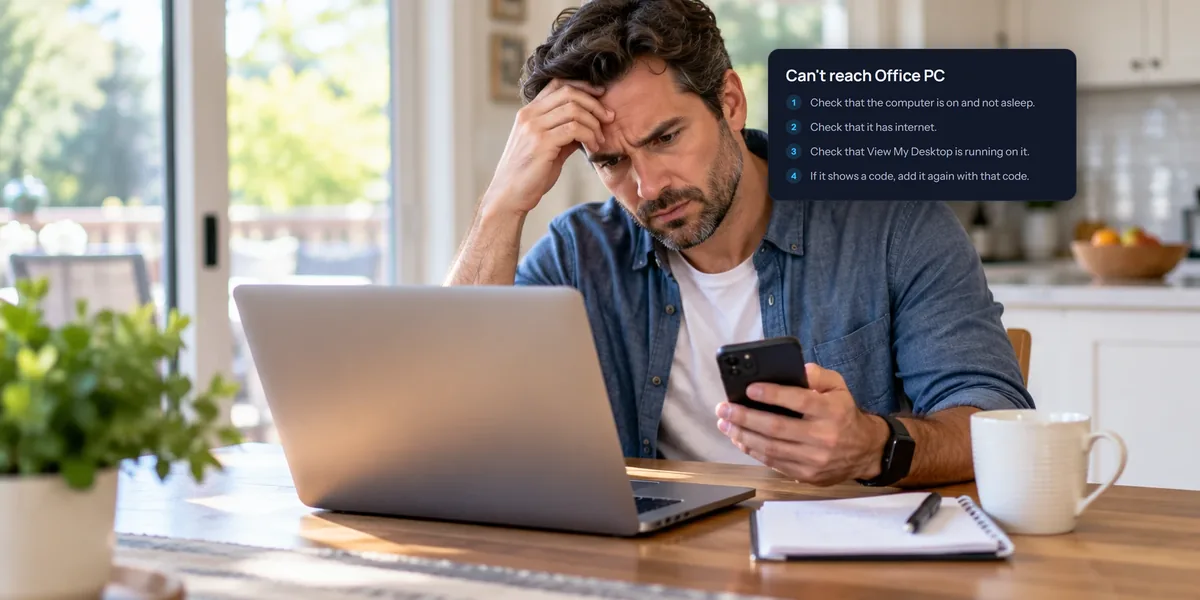
Then it can't be reached from outside either. The host window on Windows says it can't reach View My Desktop, and keeps trying until the connection comes back.
Does it work on mobile data?
Yes. Your phone connects the same way, and if the mobile network blocks direct connections, the relay takes over.