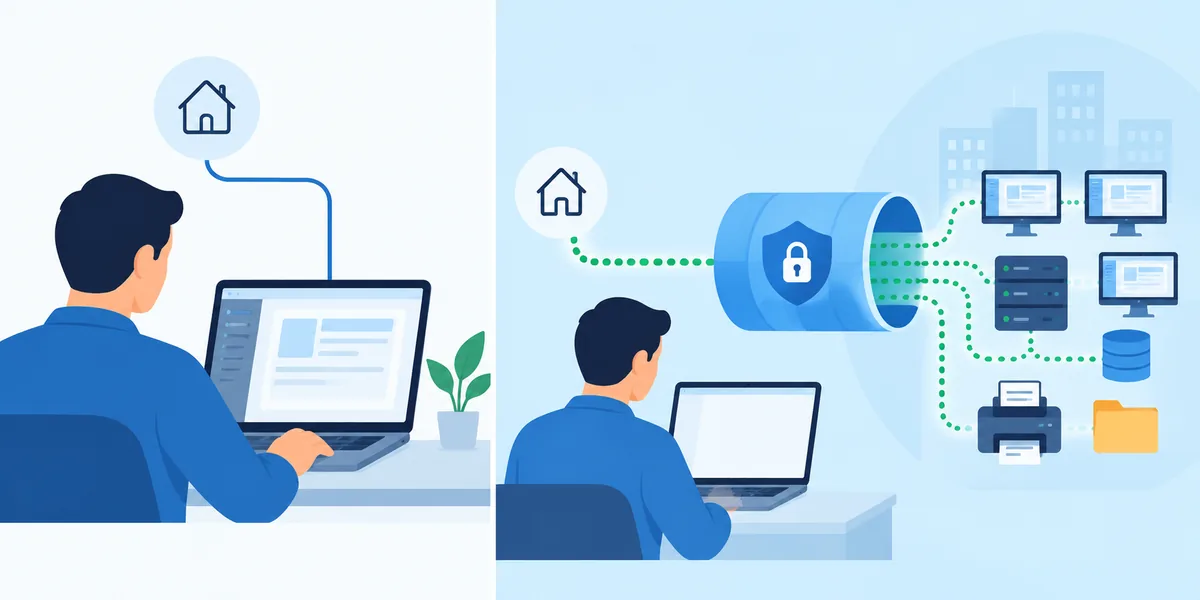
Working from home is easy until the thing you need is on the office PC. The accounting program that only runs there, the folder that never got moved to the cloud, the printer settings someone spent an afternoon on. Remote desktop lets you sit at that PC from your kitchen table, with everything where you left it.
First, ask IT
This step matters more than any setting. A work computer belongs to your employer, and plenty of companies have rules about what can be installed on it, and about remote access in particular. Some already have a way in, like a VPN or their own remote desktop setup, and would rather you used that.
So before you install anything, ask. If your company is small enough that you are IT, decide what you're comfortable with, and read our guide to whether remote desktop is safe.
It's also worth knowing what you actually need. If it's the company's internal websites and shared drives, a VPN may suit you better. If it's a program that only lives on your PC, remote desktop is the better fit. Our guide to remote desktop or VPN explains the difference.
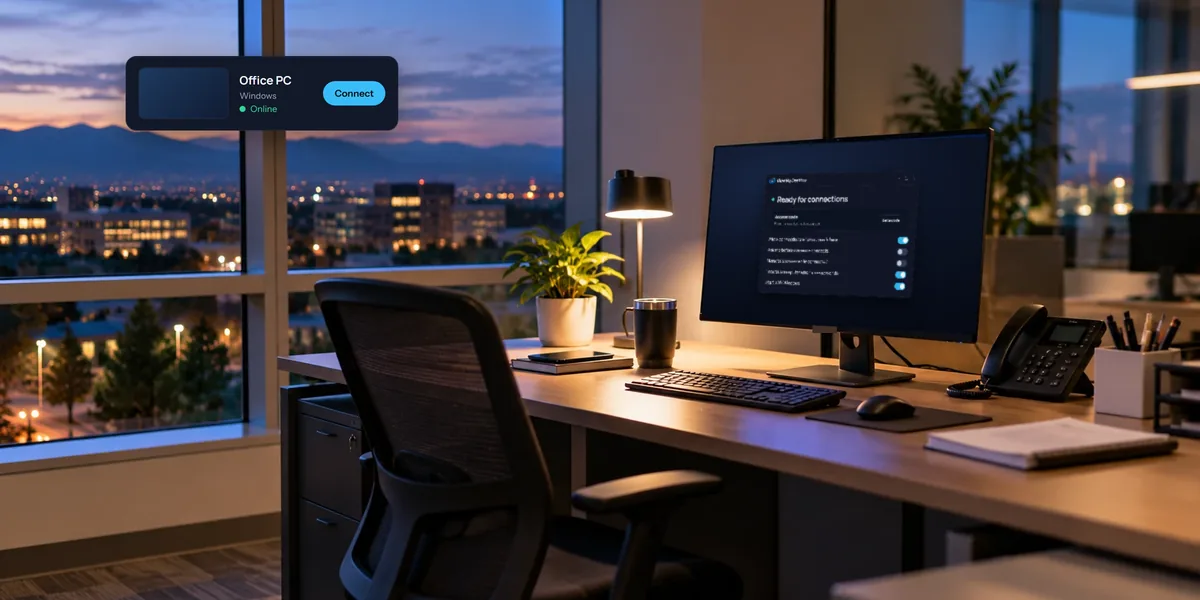
Set up the office PC
On your last day in the office before you need it, at the PC:
- Install the host and choose an access code. Our Windows setup guide goes step by step, and there's one for a Mac too.
- Add the PC to your account by typing the code it shows under Add a computer.
- Stop it sleeping. On Windows, open Settings, then System, then Power, and set it never to sleep while plugged in. A PC that's asleep can't be reached.
- Leave it on when you go home.
On Windows, the installer sets View My Desktop up to run before anyone signs in, so you can reach the PC even after it restarts for updates. Our guide to unattended access has more on keeping it reachable.
Connect from home
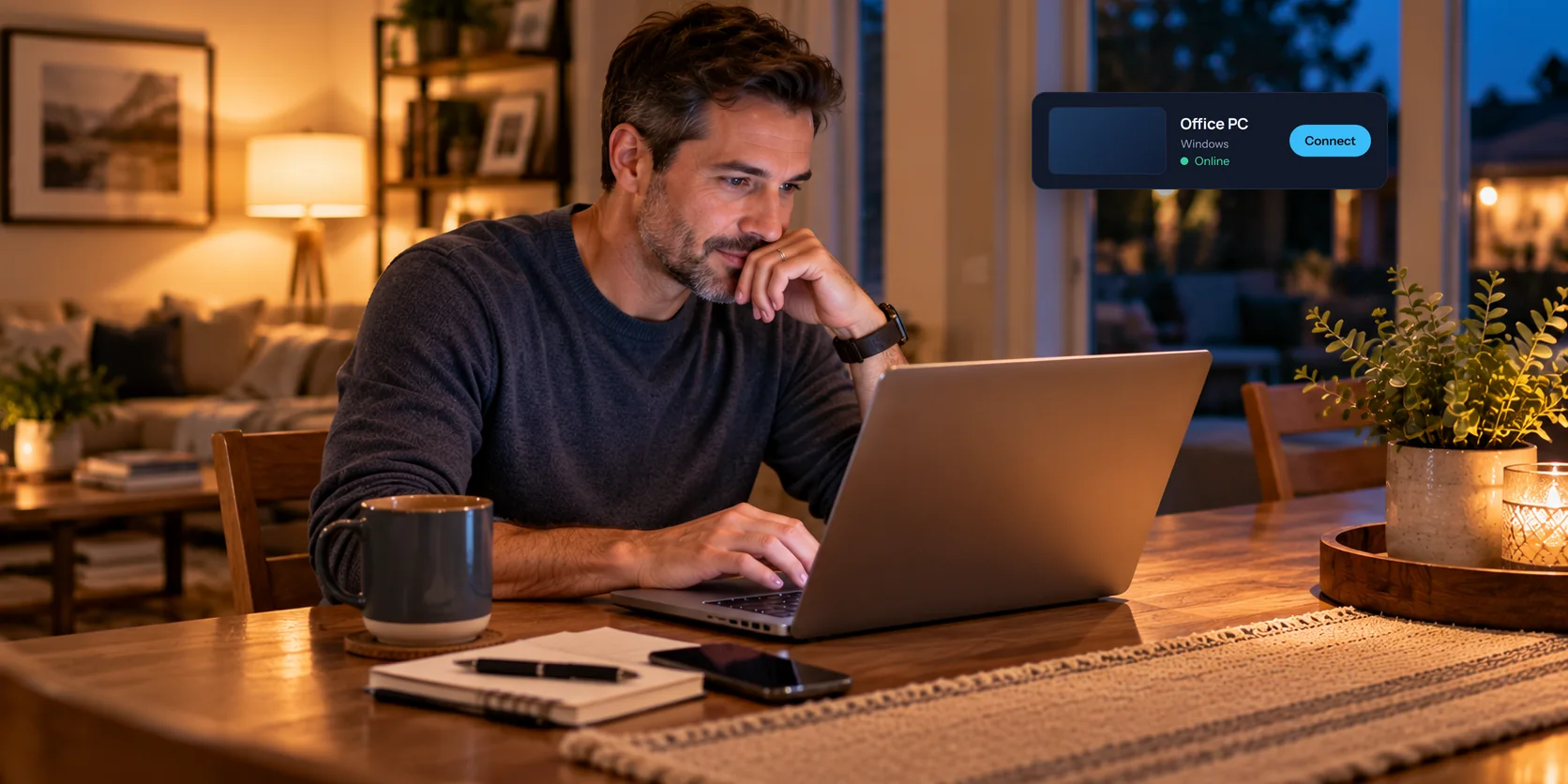
Open View My Desktop in your browser at home, or in the app on an iPad or phone, and choose the PC from your list. Type the access code, and you're at your desk.
There's nothing to install on your home computer. A web browser is all it takes.
Tips for a full day of it
- Use full screen so the office PC fills your screen, with Full screen in the toolbar.
- Two monitors at the office? Switch between them with the monitor button, or see both at once. See using two monitors.
- Copy and paste works between your home computer and the office PC. See copy and paste between computers.
- Print at home. Print on the office PC to the View My Desktop printer, and it comes out on your printer at home. See printing from a remote PC.
- Keep your screen private at the office. Turn on the privacy screen and the PC's own monitor goes black while you work, so nobody walking past sees your email. See blacking out the remote screen.
- Breaks are fine, long ones aren't. A session ends after 30 minutes with no activity. Just connect again.
- When you're done, disconnect. On Windows, the PC locks itself when the last person in control leaves.
If several of you work this way
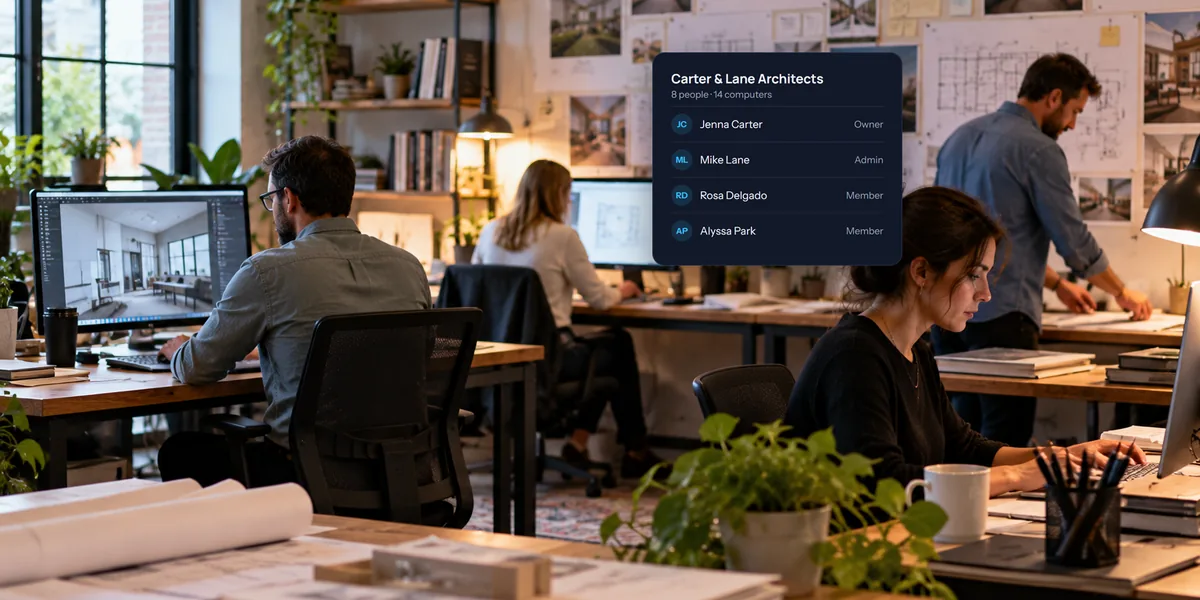
When more than one person needs to reach the office PCs, set them up as a team rather than everyone adding PCs to their own accounts. The team owns the PCs, admins decide who reaches which ones, and an activity log shows who connected and when. Our guide to remote access for a small team covers it.
Questions people ask
The office PC went to sleep. Can I wake it?
Sometimes. If another PC on the same office network stays on and runs View My Desktop, it can wake yours. See waking a computer remotely.
Will my company be able to see that I'm connected?
Anyone at the office PC can see that it's in use, unless the privacy screen is on. On a team, admins can see sessions in the activity log. If your company has its own monitoring software on the PC, that works as it always does.