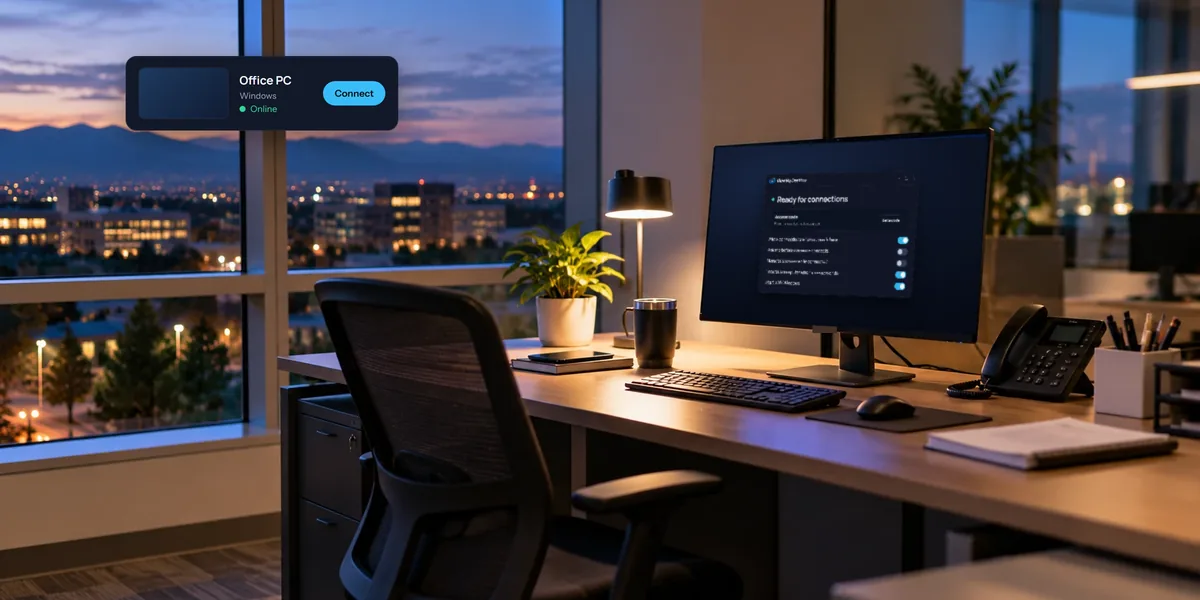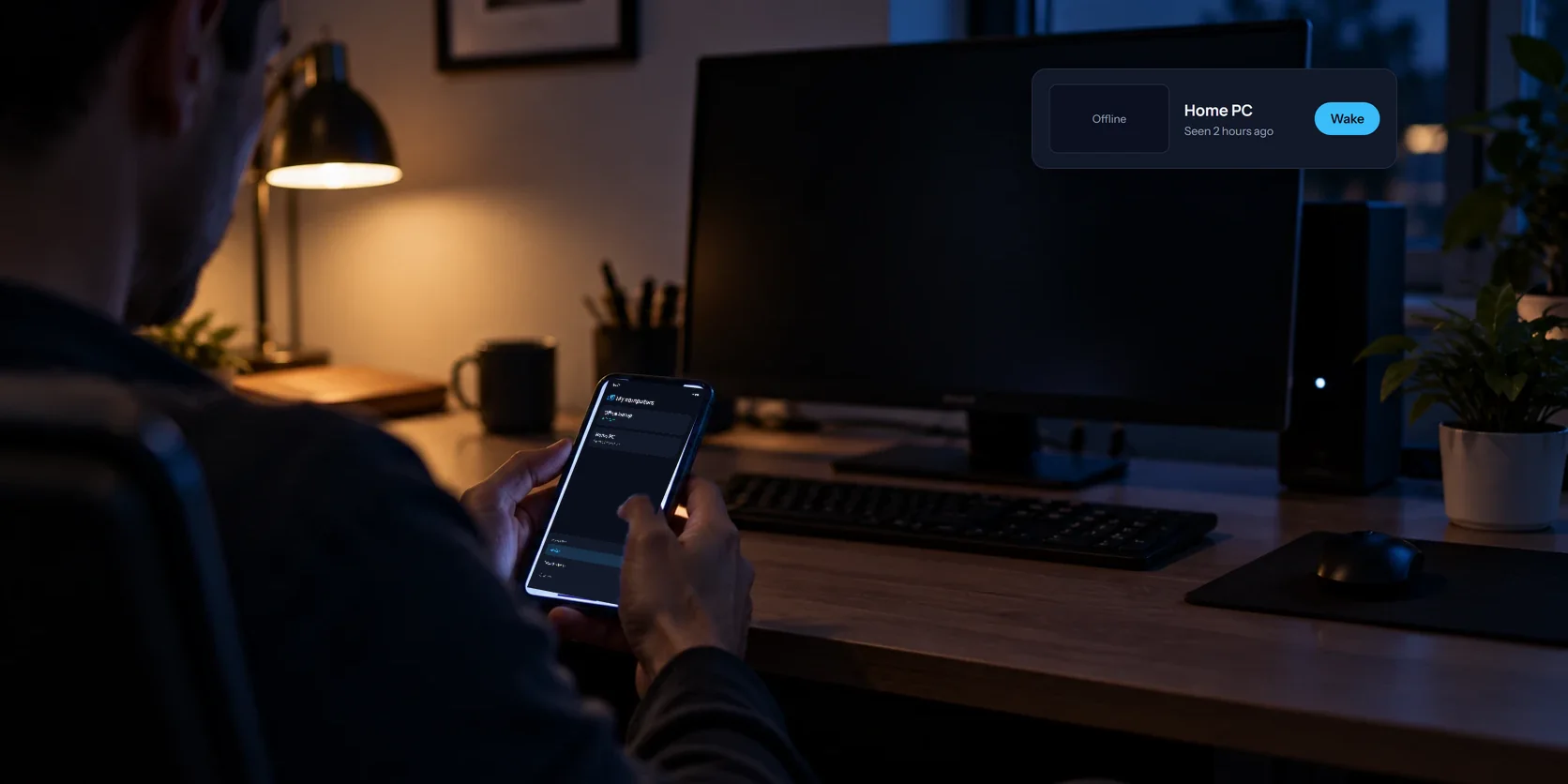
You sit down to connect to the office PC and it shows as offline. It's not broken. It's asleep, because that's what computers do when nobody touches them for a while. You could set it never to sleep, and for some computers that's the right answer. For the rest, there's Wake on LAN.
How Wake on LAN works
A sleeping PC keeps its network card listening for one special message, often called a magic packet. When the card hears it, the PC wakes up.
The catch is that the message has to come from inside the same network, like the same office or the same home Wi-Fi. It can't be sent across the internet to your router and on to the PC. So something on that network has to send it for you.
That's what View My Desktop does. If another of your computers on the same network is online, it can send the message to the sleeping one. Under My computers, the sleeping computer shows a Wake button, and choosing it asks the online computer to do the nudging.
What you need
- Two Windows PCs on the same network, both with the View My Desktop host and both in your account. One has to be awake to send the message. For now, waking works between Windows PCs.
- A network card that supports it. Nearly every desktop's wired network port does. Wi-Fi is hit and miss, so a cable is the safe choice for the PC you want to wake.
- A few settings, below. They're one-time changes.
Settings in Windows
- Right-click Start and open Device Manager.
- Open Network adapters and double-click the wired adapter. It usually has "Ethernet" or the maker's name, like Realtek or Intel, in it.
- On the Power Management tab, tick Allow this device to wake the computer and Only allow a magic packet to wake the computer.
- On the Advanced tab, find Wake on Magic Packet and set it to Enabled.
If you want to wake the PC from shut down rather than from sleep, turn off fast startup too. In Control Panel, open Power Options, choose Choose what the power buttons do, then Change settings that are currently unavailable, and clear Turn on fast startup. Waking from sleep is the more reliable of the two, so sleep is the better habit.
Settings in the firmware
Some PCs also need Wake on LAN switched on in their firmware, the setup screen you reach by pressing a key like F2 or Delete as the PC starts. Look for a setting called Wake on LAN, Power on by PCI-E, or Resume by LAN, and turn it on. Every maker words it differently, and some leave it on already.
Using it
- Open My computers. The sleeping PC shows as offline, with a Wake button.
- Choose Wake. It changes to Waking while the message goes out.
- Give the PC a moment. When it shows as online, choose Connect.
If the Wake button doesn't appear, no other computer of yours on that network is online to send the message.
When it doesn't wake
- It's on Wi-Fi. Try a cable.
- It's a laptop on battery. Many laptops only wake from the network when plugged in.
- It lost power entirely. Wake on LAN wakes a sleeping or shut-down PC, not one that's unplugged. The firmware's "power on after power failure" setting helps after an outage.
- The other computer is on a different network, like a guest Wi-Fi. Both need to be on the same one.
Questions people ask
Can someone else wake my computers?
No. Only your own computers, on the same network and online, can be asked to send the message, and only from your account.
Should I just turn sleep off instead?
For a PC you reach often, maybe. Our guide to unattended access on Windows covers keeping a PC ready around the clock.