The file you need is on the desktop at home, and you're not. Or the one program you need only runs on that computer. With a remote desktop app, your phone shows your computer's screen and you work it with your finger.
Let's be honest about the size: a phone is a small window onto a big screen. You won't want to write a report this way. But for grabbing a file, checking on something, or clicking the one button that only lives on that computer, it's the quickest fix there is.
What you need
- Your computer, running Windows 10 or 11, or macOS 13 or later. It has to be on and connected to the internet.
- Your phone, iPhone or Android. You can use the View My Desktop app, or just your phone's web browser.
- About ten minutes, with the computer in front of you for the first part.
Step 1: Set up the computer
- Make an account at app.viewmydesktop.com and choose a plan under Plan and billing. Every plan is free for 14 days. Cancel before it ends and you pay nothing.
- On the computer, sign in at app.viewmydesktop.com, get the host from Download apps, and install it. On a Mac it lives in the menu bar, and macOS asks you to allow screen recording and accessibility. Say yes to both. The first lets it show your screen, and the second lets your taps and typing reach it.
- Set an access code on the computer, at least six characters. Anyone who connects has to type it. A Windows PC asks for one as soon as the host is installed, and on a Mac it's in the menu bar icon's menu.
- The host shows a short code. On your phone, sign in, choose Add a computer, and type the code.
Step 2: Connect from your phone
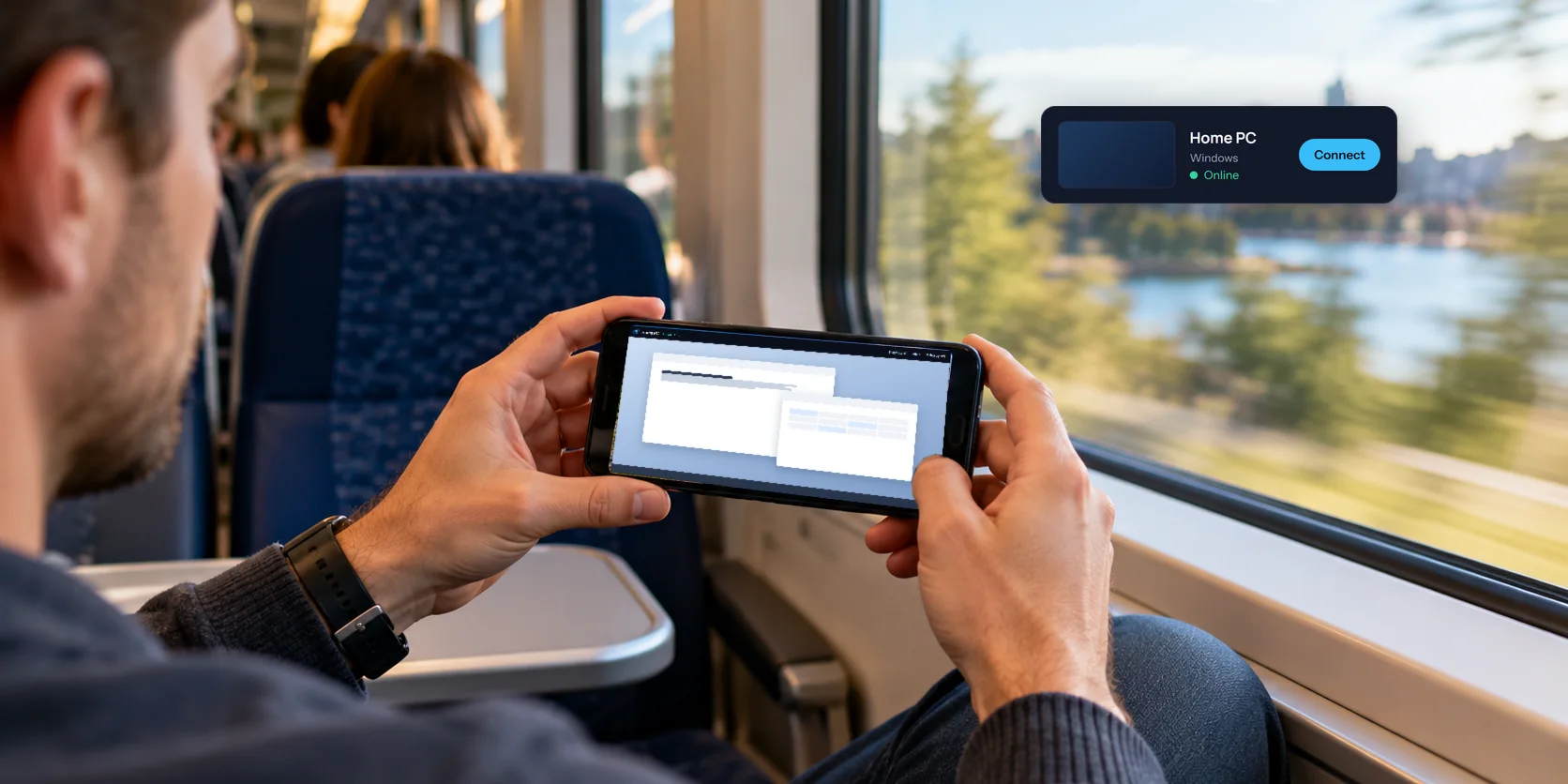
Open the app, or go to app.viewmydesktop.com in your phone's browser, and sign in. My computers lists each of your computers with a recent picture of its screen and whether it's online. Tap Connect and type the access code.
If you haven't turned on two-step sign-in, the first time a new phone signs in we'll email you to approve it. Open the email on any device and approve, and the phone carries on signing in.
Using a computer with your finger
There are two ways to work the pointer.
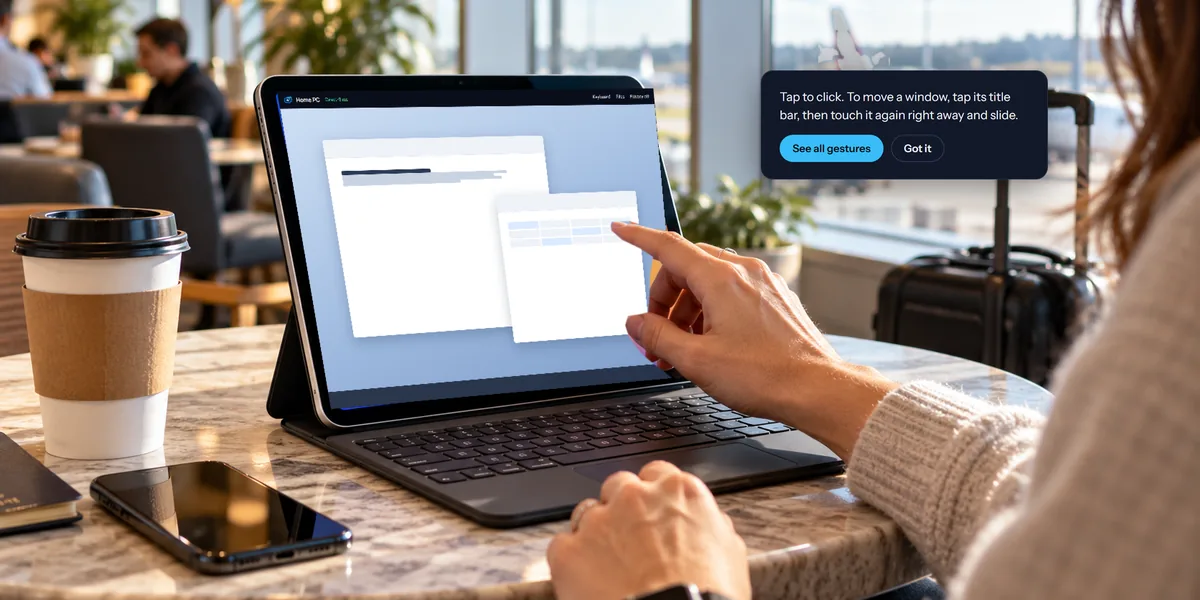
Touch is the natural one: your finger is the pointer. Tap to click, touch and hold to right-click, drag to scroll, and pinch to zoom in on small text.
Trackpad turns your phone into a laptop trackpad. An arrow appears on the computer's screen, and sliding your finger steers it. It's a little slower, but much more precise when you need to hit a small button or the edge of a window.
In the browser, switch between them with the Touch button while you're connected, and choose Learn the gestures there to see them all. In the app, the Touch or Trackpad button on the session toolbar switches between them, and the app remembers your choice. Touch gestures under More shows them all.
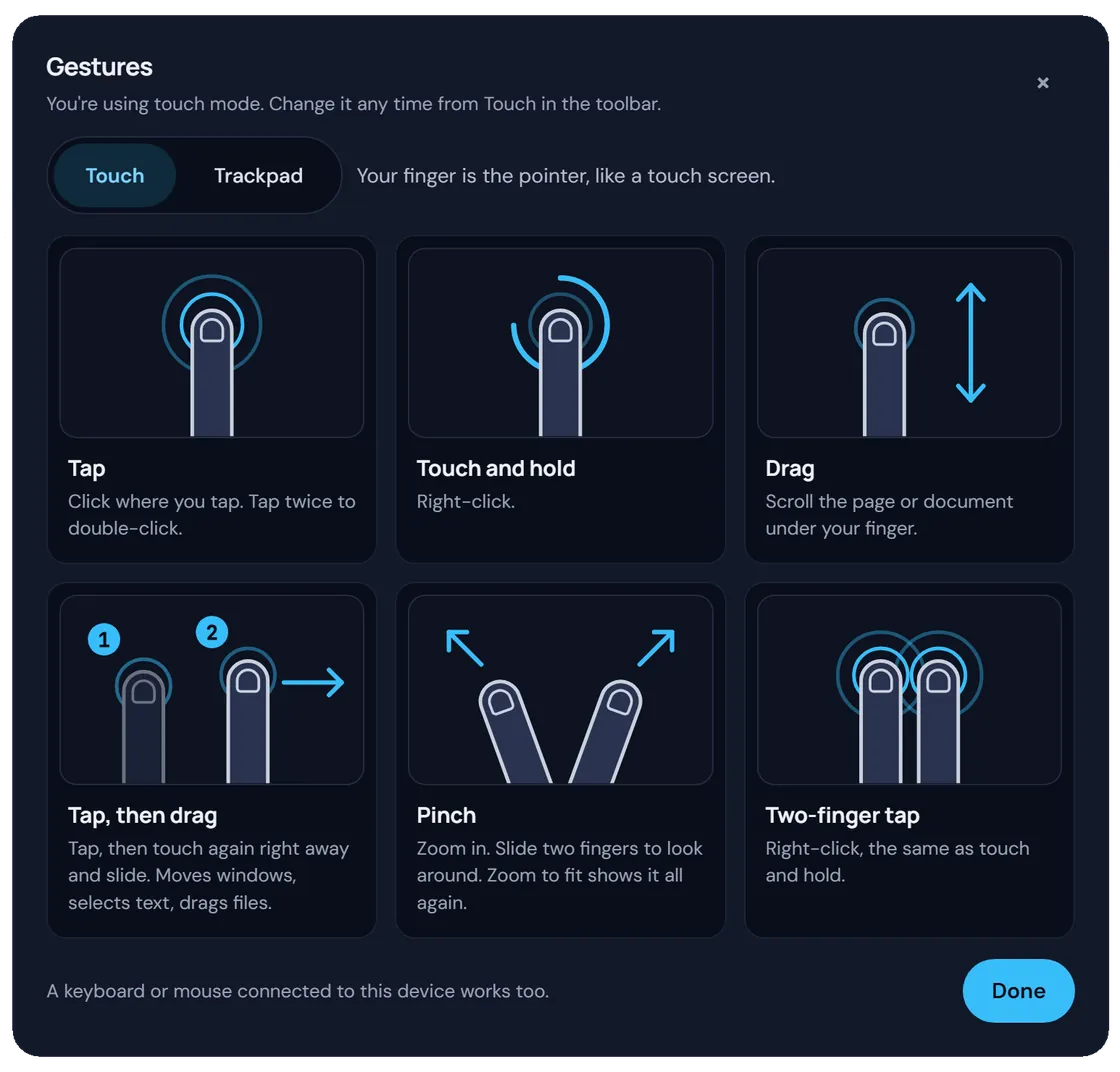
To type, tap Keyboard in the app. The row above your phone's keyboard has the keys a phone doesn't: Esc, Tab, the arrows, function keys, and more.
Tips that make it easier
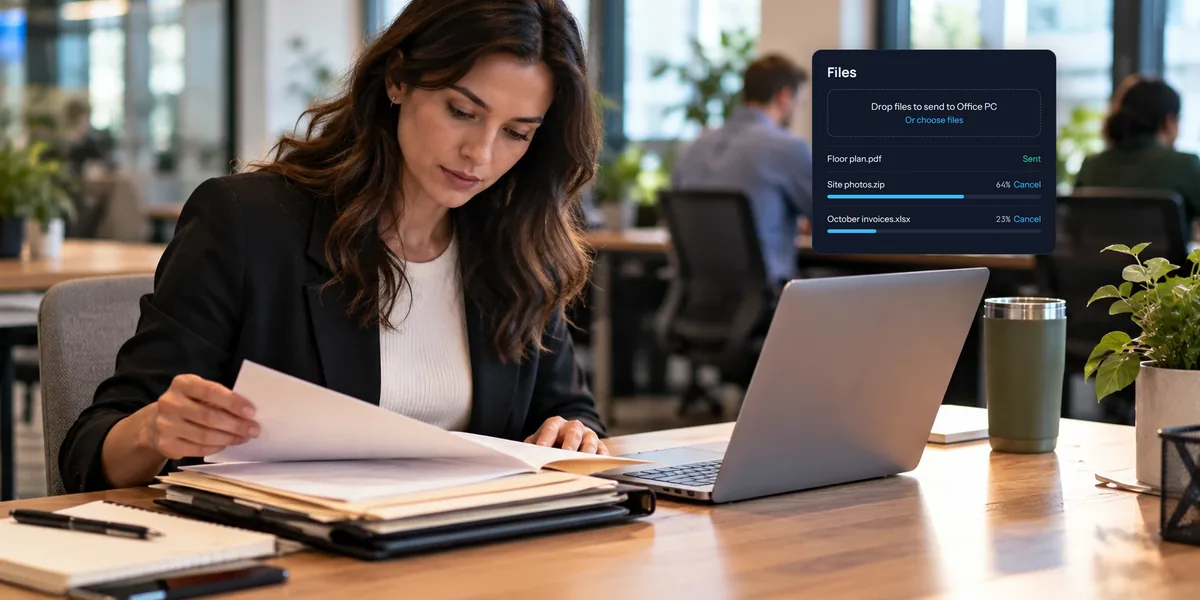
- Grab a file. Tap Files to send a file from your phone, or bring one back from the computer's Desktop, Documents, or Downloads.
- Turn your phone sideways. More of the computer's screen fits, and everything gets bigger.
- Zoom instead of squinting. Pinch in on the part you're working on, then pinch back out.
- Show one monitor at a time. If the computer has two screens, both at once on a phone means a lot of tiny pixels.
- Mind your data. A session uses more data while the picture is changing a lot, like a video playing, and very little while the screen sits still. Wi-Fi is kinder to your phone plan.
Keep the computer reachable
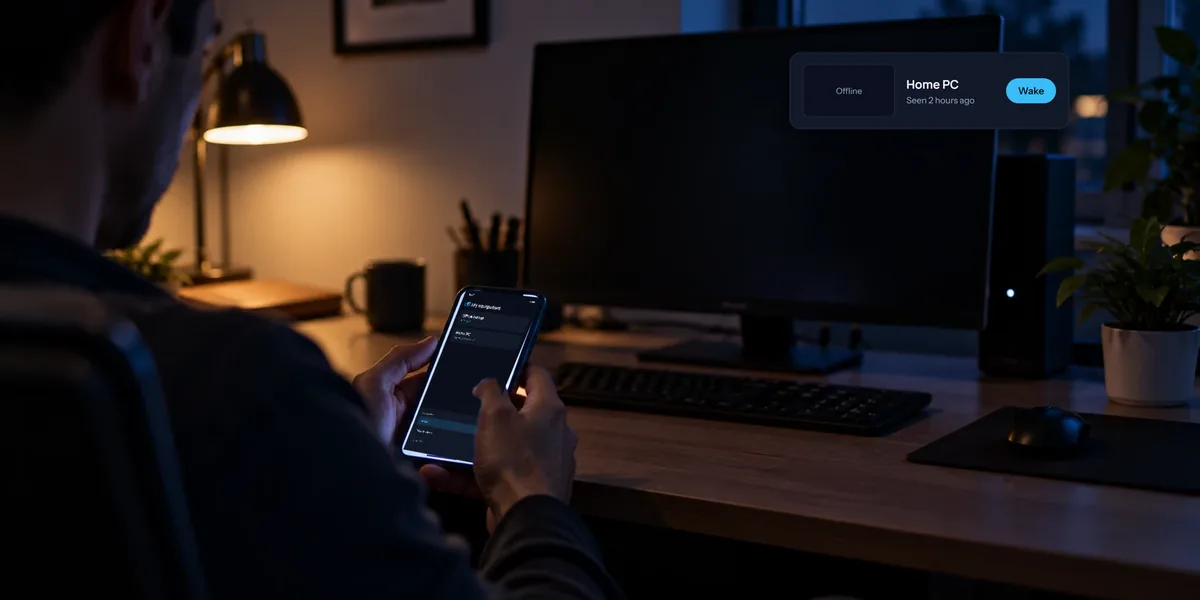
Your phone can only reach a computer that's on and awake.
- On Windows, in Settings, under System, open Power & battery (just Power on some desktops) and set the PC never to sleep while it's plugged in.
- On a Mac, look in System Settings under Energy or Battery, depending on your Mac, for the option that stops it from sleeping when the display is off.
- Wake on LAN. If another of your computers on the same network stays on, View My Desktop can ask it to wake this one when you need it.
Is it safe?
Your session goes straight between your phone and your computer whenever it can, and it's encrypted either way. Nobody connects without the access code, which never leaves your computer. You can also have the computer ask before anyone connects, and lock itself when you leave. Our security page explains how it all works.
If you're still deciding, our guide to remote desktop on Windows 11 Home compares the other ways to reach a PC.