A phone works in a pinch, but an iPad is where remote desktop starts to feel comfortable. The screen is big enough to read a spreadsheet without squinting, and with a keyboard attached you can do real work on a computer that's somewhere else.
What you need
- The computer you want to reach: Windows 10 or 11, or a Mac on macOS 13 or later. It has to be on and online.
- Your iPad, with the View My Desktop app or just Safari.
- About ten minutes at the computer for the first part.
Set up the computer
- Make an account at app.viewmydesktop.com and choose a plan under Plan and billing. Every plan is free for 14 days. Cancel before it ends and you pay nothing.
- On the computer, sign in at app.viewmydesktop.com, get the Windows or Mac host from Download apps, and install it. On a Mac, allow screen recording and accessibility when macOS asks.
- Set an access code on the computer, at least six characters. A Windows PC asks for one as soon as the host is installed, and on a Mac it's in the menu bar icon's menu.
- The host shows a short code. On the iPad, sign in, choose Add a computer, and type it.
Connect from the iPad
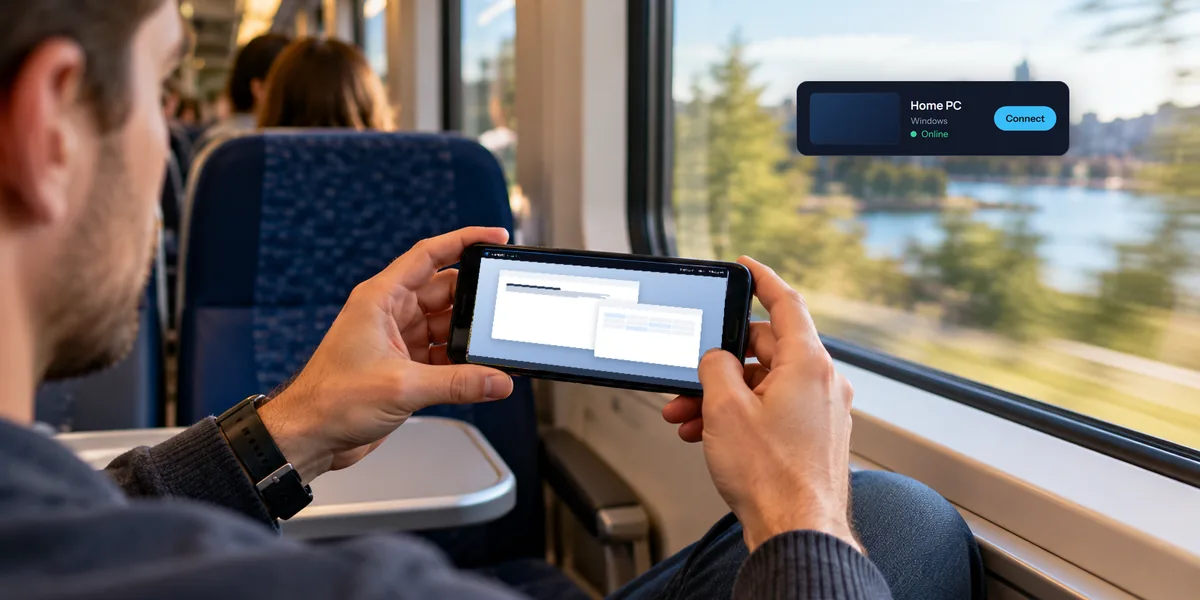
Open the app, or go to app.viewmydesktop.com in Safari, and sign in. Your computers are listed under My computers with a recent picture of each screen. Tap Connect and type the access code.
If two-step sign-in isn't on for your account, we'll email you to approve the iPad the first time it signs in.
Working with touch
There are two ways to steer, and it's worth trying both.
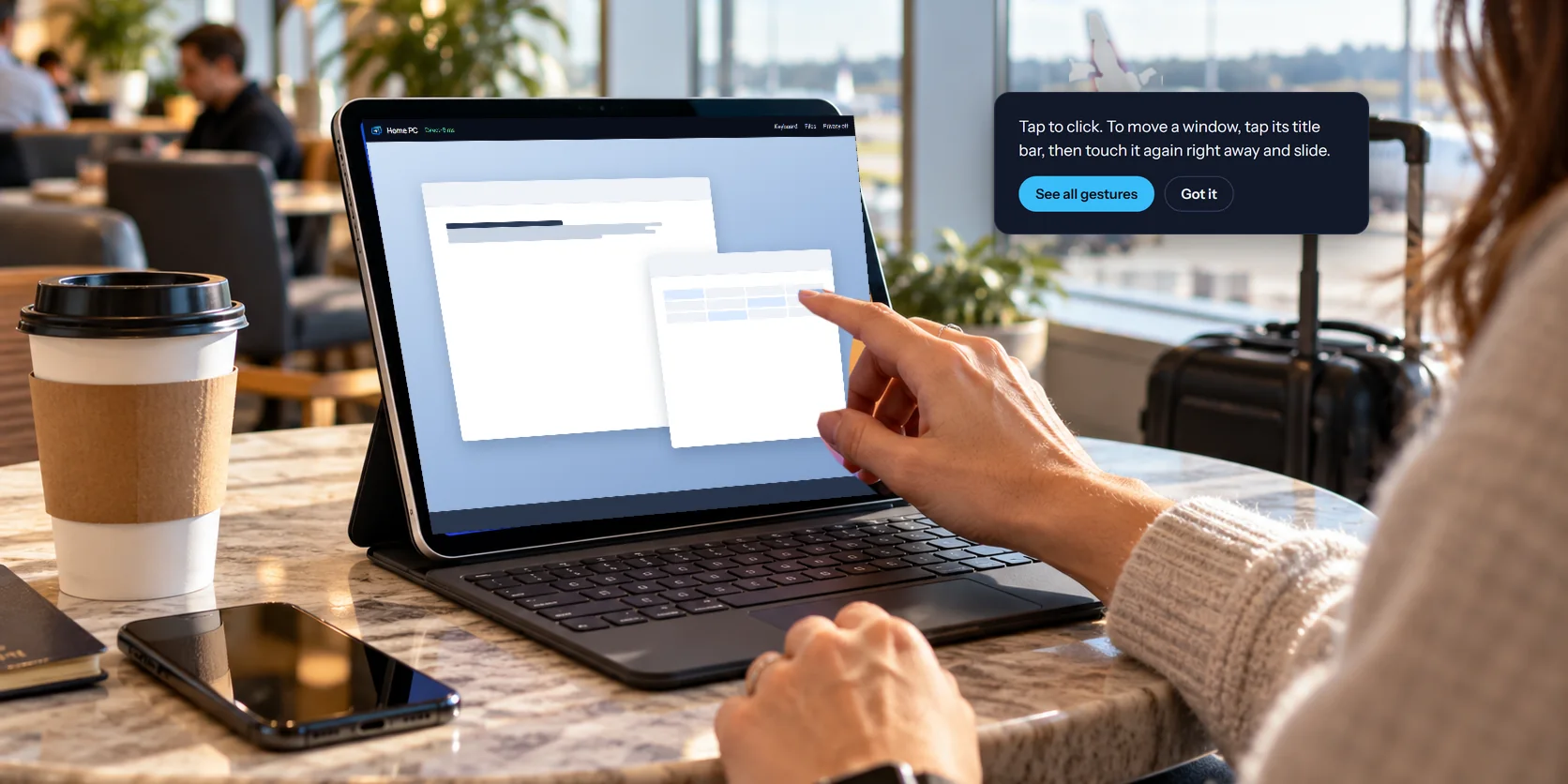
Touch treats your finger as the pointer. Tap to click, touch and hold to right-click, drag to scroll, and pinch to zoom.
Trackpad puts an arrow on the screen that you slide around, like a laptop's trackpad. It's slower to get across the screen, but far easier for small targets like a window's close button or a cell in a spreadsheet.
In Safari, the Touch button in the toolbar switches between them and has Learn the gestures for the full list. In the app, the Touch or Trackpad button on the session toolbar switches between them, and the app remembers your choice. Touch gestures under More shows them all.
Working with a keyboard
For anything more than a few words, a keyboard makes all the difference.
- The on-screen keyboard. In the app, tap Keyboard. The row above it adds the keys an iPad keyboard doesn't have, like Esc, Tab, the arrow keys, and the function keys.
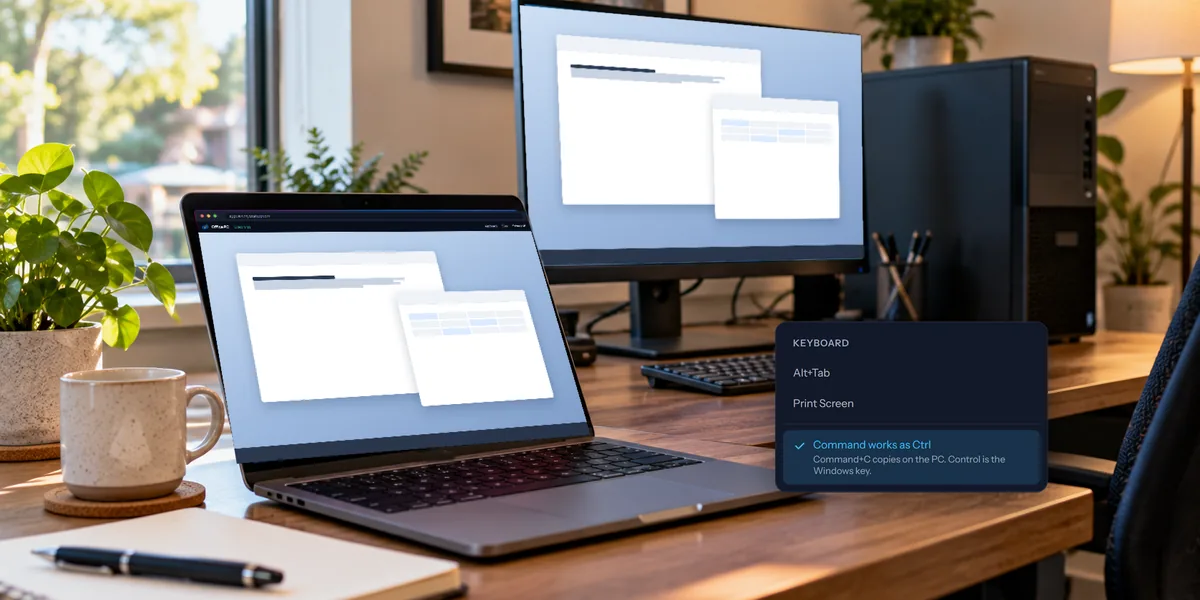
- A hardware keyboard. A Magic Keyboard or any Bluetooth keyboard works. When the computer is a Windows PC, Command works as Ctrl, so Command+C copies on the PC the way your fingers expect. In Safari you can turn that off in the Keyboard menu.
Tips for the iPad
- Stay in landscape. The computer's screen is wide, and landscape gives it the most room.
- Zoom to read, then zoom back out. Pinching in on one part of the screen beats leaning closer.
- Move files both ways. The Files button sends files from the iPad to the computer and brings files back. Our guide to moving files has the details.
- Keep the computer awake. It has to be on and not asleep. On a Windows PC you can also wake it remotely from another computer on the same network.
Questions people ask
Is the app or Safari better?
Both connect the same way. The app adds the on-screen key row and keeps you signed in between visits. Safari needs no install and works on any iPad.
Does it work on an iPhone too?
Yes. Our guide to reaching your home computer from your phone covers it.