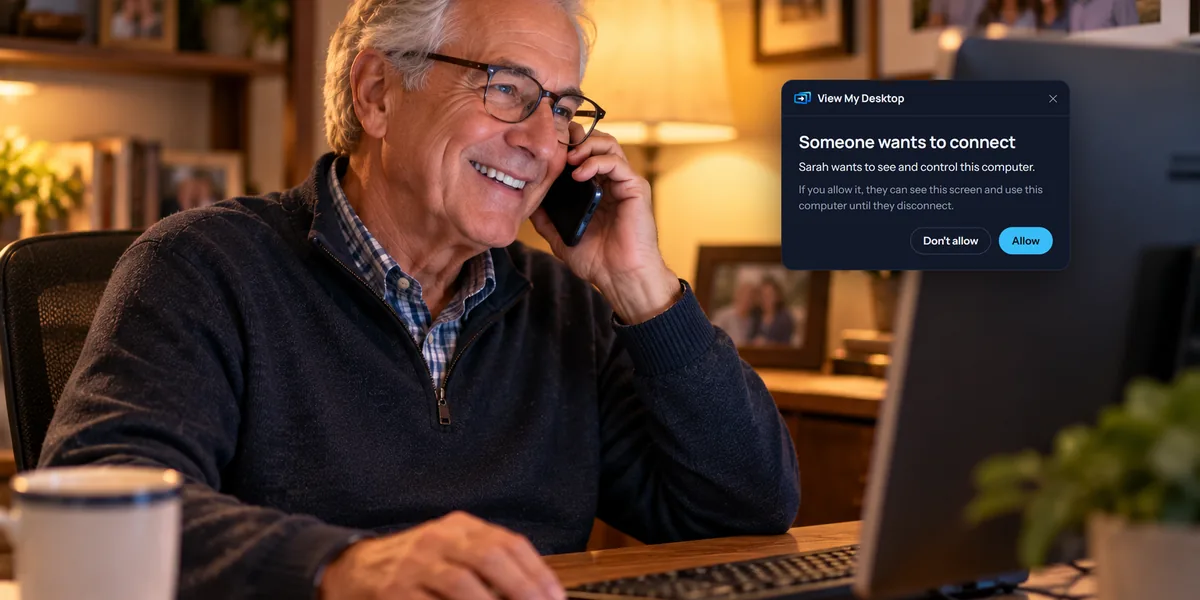
Sharing puts one of your computers in someone else's list. They sign in with their own account, find it under My computers, and connect to it as they would to their own. It suits a partner who uses the home PC too, an assistant who works on your office computer, or a brother who also helps your parents.
What you need
- Pro on your own account. Sharing comes with Pro, for computers that are yours. Computers in a team aren't shared this way: the team's groups decide who reaches them.
- Their own View My Desktop account. They don't need a plan, since the computer is on yours.
- The computer's access code. Sharing puts the computer in their list, but they still type its access code every time they connect. Tell them yourself.
Share it
- Sign in at app.viewmydesktop.com, and on My computers, choose ⋯ on the computer's card.
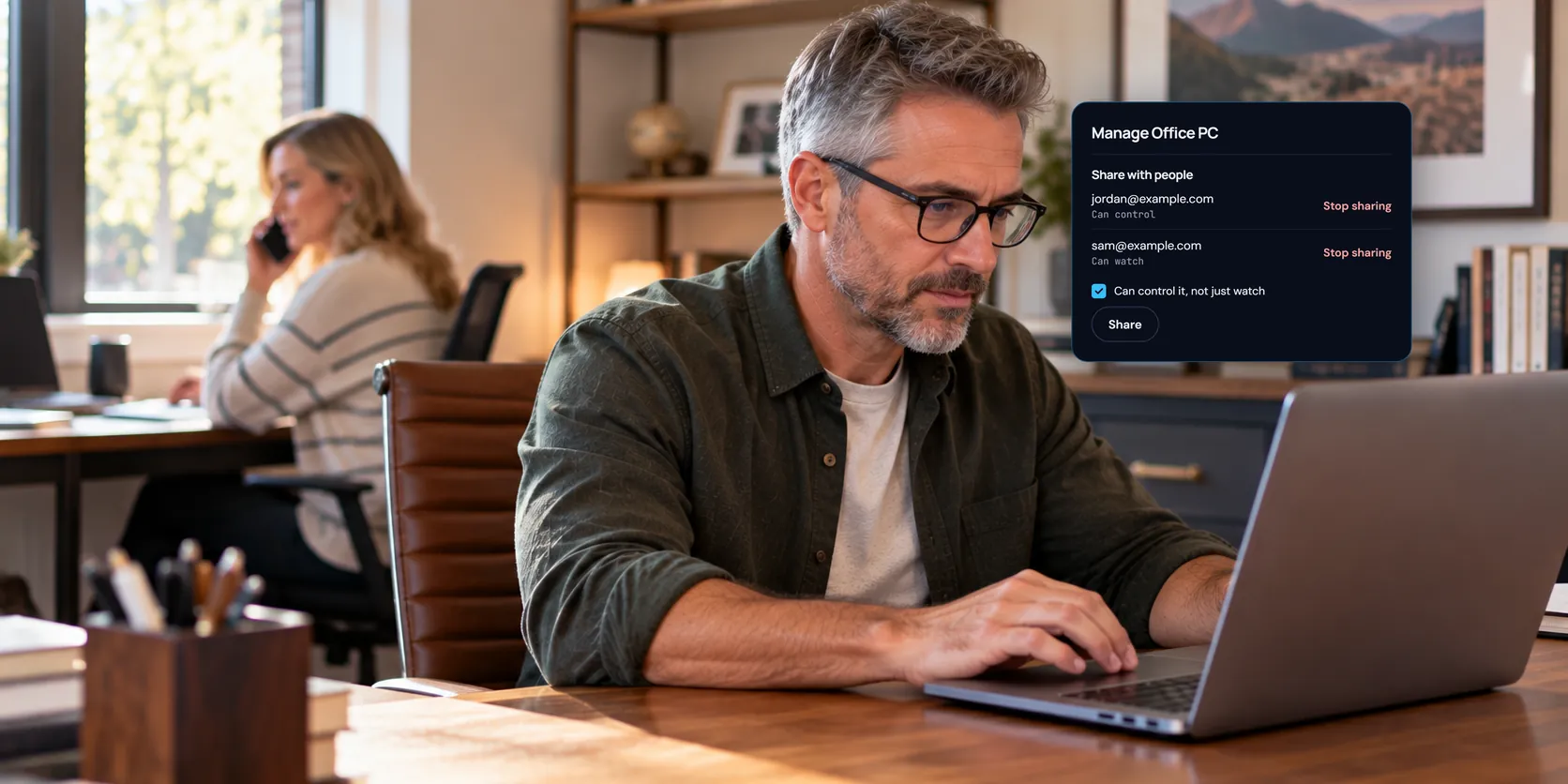
- Under Share with people, type the email they use for View My Desktop.
- Leave Can control it, not just watch ticked to let them use the mouse and keyboard, or untick it so they can only watch.
- Choose Share.
The computer shows in their list the next time they sign in, marked as shared by you. We don't email them, so let them know. If they can only watch, its button says Watch instead of Connect.
If they don't have an account yet, you'll be told there's no account with that email. Ask them to create one, then share again.
Change or stop sharing
The same section lists everyone you've shared the computer with, and whether each can control it or only watch.
- To change what someone can do, share again with their email, with the box ticked or not as you want it now. If they're connected, their session ends and they connect again with the change.
- To stop sharing, choose Stop sharing beside their name. If they're connected, they're disconnected straight away.
They can also take the computer off their own list. You'd have to share it again to put it back.
What they can do
Someone who can control the computer gets the same session you do, within your plan: files, copy and paste, printing, sound, and restart. Someone who only watches sees the screen and nothing more. If they're watching while someone in control is connected, they see whichever monitor that person chose.
Your settings on the computer still apply to them. If When someone connects asks first, they wait for a yes like anyone else. If you record every session with the computer, their sessions are recorded too, and they see that they are.
Sharing or a guest link?
| Sharing | Guest link | |
|---|---|---|
| Who it's for | Someone who needs the computer often | One visit, by anyone |
| Account | They need their own | Not needed |
| Access code | They type it each time | Not needed |
| What they can do | Control, or only watch | Watch, or control for help |
| How long | Until you stop sharing | Until the link expires |
For a one-off look, a guest link is simpler.
Questions people ask
Does sharing use up one of my plan's computers?
No. It's still one computer, on your plan. The person you share it with doesn't need a plan at all.
What happens if my plan ends?
The share stays, but nobody can connect to the computer until there's a plan again. Sharing also needs Pro, so on Personal the computer stays in their list but won't connect until you're back on Pro.
Can two people use the computer at the same time?
Yes. Everyone connected sees the same screen, so agree on who drives.