The usual ways to get a file from one computer to another all have a step too many. You email it to yourself and hit the attachment limit. You put it in a cloud folder and wait for it to sync. You go looking for a USB stick. If you're already connected to the other computer, you can skip all that and move the file directly.
Send a file to the computer
The quickest way is to drag it. While you're connected, drag a file from your own computer onto the remote screen and let go. It's copied to the remote computer's Desktop.
You can also use the Files button in the toolbar. Drop files on the panel, or choose Or choose files to pick them. Each file shows its progress, and it lands on the remote Desktop when it's done.
Files up to 10 GB can be sent.
Bring a file back
- Choose Files in the toolbar.
- Open Desktop, Documents, or Downloads on the remote computer.
- Find the file and download it. In a browser, it's saved wherever your browser keeps downloads. In the app, it waits in the Files drawer until you choose Save.
Downloads of up to 2 GB work in the browser and in the app. For something bigger, zip it up on the remote computer first, or split it.
Browsing is limited to those three folders on purpose, so a session can't wander through the whole drive. If what you need is somewhere else, move it to the Desktop on the remote computer first.
Someone has to be signed in on the remote computer to browse its folders. At the Windows sign-in screen there's no Desktop to show yet.
On a Mac
The first time the Mac app starts, macOS asks whether View My Desktop may use your Desktop, Documents, and Downloads folders. Say yes, or file transfers won't be able to reach them. If you said no, choose Allow file transfers from the app's menu bar icon.
Copying text
For a few lines of text, you don't need a file at all. Copy text on one computer and paste it on the other. Your clipboard comes along with you in the session.
Private by design
Files travel straight between your two devices, encrypted, the same way the picture does. They don't pass through our servers and we never store them. If a network blocks a direct connection, they go through an encrypted relay that can't read them.
For teams
A team's admins can turn file transfers off for the team's computers under Rules, for example on PCs that handle sensitive records. When it's off, the Files button doesn't appear.
Questions people ask
Can I send a whole folder?
Zip it first, then send the zip. It's quicker for lots of small files anyway.
Does it work from a phone or tablet?
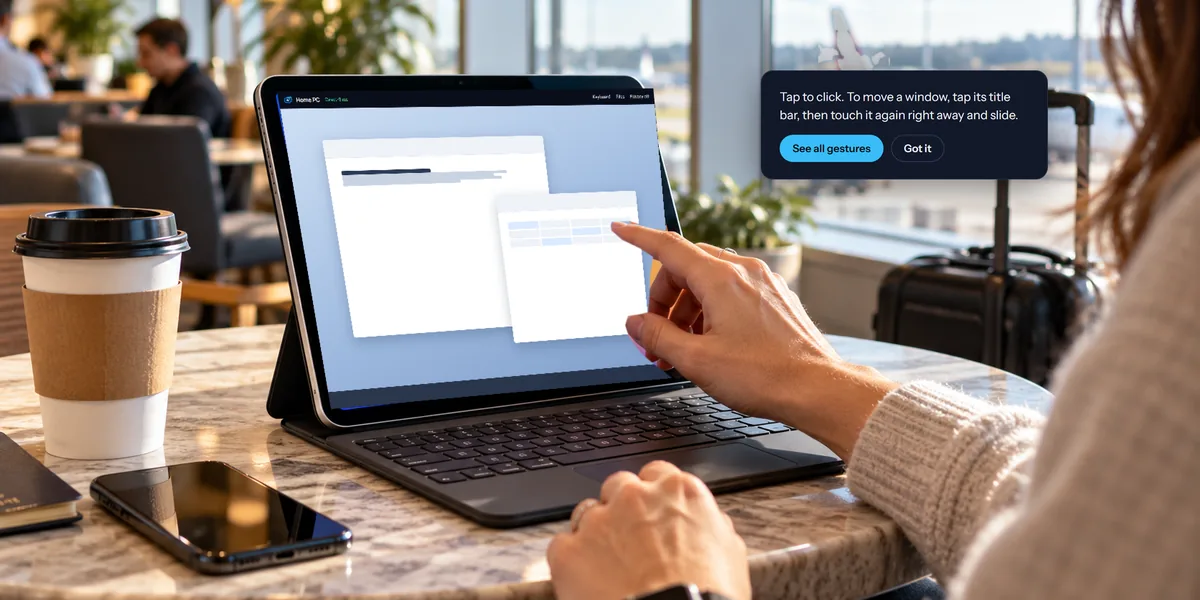
Yes. In the app, Files opens a drawer with the same send button and folders, and uses your device's own file picker. A file you bring back stays in the app until you choose Save, which opens Save to Files on an iPhone or iPad, or the save screen on Android. See using your computer from an iPad.
Can I print a document instead?
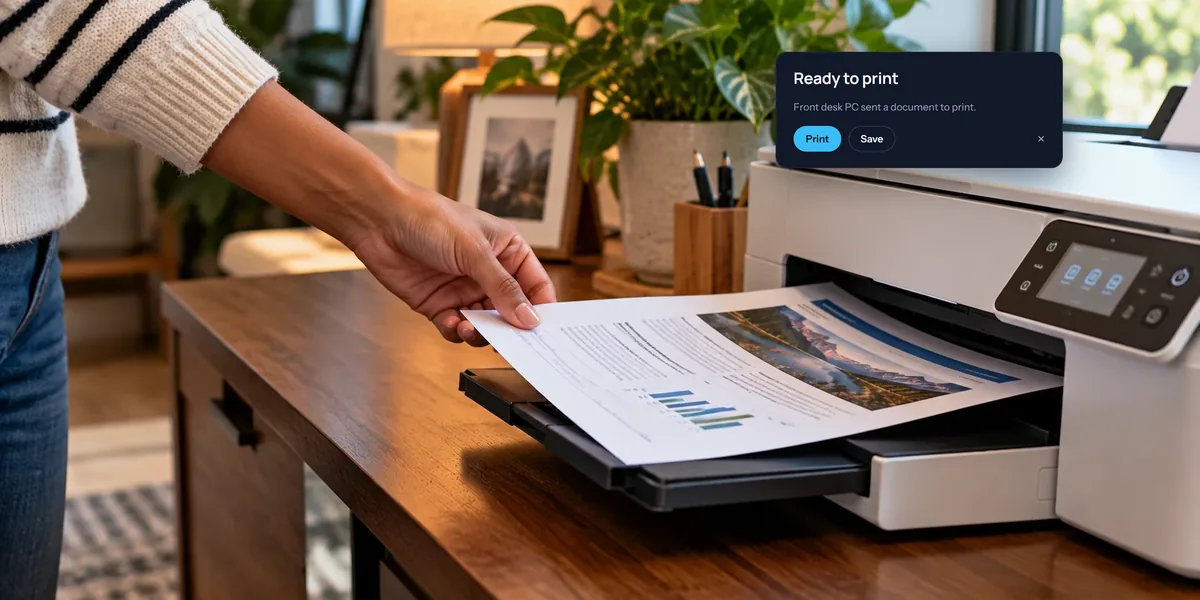
Yes, from a Windows PC or a Mac. Our guide to printing from a remote PC explains how.