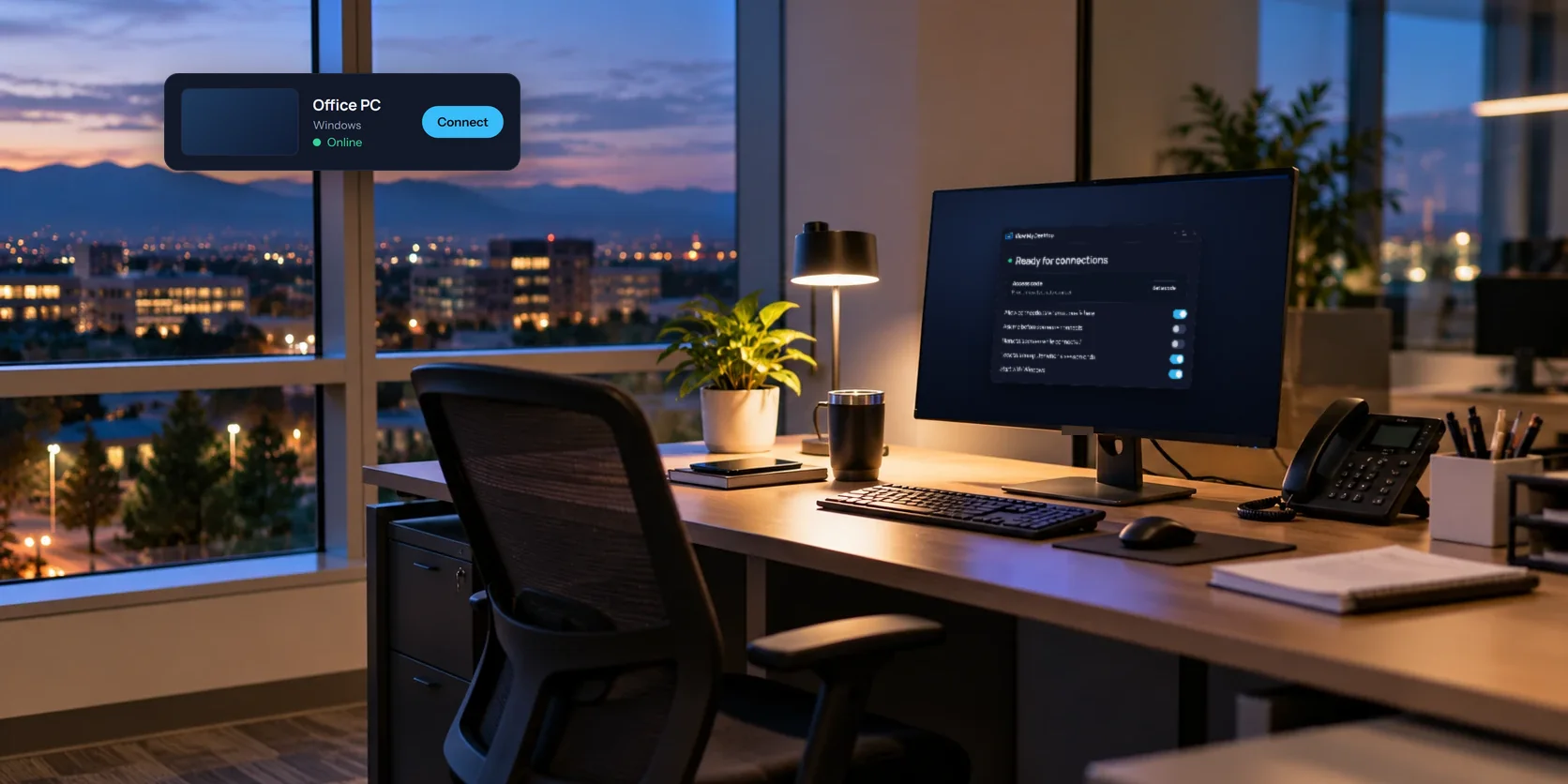
Most remote access starts with a person at the computer. Unattended access is for the times there isn't one: the office PC at night, the computer in the server closet, the machine at a branch you visit twice a year. You want to reach it whenever you need to, even if Windows has restarted for updates and nobody has signed in.
What makes access unattended
Three things have to hold:
- The remote program runs before anyone signs in. Otherwise a restart locks you out until someone types a password at the desk.
- It can reach the Windows sign-in screen, including Ctrl+Alt+Del, so you can sign in yourself.
- Nobody has to click Allow, or you've decided what happens when nobody does.
What the Windows host does for you
The View My Desktop installer sets the host up as a Windows service, so it starts with Windows, before anyone signs in. That gives you the first two on its own:
- You can connect at the sign-in screen and press Ctrl+Alt+Del from the session's Keyboard menu.
- After a restart, the PC comes back online by itself and you can connect again.
- When the last person in control disconnects, the PC locks, so nobody walking past finds a signed-in desktop. You can change that with Lock this computer when a session ends.
Set it up
- Make an account at app.viewmydesktop.com and choose a plan under Plan and billing. Every plan is free for 14 days. Cancel before it ends and you pay nothing.
- On the PC, sign in at app.viewmydesktop.com, get the Windows host from Download apps, open the zip, and run the installer inside it. It needs an administrator's approval, since it sets up a service.
- The host shows a short code. On another device, sign in, choose Add a computer, and type it.
- Set an access code. For a PC nobody watches, make it long, more like a passphrase than a PIN. It never leaves the PC, and a few wrong tries pause new connections for a while.
Decide who has to say yes
The host window's When someone connects setting decides what happens, with three choices:
- Let them in asks nobody. For a PC that's often unattended, this is usually the one.
- Ask me, and let them in if I'm away puts a question on the PC's screen first. If nobody answers within 30 seconds, or the PC is locked, the connection goes ahead.
- Ask me, and only let them in if I say yes means someone at the PC must click Allow, every time. That rules out connecting when nobody's there.
For an office PC that someone uses by day, Ask me, and let them in if I'm away is a common choice. The person at the desk gets a say, and you still get in at night, when the PC is locked.
Keep the PC reachable
- No sleep. In Settings, under System, open Power and set the PC never to sleep while it's plugged in.
- Back on after a power cut. Most PCs have a firmware setting, often called "Restore on AC power loss" or "Power on after power failure". Set it to on, and the PC starts again when the power returns.
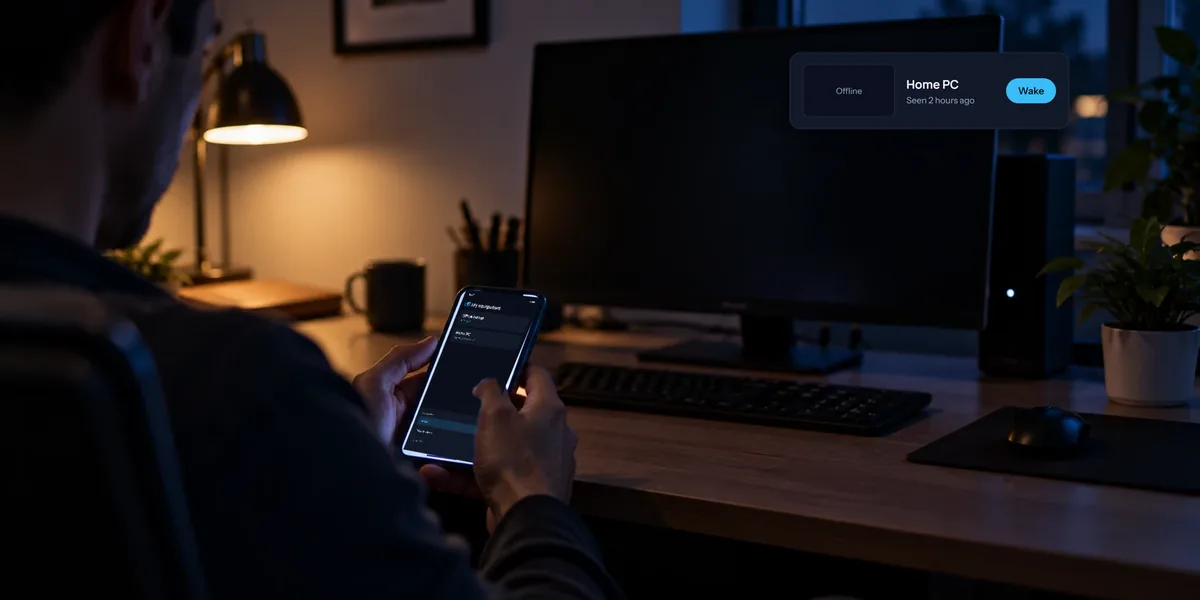
- Wake it if it does sleep. If another PC on the same network stays on, you can wake this one remotely.
- Restart from where you are. The Restart button in the session restarts the PC, and the session reconnects when it's back.
Keep it safe
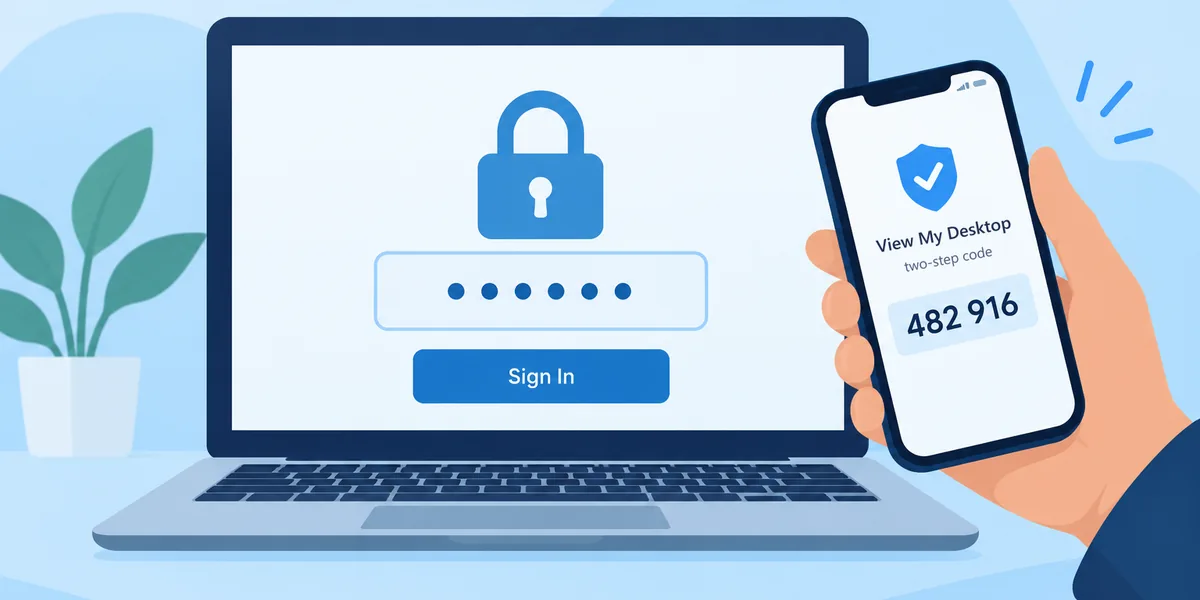
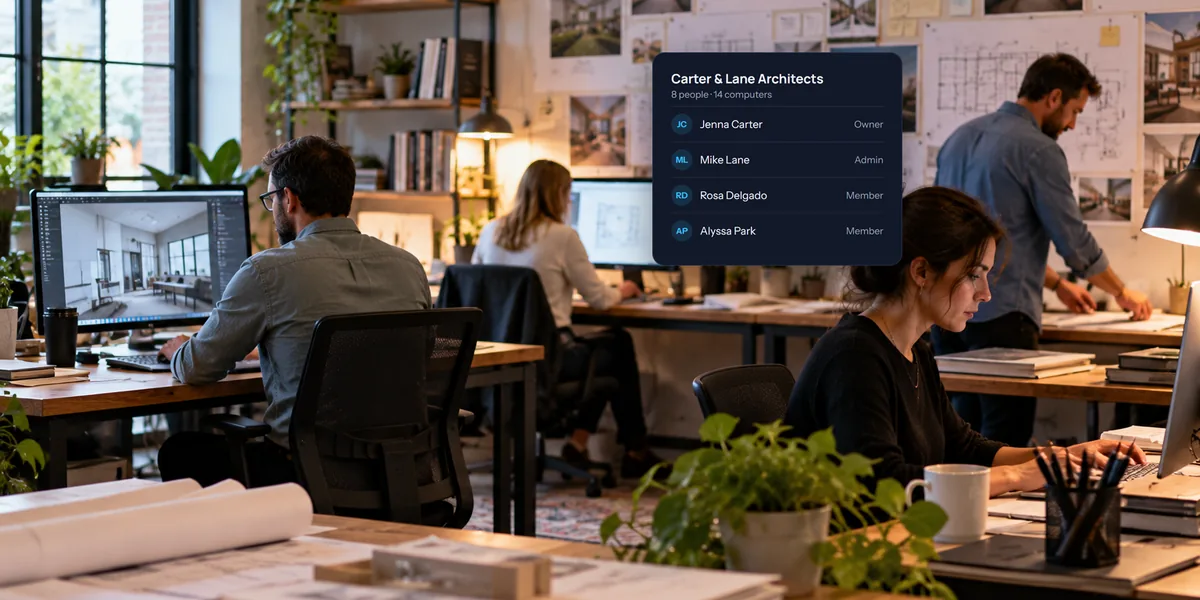
An unattended PC is only as safe as the lock on it. Use a long access code, turn on two-step sign-in for your account, and check who has connected now and then. If several people share the PC's access, a team's activity log records every session. Our guide to whether remote desktop is safe has the full checklist.
Questions people ask
Does this work on a Mac?
Partly. A Mac only returns to the desktop by itself after a restart if automatic login is on, and macOS only allows that with FileVault turned off. View My Desktop warns you before restarting a Mac that won't come back on its own.
Do I need Windows Pro?
No. The host works on Windows 10 and 11, Home or Pro.