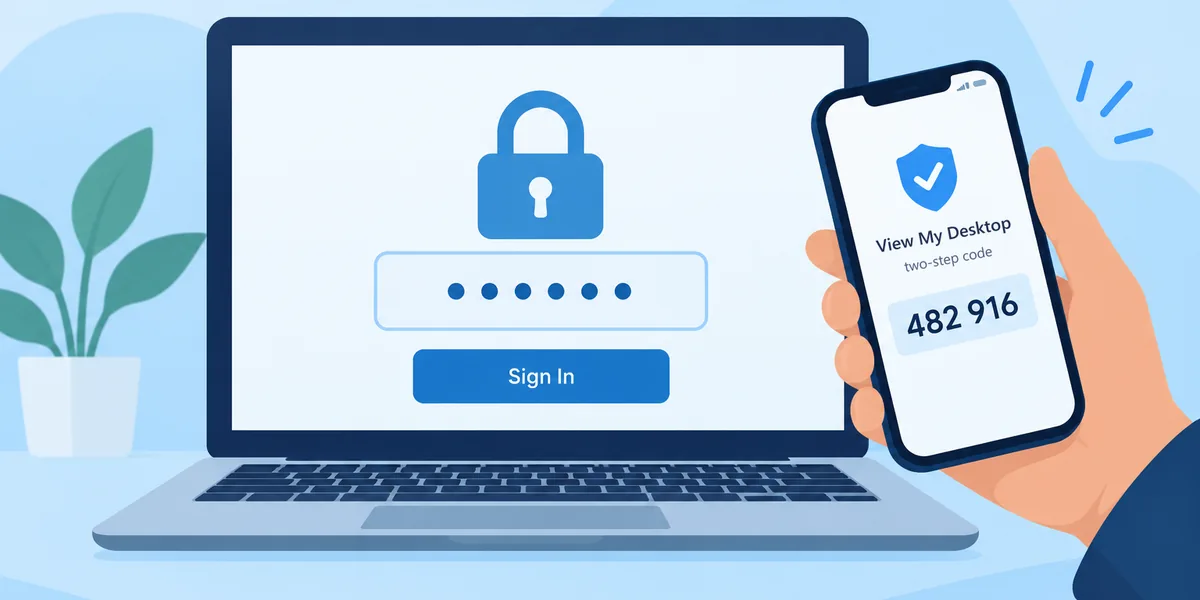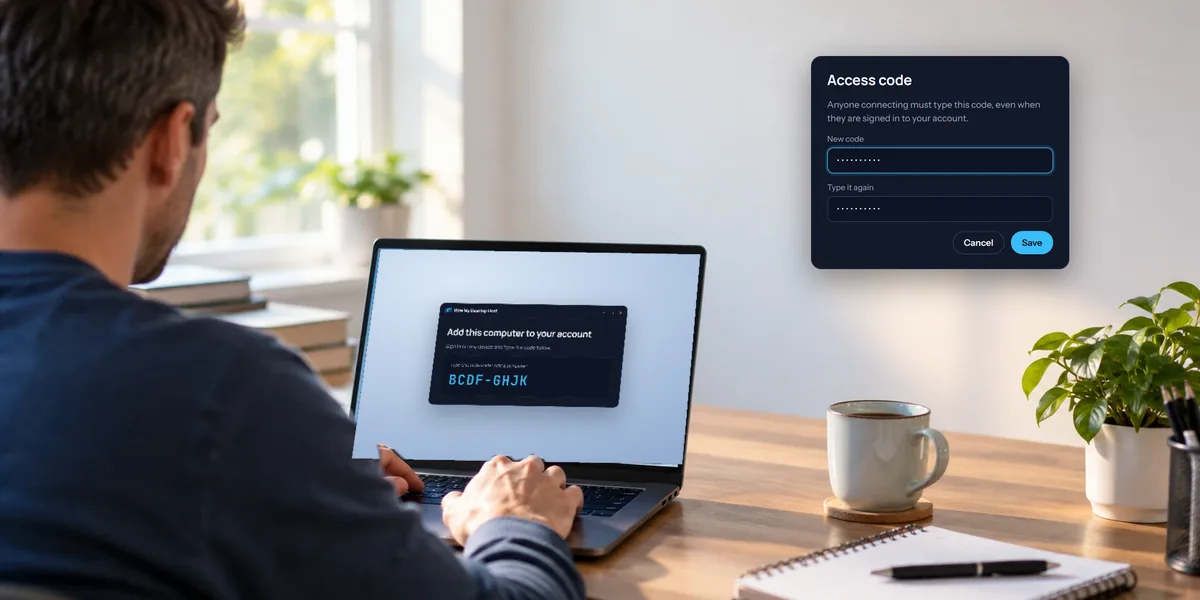
Your View My Desktop account is the way in to every computer you've added. Each computer still asks for its own access code, but a stolen password shouldn't get anyone even that far. Three things on the Security page help.
Turn on two-step sign-in
You'll need an authenticator app on your phone, such as Microsoft Authenticator, Google Authenticator, or the one in your password manager.
- Sign in at app.viewmydesktop.com, and open Security.
- Under Two-step sign-in, choose Turn on.
- Scan the QR code with your authenticator app. If you're on your phone, choose Add it to the authenticator app on this phone instead. If you can't scan it, type the key shown under it into the app.
- Type the 6 digit code the app shows, and choose Confirm.
- Save the recovery codes it shows somewhere safe, like your password manager. Each one works once, if you ever lose your phone.
From then on, signing in asks for your password and then the code from your authenticator app. Turning it on signs out your other devices, so sign in on them again.
Security shows how many recovery codes you have left. To turn two-step sign-in off, choose Turn off and type a code from the app or a recovery code. We email you whenever it's turned off.
If someone types a wrong password or code five times, signing in is paused for 15 minutes, and we email you.
Approve a new device
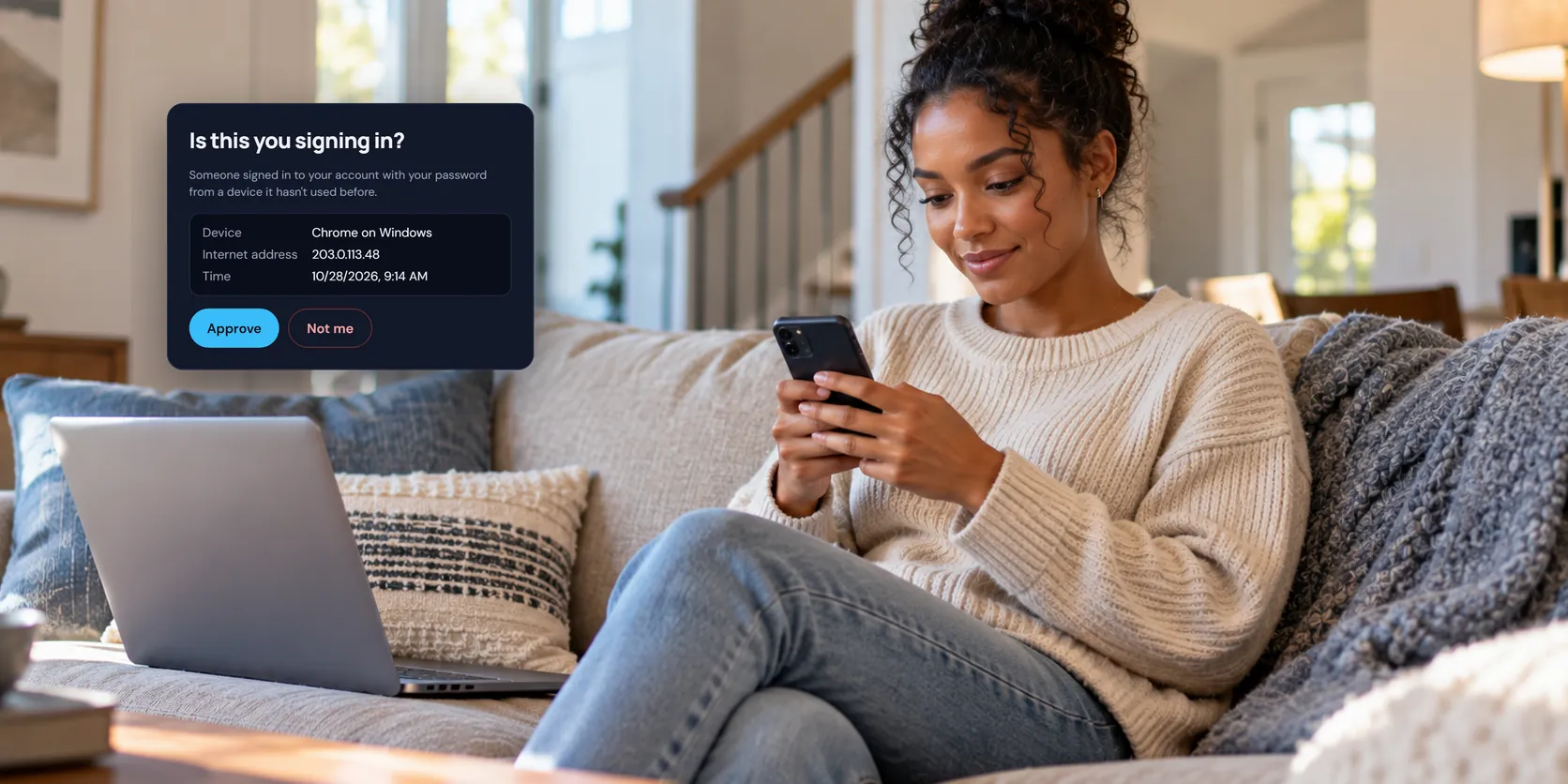
Without two-step sign-in, signing in from a device your account hasn't used before needs your OK:
- The new device shows Check your email.
- We email you Is this you signing in?, with the device, its internet address, and the time.
- Choose Review this sign-in, then Approve. The waiting device signs in by itself, and won't ask again.
The link works for 15 minutes, on any device. If it wasn't you, choose Not me. Whoever tried has your password, so choose Reset my password and change it straight away.
A few sign-ins don't wait for approval:
- With two-step sign-in on, the code is the check. We email you New sign-in to your account as a heads-up instead.
- Your very first device, when you create the account.
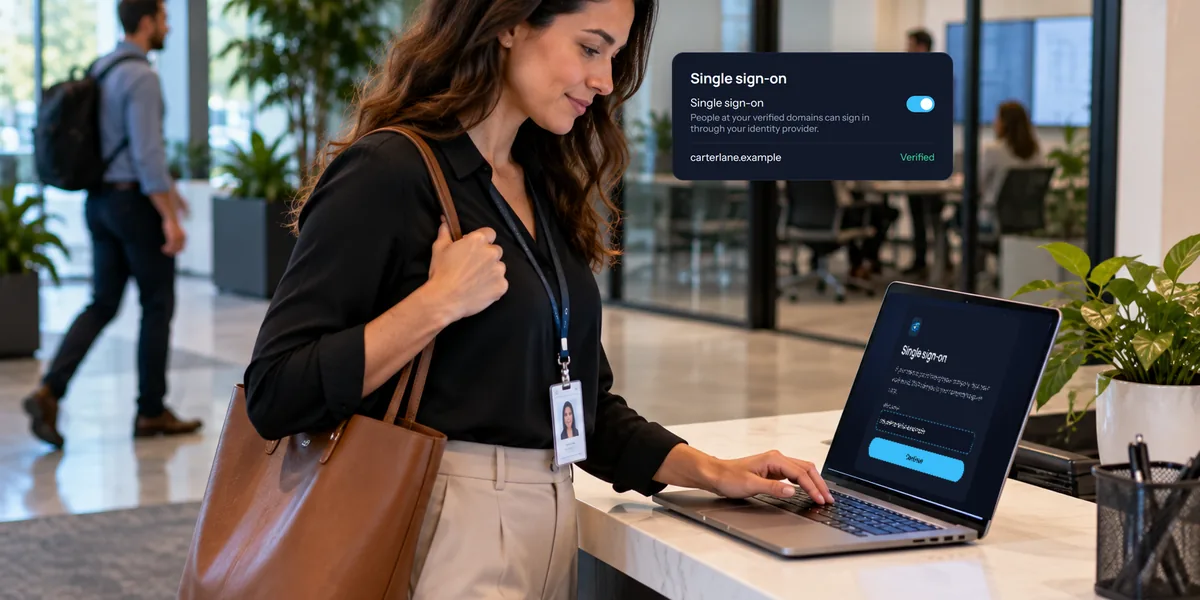
- Microsoft, Google, Apple, or your company's sign-in, since they check who you are themselves.
Each browser counts as its own device. Clearing a browser's saved data makes it new again, so you'd approve it once more.
See your signed-in devices
Under Signed-in devices, Security lists every phone, tablet, and browser signed in to your account, and when each was last used. Choose Sign out beside any you don't recognize, or Sign out everywhere else, then change your password.
A device you sign out from here has to be approved again next time. Changing your password signs out every other device too.
Sign in with Microsoft, Google, or Apple
Under Ways to sign in, choose Connect beside one, and sign in there. You come back signed in, and can use it from then on, as well as your password. We email you when one is connected or disconnected.
Disconnect removes one. You can't remove your last way to sign in. If you made your account with Microsoft, Google, or Apple and want a password too, choose Email me a link to set one.
Questions people ask
I lost my phone. How do I sign in?
Type one of your recovery codes where it asks for the code. Then, on Security, turn two-step sign-in off and on again with your new phone, which gives you new recovery codes. If you've lost those too, contact us.
The approval email never came.
Check your spam folder. The link only works for 15 minutes, so if it's been longer, sign in again to get a new email.
Does two-step sign-in replace the access code?
No. The access code belongs to each computer, and everyone types it to connect, however they signed in.
Does my team's single sign-on change any of this?
If your team requires its own sign-in, you sign in through your company, and its rules apply. Our guide to single sign-on for teams explains how it works.