Maybe your work laptop is a Mac and the accounting program only runs on the Windows PC at the office. Or the Mac is yours and the PC is the family computer downstairs. Either way, you want the PC's screen on your Mac and your keyboard and mouse working it.
There are two good ways to do that. Which one fits depends on the PC's edition of Windows and on where you'll be when you connect.
Option 1: Microsoft's Windows App
Microsoft makes a free app for the Mac called Windows App (it used to be called Microsoft Remote Desktop). You'll find it in the Mac App Store. It connects to a PC's built-in Remote Desktop, and it works well.
It comes with two conditions:
- The PC has to run Windows 11 Pro, or Enterprise or Education. Windows 11 Home can't accept Remote Desktop connections at all. Our guide to remote desktop on Windows 11 Home covers what to do if that's yours.
- The Mac has to reach the PC across the network. On the same Wi-Fi at home or in the office, that's easy. From anywhere else you'd need a VPN into that network, or a port opened on the router, and an open Remote Desktop port is one of the first things attackers look for.
If both are true, turn on Remote Desktop on the PC in Settings, under System, Remote Desktop. Then in Windows App on the Mac, add the PC by its name or address and sign in with the PC's Windows account.
Good fit if the PC runs Pro and you only connect from inside the same building.
Option 2: Your Mac's web browser
With View My Desktop, the PC runs a small program called the host, and you connect from Safari, Chrome, or any other browser on the Mac. Nothing gets installed on the Mac. It works on Windows Home and Pro alike, and from anywhere with internet.
- Make an account at app.viewmydesktop.com and choose a plan under Plan and billing. Every plan is free for 14 days. Cancel before it ends and you pay nothing.
- Install the host on the PC. On the PC, sign in at app.viewmydesktop.com, get the Windows host from Download apps, open the zip, and run the installer inside it.
- Set an access code when the host asks, at least six characters. Anyone who connects has to type it.
- Add the PC to your account. The host shows a short code. On the Mac, sign in, choose Add a computer, and type it.
- Connect. On the Mac, find the PC under My computers, choose Connect, and type the access code.
Good fit if you want to reach the PC from anywhere, or the PC runs Windows Home.
Command and Ctrl
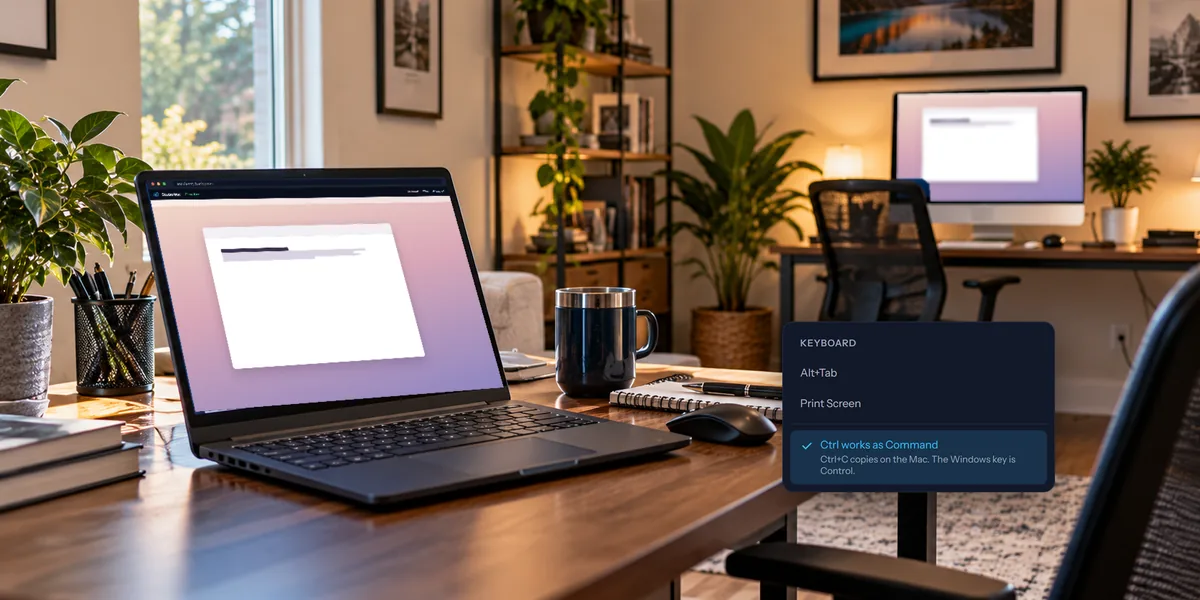
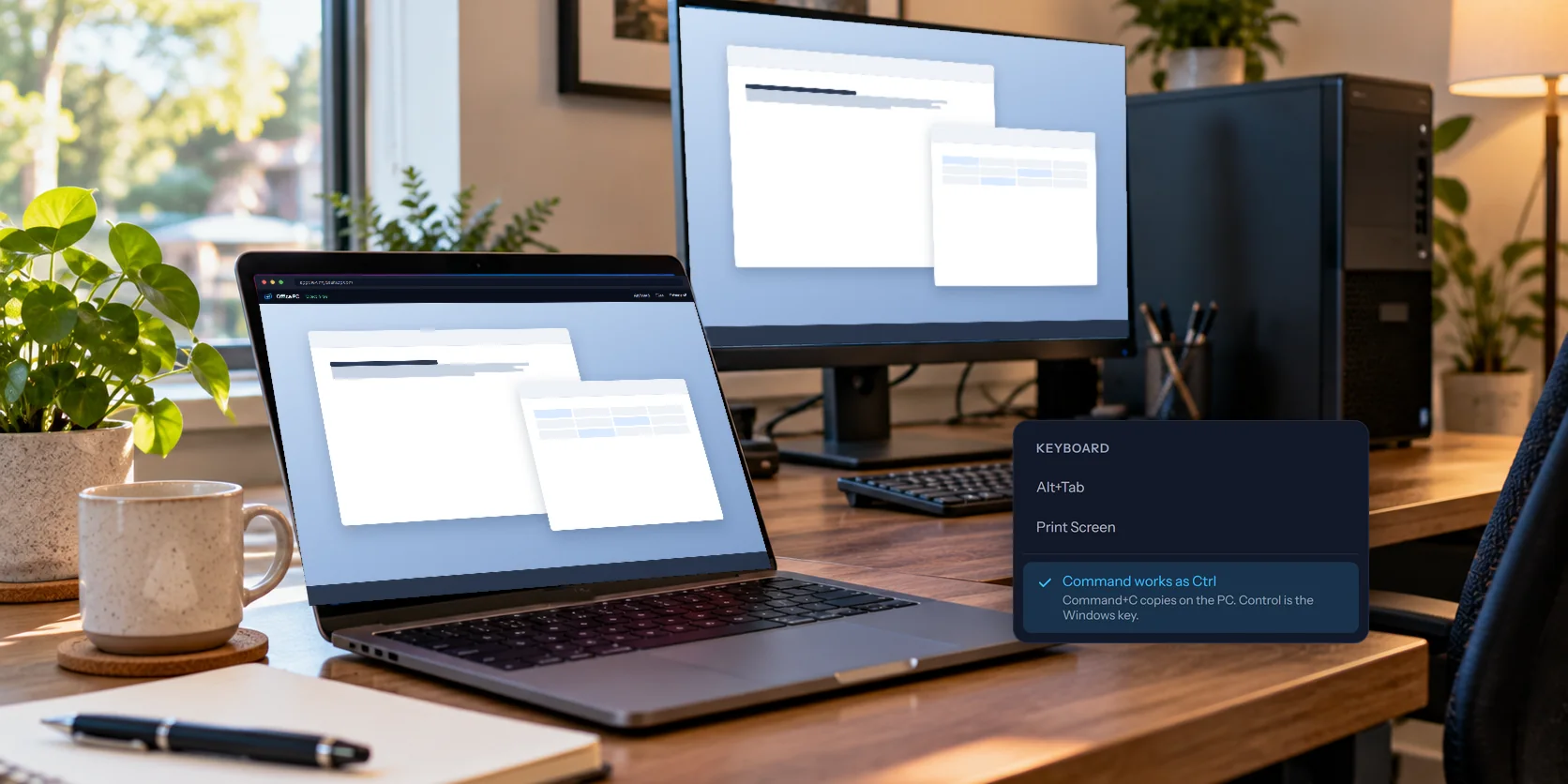
On a Mac your hand goes to Command for copy and paste. On Windows the same shortcuts use Ctrl. View My Desktop bridges that for you: when you connect to a PC from a Mac, Command works as Ctrl. Command+C copies on the PC, Command+V pastes, and Command+Z undoes, just as you'd expect. The Control key on your Mac keyboard becomes the Windows key, and Option is Alt.
If you'd rather keep the keys as they are, open the Keyboard menu in the session and turn off Command works as Ctrl. Your browser remembers the choice.
A few shortcuts stay with the Mac whatever you do. Command+Tab switches apps on your Mac, Command+W closes the browser tab, and Command+Q quits the browser. To switch windows on the PC, use Alt+Tab in the Keyboard menu. Ctrl+Alt+Del is there too, for the Windows sign-in screen.
Getting the best picture
- Go full screen. The Full screen button gives the PC your whole display, with the toolbar along the top.
- Pick a monitor. If the PC has two screens, the Monitor button moves between them.
- Sharpen small text. If your toolbar shows a Smooth button, switching it to Sharp makes text crisper on a large Mac display, at a small cost in speed.
Questions people ask
Do I need to install anything on the Mac?
No. View My Desktop runs in the Mac's browser. Only the PC you're connecting to needs the host.
Can I go the other way, from the PC to the Mac?
Yes. Our guide to controlling a Mac from a Windows PC walks through it, and the Ctrl and Command keys swap the other way round.
What about my iPad?
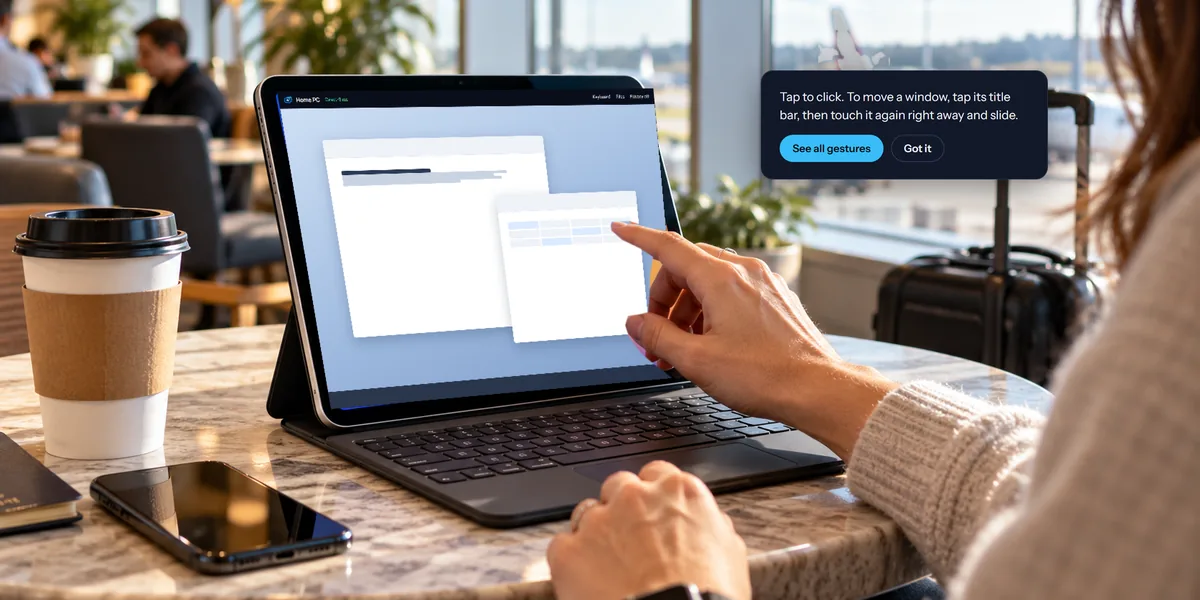
That works too. See how to use your computer from an iPad.