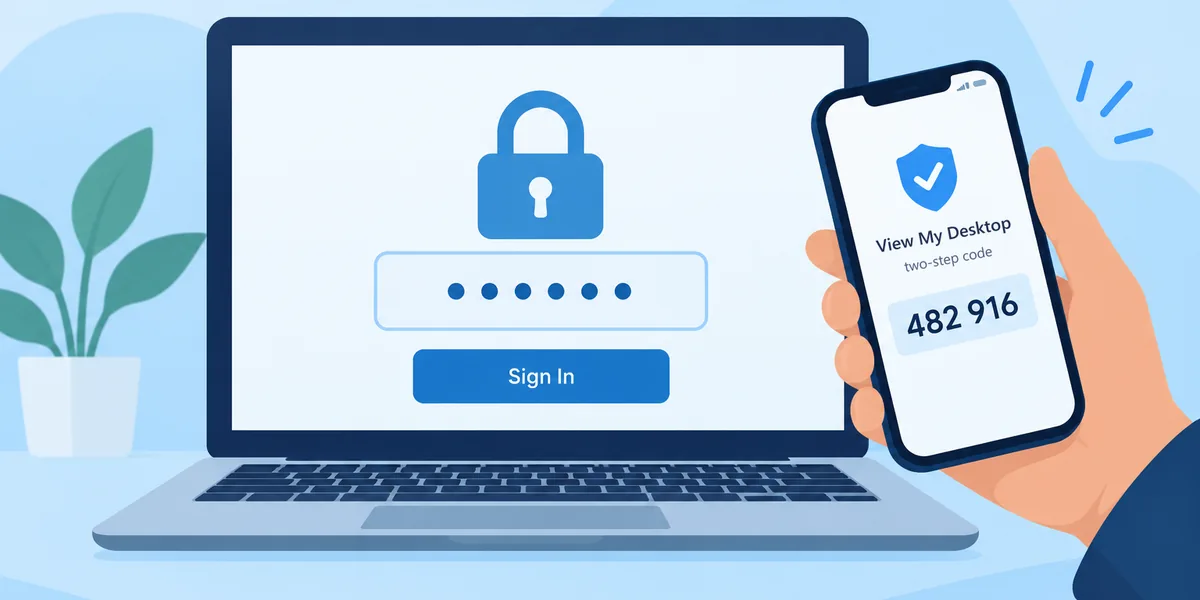
When someone calls with a computer problem, the slow part is usually getting connected. With a one-time code, the person you're helping doesn't need an account, and nothing gets installed on their computer. They open a small app, type your code, and choose Allow.
It's made for one-off help: a friend's laptop, a customer, a coworker who isn't on your team. For a computer you'll reach again and again, set it up properly instead, on Windows or a Mac.
What you need
- Pro or Team. Helping with a code comes with both plans, whether it's your own plan or your team's.
- A computer with a browser. You help from the website, and their screen opens in a browser tab.
- Their Windows PC or Mac. The help app doesn't run on phones or tablets.
Get a code
- Sign in at app.viewmydesktop.com, and on My computers, choose Help someone.
- Choose Get a code. You get a nine-digit code and a link.
- Choose Copy link and send it to them in a text or an email. It works once, for 15 minutes.
- Leave the window open. It waits for them, and opens their screen in a new tab as soon as they type the code.
Send the link, not just the code. The page it opens is where they download the help app, and it shows the code too. If they still have the help app from last time, reading them the code is enough.
You can have three codes waiting at once. Closing the window before they type the code throws it away.
What they do on a Windows PC
- Open your link, and choose Download the help app.
- Open the zip file, then open ViewMyDesktopHelp.exe inside it.
- Type the code, and choose Connect.
- When the question comes up, choose Allow.
What they do on a Mac
- Open your link, and choose Download the help app.
- Open the zip file, then open View My Desktop Help inside it.
- The app first asks for two permissions macOS needs. Screen Recording lets you see their screen, and it's required. Accessibility lets you use their mouse and keyboard. They can skip it, and then you can only watch and send messages. If macOS offers to quit and reopen the app, they choose that. Sometimes the app restarts itself once to pick the permissions up.
- Type the code, and choose Connect.
- When the question comes up, choose Allow.
While you're helping
Their screen opens in a tab on your computer. You can use their mouse and keyboard, and press Chat to send them a message, which pops up on their screen.
Anything more is their choice. In the help app, under If they need it, you can also let them, they can turn on:
- Send and receive files
- Copy and paste between your computers
- Hear this computer's sound
Your tab tells you when one of these is turned on or off, so if you need one, just ask. You can't restart their computer, print from it, or black out its screen this way.
Ending the help
Either of you can end it at any time:
- They choose End the help, or close the help app.
- You close the tab with their screen.
It also ends by itself after 12 hours, or when their help app has been offline for a couple of minutes. Once it's over, the code can't be used again and their computer was never added to your list. They can delete the file they downloaded.
Keep it safe
Scammers ask strangers to install remote access apps, so the help page and the help app both tell people to continue only if they reached out to you first. Keep to that yourself: only send codes to people who asked you for help.
Each code works once, for 15 minutes, and nobody gets in until the person at the computer chooses Allow. Our guide to whether remote desktop is safe has more on how these scams work.
Questions people ask
Does the person I'm helping need an account or a plan?
No. Only you need Pro or Team.
Does their computer count toward my plan?
No. It never appears in your list, and it doesn't count as one of your plan's computers.
Do I need their access code?
No. Helping with a code doesn't use one. Their Allow is what lets you in, every time.
What if they need help again next week?
Get a new code. If you help them often, install View My Desktop on their computer and add it to your account, as in our guide to helping a parent with their computer.