To reach a Mac from somewhere else, the Mac needs View My Desktop on it. It lives in the menu bar, keeps a line open so you can find the Mac, and shows you the screen when you connect. Setting it up takes about ten minutes, and you need to be at the Mac to do it, because macOS only lets the person sitting there grant the permissions it needs.
It works on macOS 13 or later, on Apple silicon and Intel Macs.
What you need
- An account with a plan. Make one at app.viewmydesktop.com and choose a plan under Plan and billing. Every plan is free for 14 days. Cancel before it ends and you pay nothing.
- The Mac, and the password of an account on it that can change System Settings.
1. Install it
- On the Mac, sign in at app.viewmydesktop.com, open Download apps, and choose Download on the Mac host card.
- Open the downloaded file, then drag View My Desktop into your Applications folder.
- Open it from Applications.
There's no window and no Dock icon. Look for the View My Desktop icon in the menu bar at the top of the screen. That menu is where everything lives.
When it first opens, macOS asks whether View My Desktop may use your Desktop, Documents, and Downloads folders. Allow them. That's what lets you send files to the Mac and fetch files from it later.
2. Set an access code
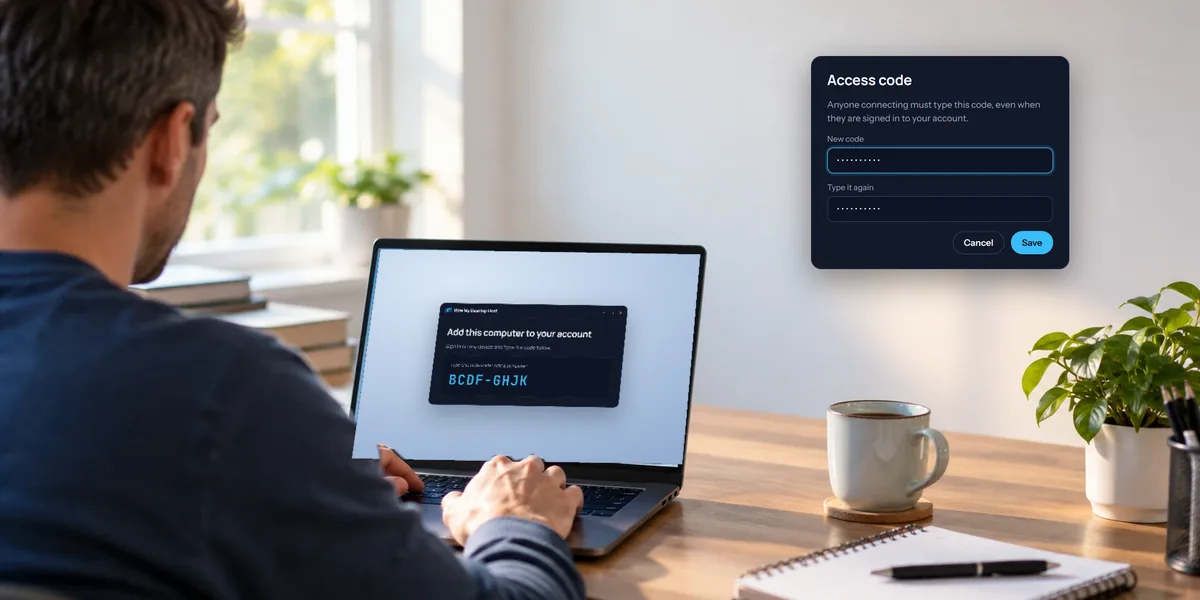
Open the View My Desktop menu and choose Set an access code (needed before anyone can connect). Type a code and choose Save.
Everyone who connects has to type this code, even you, even when you're signed in to your own account. It needs at least six characters. A few ordinary words strung together make a good one: easy to remember and hard to guess. The code never travels over the internet, and the Mac keeps only a one-way check of it, not the code itself.
To change it later, choose Change the access code from the same menu.
3. Add the Mac to your account
The menu now shows Add this Mac to your account, with a line that says Type this code under Add a computer, followed by a short code like BCDF-GHJK.
- On any other device, sign in to View My Desktop.
- Choose Add a computer, type the code, and choose Add.
The code lasts 15 minutes, and a fresh one appears if it runs out. Once the Mac is added, the menu says it's online, and it shows up in your list.
4. Allow screen recording and control
This is the part that's special to the Mac. macOS needs two permissions, and both have to be allowed by someone at the Mac:
- Screen Recording. Without it, there's nothing to show anyone who connects.
- Accessibility. Without it, people could see the screen, but their clicks and typing would do nothing.
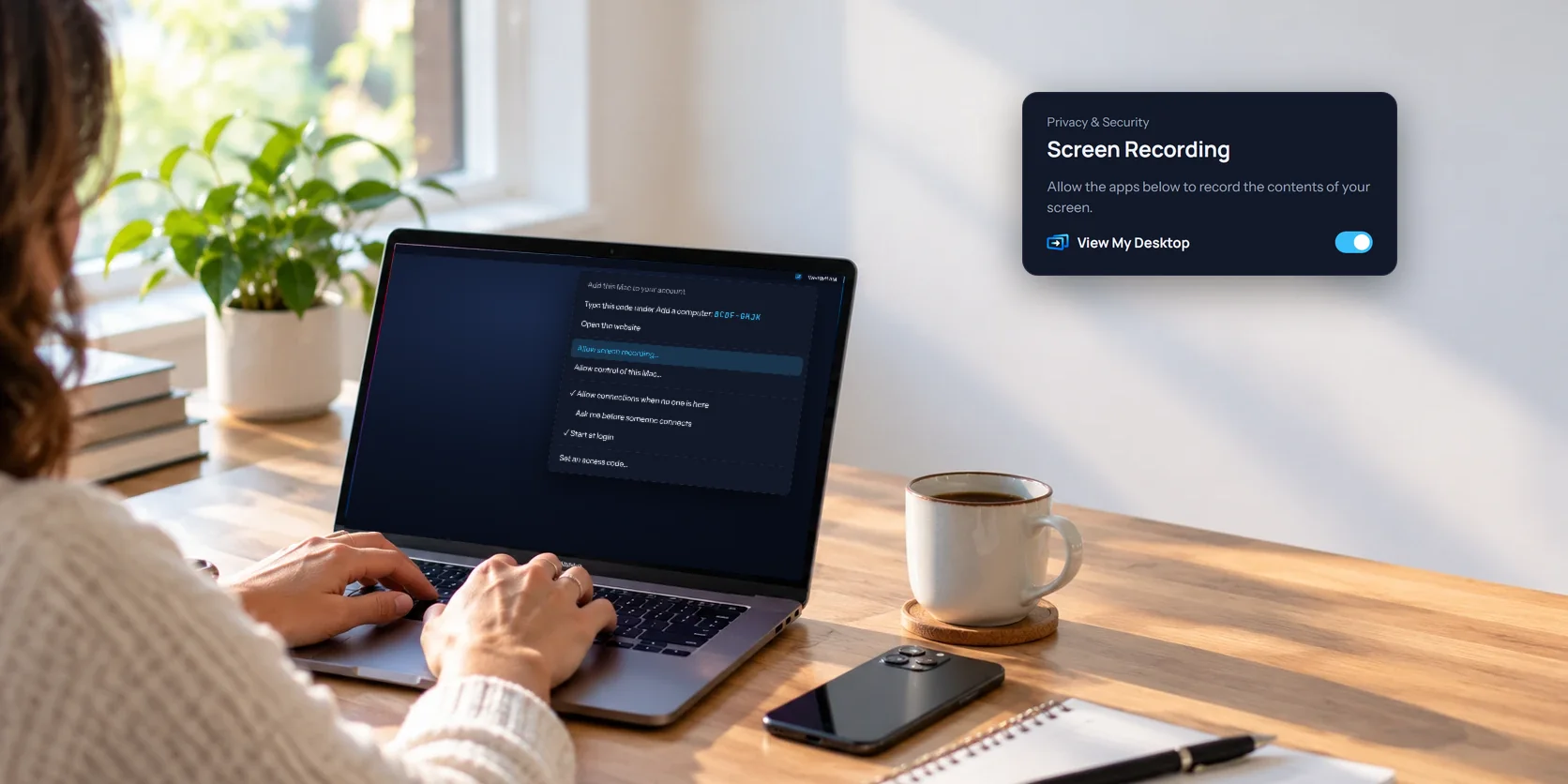
When View My Desktop first opens, it explains both and offers Open Settings. Choose it, then turn on View My Desktop in each list, in System Settings under Privacy & Security. After you allow screen recording, macOS may ask to quit and reopen View My Desktop. Let it.
If you choose Later, the View My Desktop menu shows Allow screen recording... or Allow control of this Mac... until each is allowed, and each takes you to the right switch. Anyone who connects in the meantime is told what's missing, rather than seeing a black screen.
If you said no to the folders earlier, Allow file transfers... appears in the menu too.
5. Make it start by itself
Turn on Start at login in the menu, so View My Desktop is running whenever you're logged in to the Mac.
The menu also has:
- When someone connects, with three choices. Let them in asks nobody. Ask me, and let them in if I'm away puts a question on the Mac's screen, with Allow and Don't Allow, and lets them in if nobody answers within 30 seconds or the Mac is locked. Ask me, and only let them in if I say yes asks the same way, but nobody gets in until someone at the Mac clicks Allow.
- Blank this screen while connected, which turns the Mac's own display black during every session. See the privacy screen guide.
What's different on a Mac
- It runs once you're logged in. View My Desktop is a menu bar app, so after a restart you can reach the Mac again only once someone has logged in, or if the Mac logs in automatically. Our guide to restarting a remote computer explains automatic login and FileVault.
- One display at a time. With several displays, you switch between them, but you can't see them all at once.
- No Ctrl+Alt+Del, and no locking when you leave. Those are Windows features.
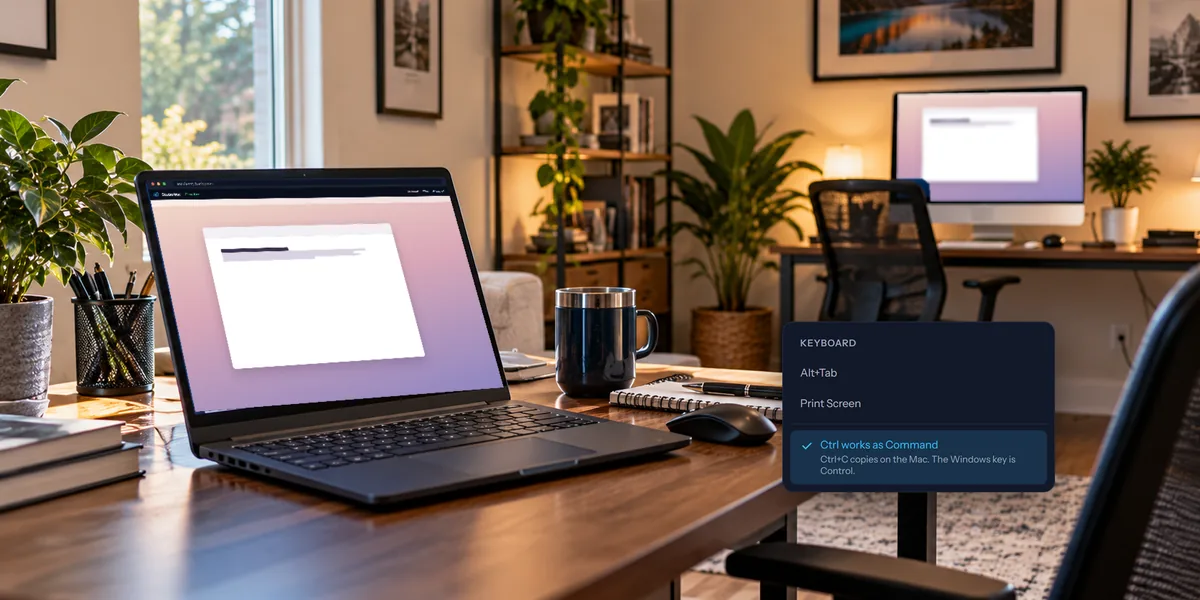
- Ctrl and Command swap for you. When you control a Mac from a PC, Ctrl works as Command by default, so the shortcuts you know still work. See controlling a Mac from a Windows PC.
Seeing who's connected
While someone's connected, the menu shows their name under Connected now, with Disconnect followed by their name to end their session. Choosing Quit View My Desktop stops it until it's opened again, and nobody can connect in the meantime.
Questions people ask
Why does macOS warn me about View My Desktop recording my screen?
Because it does, on purpose: that's how you see the Mac's screen from somewhere else. macOS asks about any app that can see the screen, so you always know which ones can.
Can I set it up without being at the Mac?
Not completely. macOS only accepts the screen recording and accessibility permissions from someone at the Mac, not from a remote click.