
Remote support for anyone, with a one-time code
When someone needs a hand with their computer, send them a link. They download a small app, type the code, and choose Allow, and you can see their screen and use their mouse and keyboard from your browser.
Included in Pro and Team, from $96 a year. Every plan is free for 14 days.
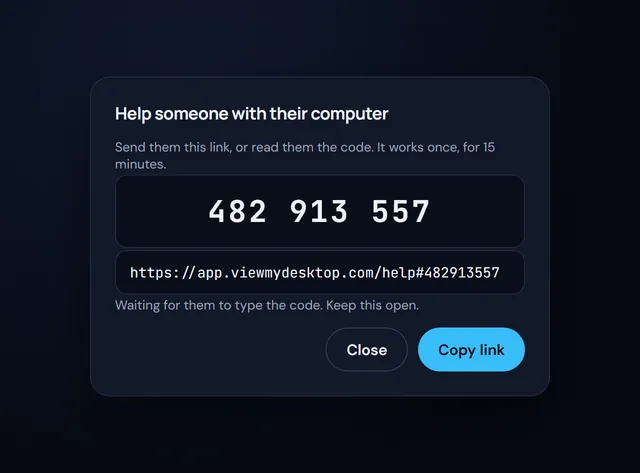
How remote support works
-
Send the link
Choose Help someone on My computers. You get a 9-digit code and a link to send by text or email.
-
They type the code
On their Windows PC or Mac, they open the link, download the help app, and type the code. Nothing gets installed, and they don't need an account.
-
They choose Allow
The app asks before you can see anything. Then you see their screen and use their mouse and keyboard from your web browser.
The person you're helping stays in charge
They say yes first
Nothing shows until they choose Allow, and the app tells them who's asking.
They choose what you can do
You start with the mouse, keyboard, and chat. Files, copy and paste, and sound stay off until they turn them on in the app.
One code, one time
Each code works once, for 15 minutes. You can have 3 waiting at a time.
Closing the app ends it
When they close the help app, or you close the help window, the help ends. The app leaves nothing behind on their computer.
Never more than help
Helping someone never lets you print, restart their computer, or turn on the privacy screen.
Their computer stays theirs
It never joins your list or counts toward your plan, and you can't reach it again once the help ends.
Who it's for
Family and friends
Fix a parent's printer or a friend's settings without driving over, and talk them through it in the chat.
Small offices
Help the people you work with on any Windows PC or Mac, without setting each one up first.
Freelancers and IT help
Help clients from your browser, with nothing for them to sign up for and nothing left on their computer.
Included, not sold separately
Remote support comes with Pro and Team, along with your own computers, session recording, and everything else in the plan. Other companies sell it on its own.
- Splashtop sells it as Splashtop SOS, from $22 a month for each technician, paid yearly.
- LogMeIn sells it as LogMeIn Rescue, apart from LogMeIn Pro.
- TeamViewer connects to other people's computers from its Business plan, at $50.90 a month, billed yearly.
From each company's own site, checked October 10, 2026. See how we compare with Splashtop, LogMeIn, and TeamViewer.
Common questions about remote support
Quick answers about who you can help, what you can do, and how it stays safe.
Does the person I'm helping need View My Desktop?
No. They don't need an account or a plan. They open your link, download a small app, type the code, and choose Allow. Nothing gets installed, and the app leaves nothing behind when it closes.
Which computers can I help?
Windows 10 and 11 PCs, and Macs with macOS 13 or later. On a Mac, the help app first walks them through the two permissions macOS asks for. You help from a web browser on any computer.
Which plans include remote support?
Pro and Team, including everyone on a team that pays for either. The computers you help don't count toward your plan.
What can I do on their computer?
You see their whole screen and start with their mouse, keyboard, and chat. They can let you send files, copy and paste, and hear sound with switches in the help app. You can't print, restart their computer, or turn on the privacy screen.
How long does a code last?
Each code works once, for 15 minutes, and you can have 3 waiting at a time. Once they've joined, the help lasts until either of you closes it, up to 12 hours.
Is it safe for the person I'm helping?
They choose Allow before you see anything, and closing the app ends the help at any time. The page your link opens also warns them to continue only if they asked for help themselves, since scammers pretend to be support. View My Desktop never contacts anyone that way.
Can I help the same computer again later?
Each code is for one session. Once the help ends, that computer is gone from your account, so make a new code to help again. For a computer you help often, install View My Desktop on it and add it to your account.