The View My Desktop app for iPhone, iPad, and Android keeps its settings in one place. Tap the Settings gear on your list of computers. Here's what's there, and why you might change it.
Lock the app
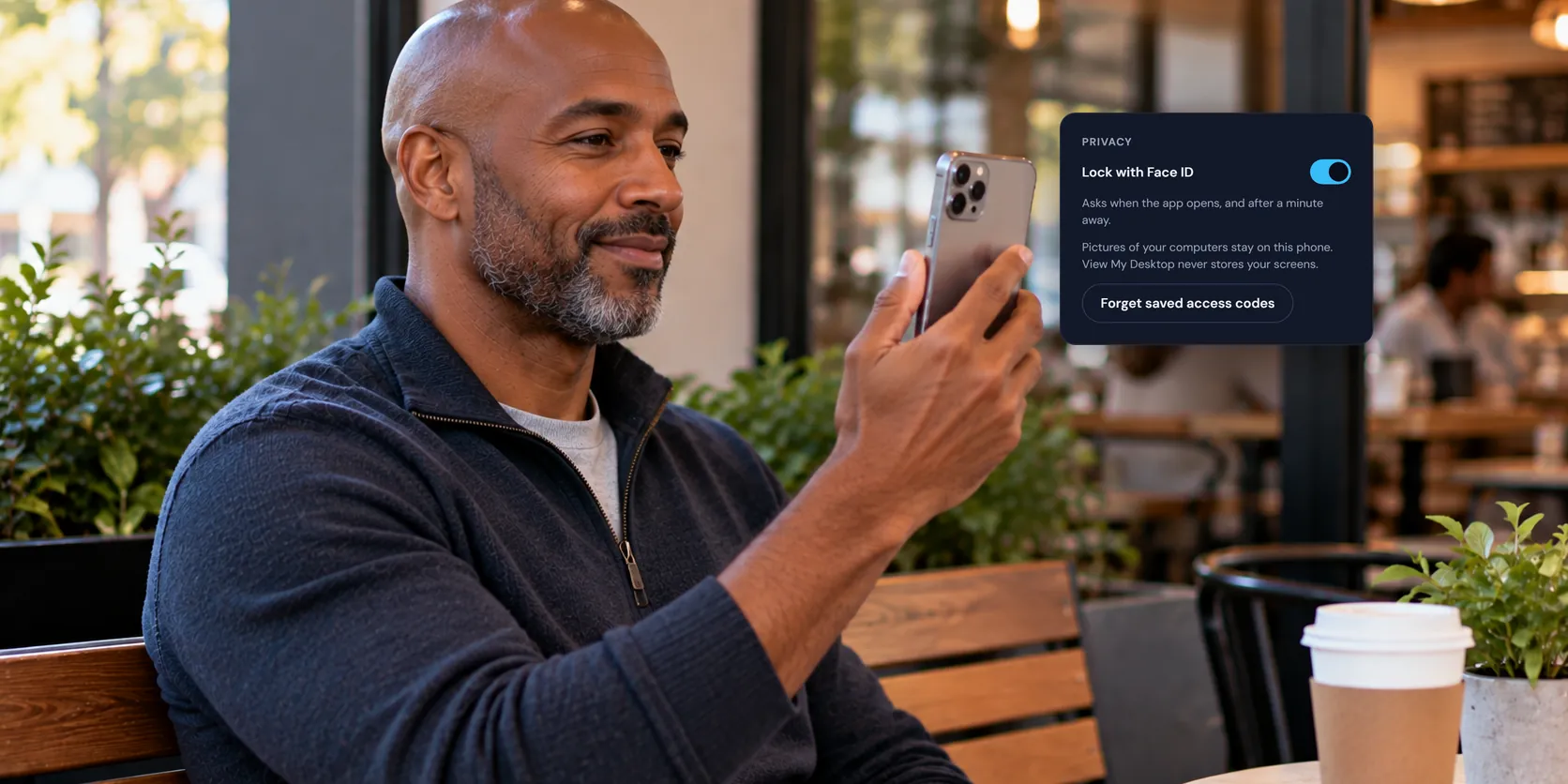
Your phone may be in someone else's hands now and then. Turn on Lock with Face ID, and the app asks for it when it opens, and again after a minute away. The name matches your device: Face ID or Touch ID on an iPhone or iPad, and your fingerprint or screen lock on Android.
If the switch isn't there, your device has no screen lock yet, and Settings says so. Set one up in your device's settings, and you can lock the app too.
Save a computer's access code
When you type a computer's access code, tick Remember it on this phone (or this iPad, or this tablet) to skip typing it next time. The code is kept in your device's secure storage, never on our servers.
If the code changes on the computer, the app notices that the saved one no longer works, forgets it, and asks you to type the new one.
To forget every saved code at once, tap Forget saved access codes in Settings, which shows once you've saved one. Signing out forgets them too.
Sessions
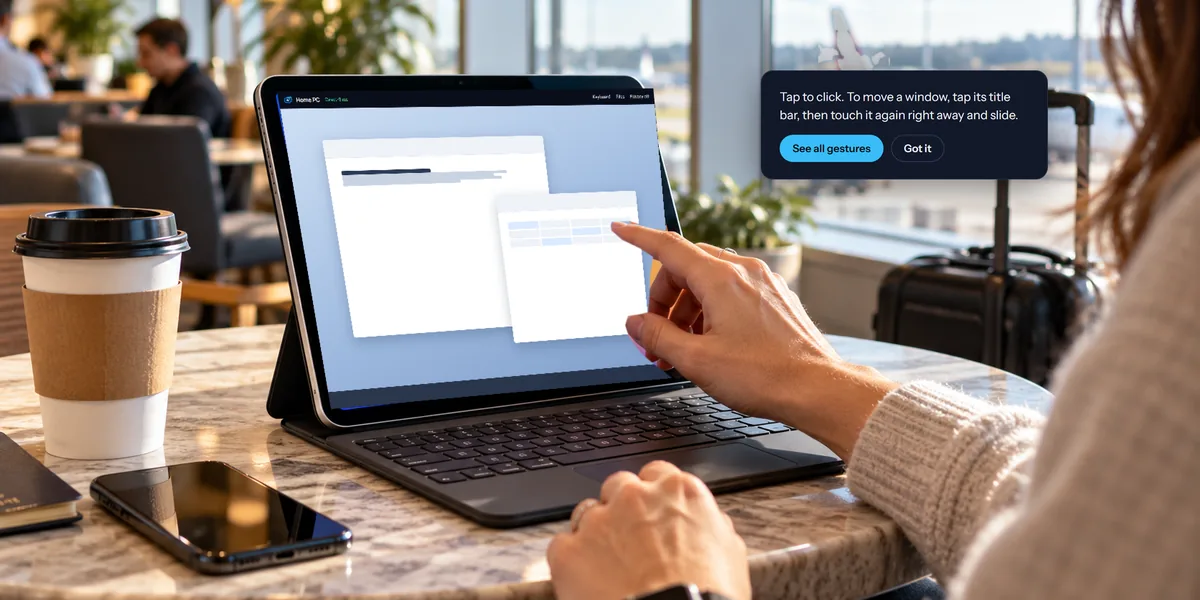
- Use trackpad mode. Your finger moves a pointer, like a laptop's trackpad. With it off, you tap right where you want to click. You can also switch during a session with the Touch or Trackpad button on the toolbar, and the app remembers your choice.
- Keep the screen on during a session. Stops your phone from dimming and locking while you're connected, so you don't lose your place.
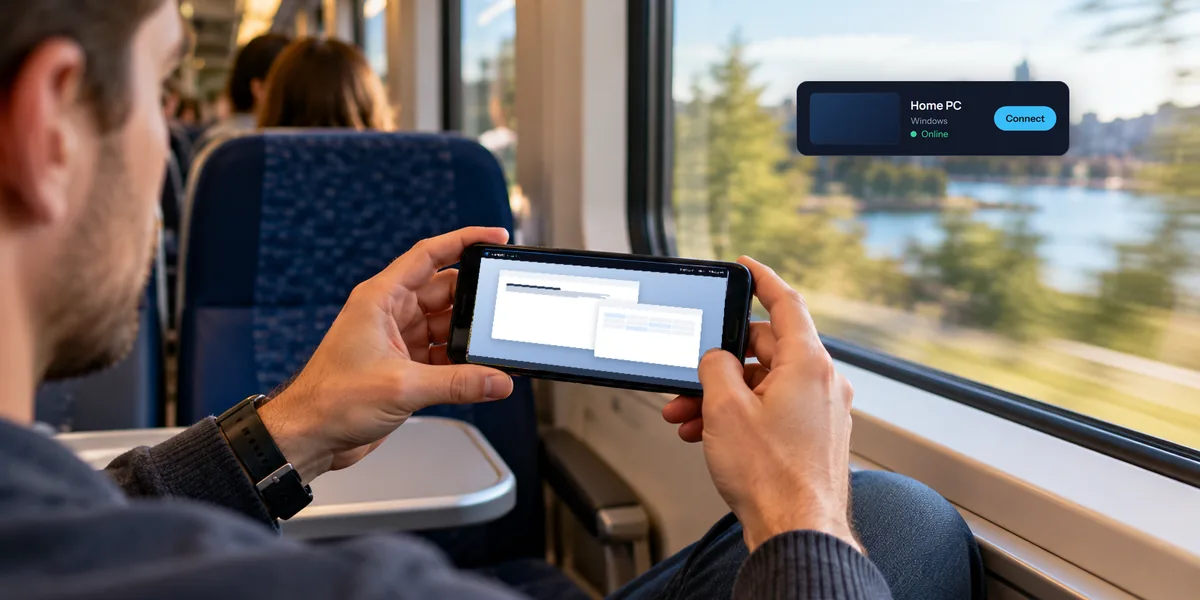
- Play the computer's sound. Turn it off to stay quiet, such as on a train. You can also change it from More during a session.
More also has Sharper picture or Smoother picture, which our guide to picture quality explains.
Signed-in devices
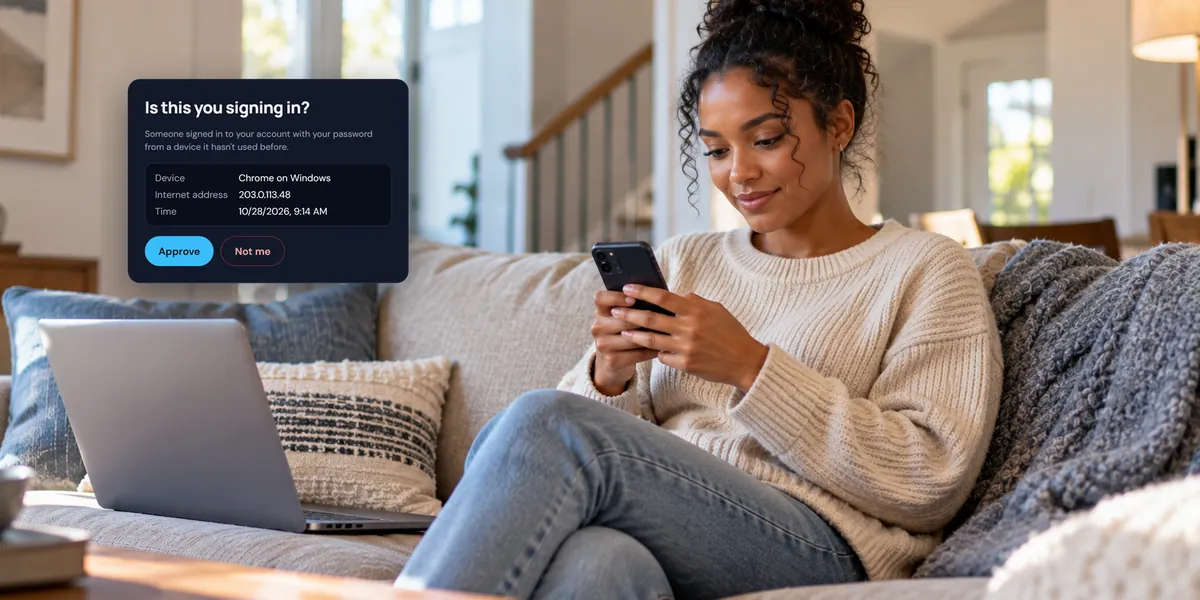
Settings lists every phone, tablet, and browser signed in to your account. Tap Sign out beside any you don't recognize, or Sign out everywhere else. Our guide to two-step sign-in and new devices explains what to do next.
Pictures of your computers
The pictures of your computers in your list stay on your device. View My Desktop never stores your screens. Signing out clears them.
Help
Touch gestures and troubleshooting shows every gesture for touch and trackpad mode, with pictures, and what to check when a computer won't connect.
Questions people ask
Does signing out remove anything from my computers?
No. It only clears this device: your sign-in, saved access codes, and the pictures of your computers. Your computers and their settings stay as they are.
Where's the app's version?
At the bottom of Settings. It also shows on the sign-in screen, next to the Privacy Policy and Terms links.