The picture of a remote computer is video. Your own screen reader sees one picture and can't tell what's in it. So the way to work on a remote computer without seeing the screen is to let that computer do the reading: run a screen reader on it, and listen to it through the session's sound.
How it works
During a session you hear the remote computer's sound, and its screen reader is part of that sound. Everything you type goes to the remote computer, so its screen reader hears your keys as if you were sitting at it.
When you're on the remote screen, it tells your own screen reader that it's an application. NVDA and JAWS then pass your typing through to it instead of using the keys to read the page.
Before you connect
Turn on the screen reader on the computer you'll reach:
- Windows: Narrator comes with Windows. NVDA and JAWS work too. Set it to start after sign-in, so it's already running when you connect.
- Mac: turn on VoiceOver in System Settings, under Accessibility.
Then make sure the session's sound is on. It's on unless you turned it off; the Sound button on the toolbar switches it.
Send the screen reader's own key
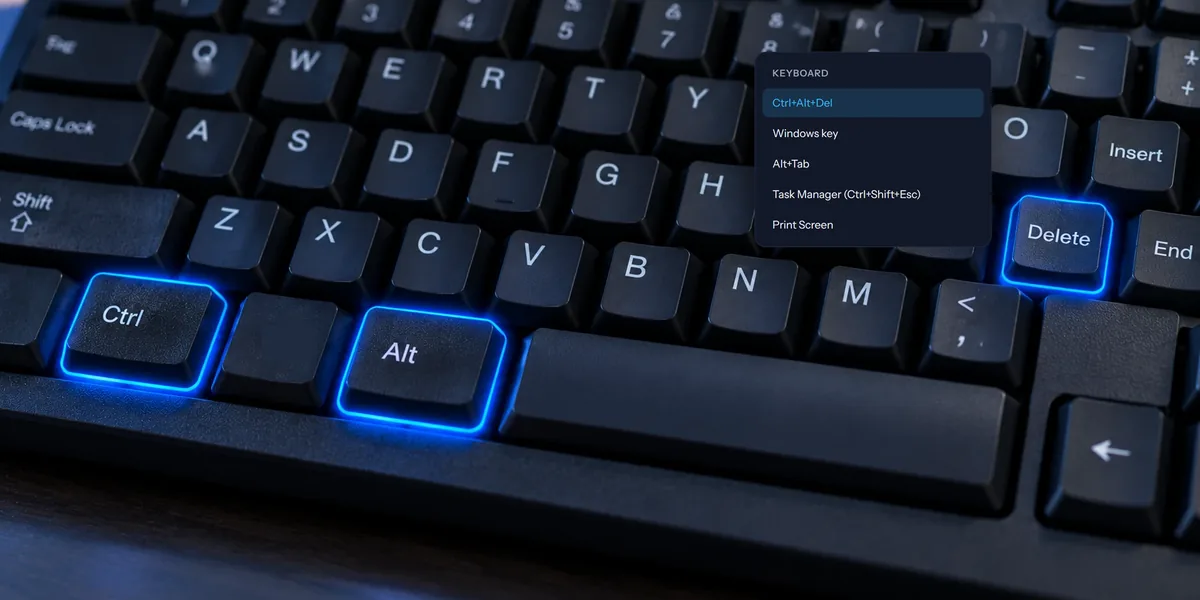
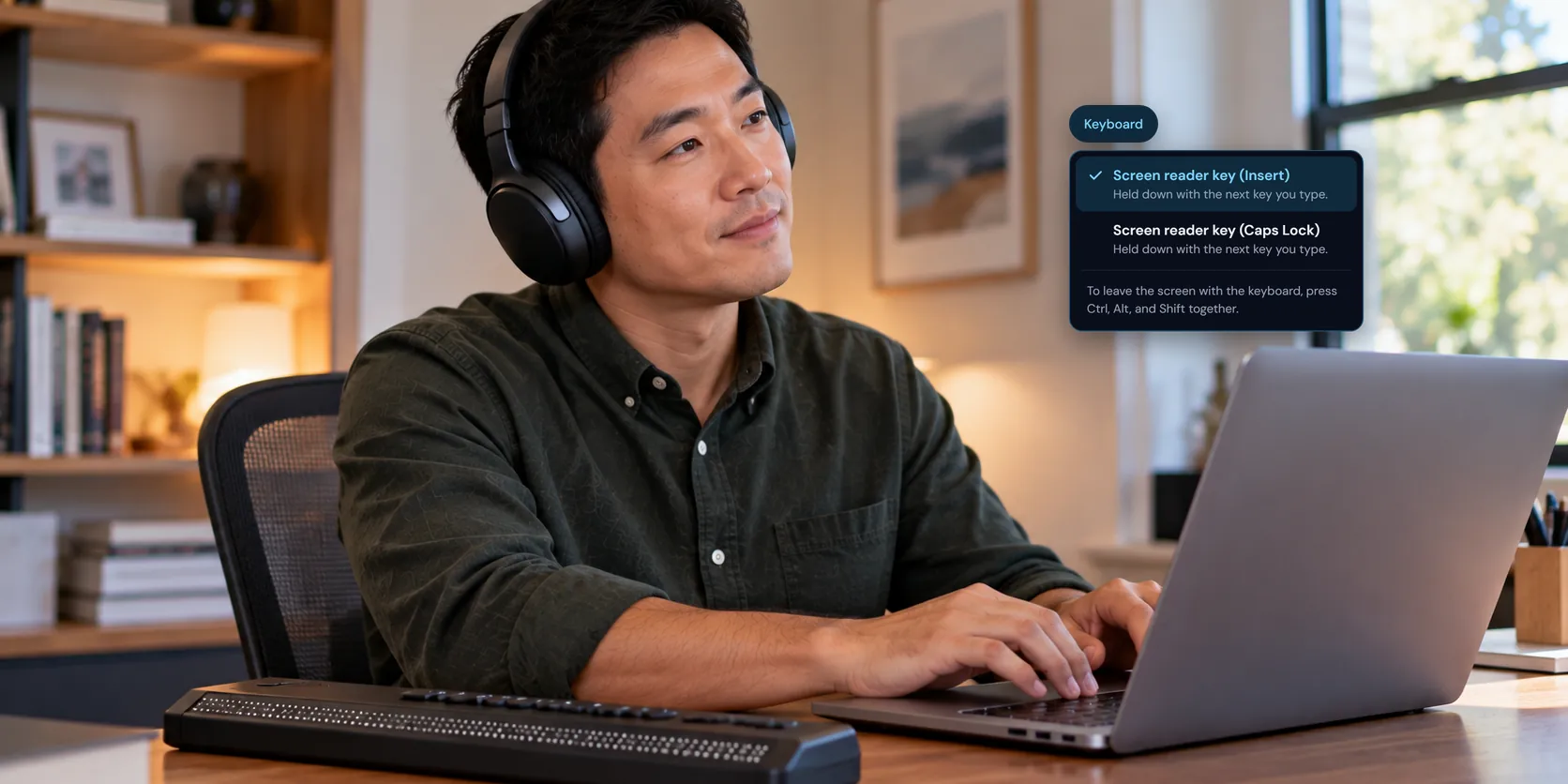
NVDA, JAWS, and Narrator use Insert or Caps Lock as their main key. Your own screen reader takes that key before the browser sees it, so pressing it does nothing on the remote computer.
Use the Keyboard menu on the toolbar instead. Choose Screen reader key (Insert) or Screen reader key (Caps Lock). That key is held down on the remote computer until you press your next key, so choosing Insert and then pressing T sends Insert+T.
Get back to the toolbar
While you're on the remote screen, every key goes to the remote computer, Tab included. To get back to the toolbar, press Ctrl, Alt, and Shift together, then let go. On a Mac keyboard that's Control, Option, and Shift. The keys reach the remote computer too, but pressed on their own like that, they don't do anything there.
Your focus lands on the Keyboard menu. From there, Tab moves through the rest of the toolbar, including Disconnect.
Using VoiceOver on a Mac from a PC
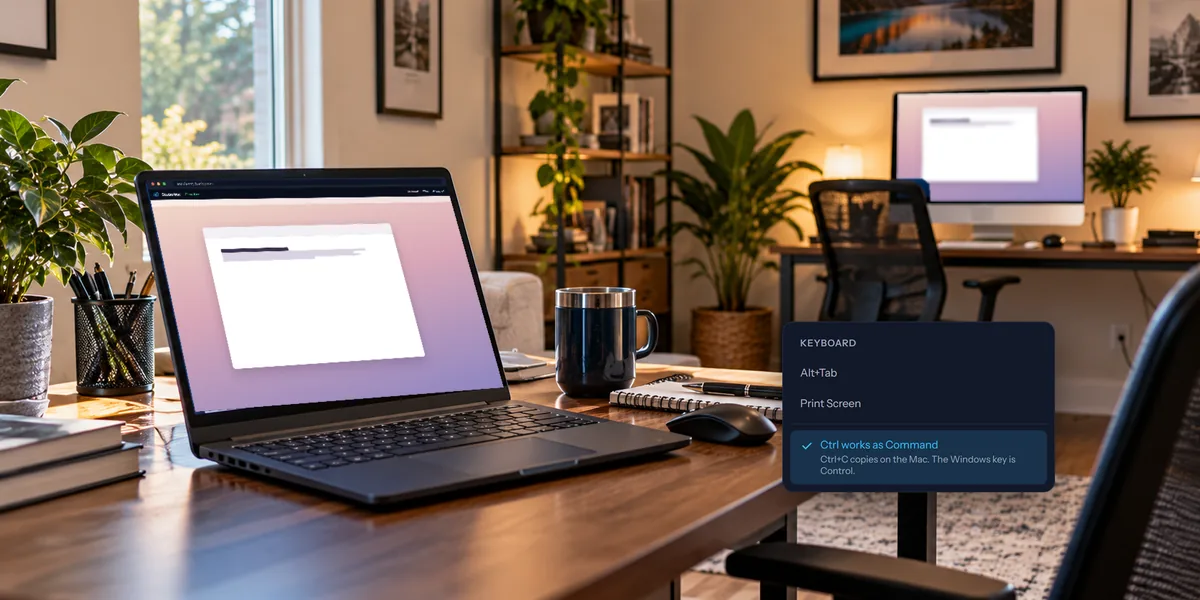
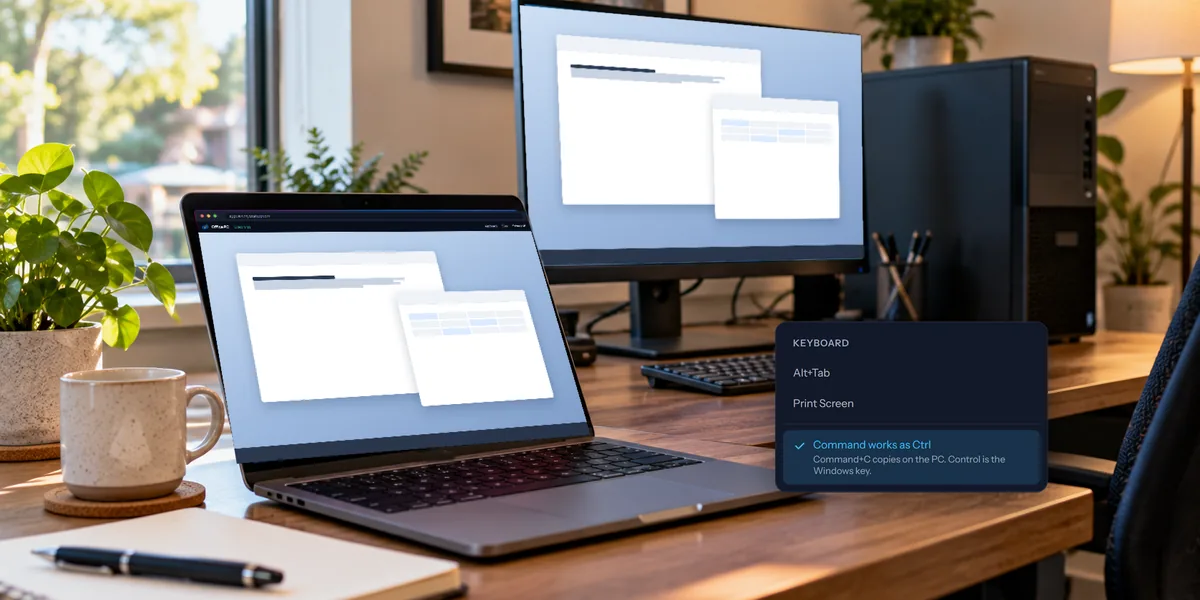
When you reach a Mac from a PC, Ctrl works as Command by default, so Ctrl+C copies on the Mac. That also means your Ctrl key can't be VoiceOver's Control key. Turn off Ctrl works as Command in the Keyboard menu before you use VoiceOver's Control+Option commands. The choice is remembered for every computer.
You can also set VoiceOver to use Caps Lock as its key, and send it with Screen reader key (Caps Lock).
Where it stops
- Speech comes through the session's sound, so it arrives a moment after you press a key.
- Your own screen reader still can't read the picture. Only the remote computer's screen reader can.
- Guest links don't carry sound, so a guest can't hear the remote computer's screen reader.
- When you help someone with a code, you hear the computer's sound only after they turn sound on in their help window.
- In the phone app, touch control doesn't work while VoiceOver or TalkBack is on, because they take over your gestures. A keyboard connected to a tablet works, but the phone app doesn't have the screen reader keys yet.