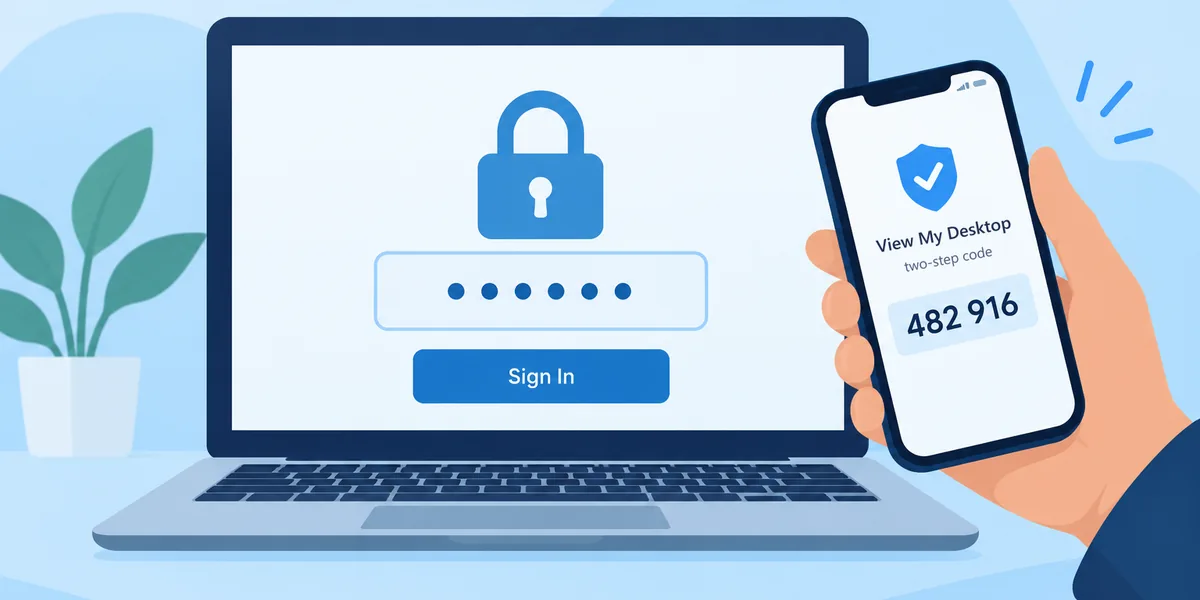
If you're the one in the family who knows computers, you know the calls. "It's doing that thing again." Talking someone through a screen you can't see is slow for both of you. Being able to see it, and take over the mouse for a minute, turns a forty minute call into five.
Here's how to set that up so it's easy for you and safe for them.
The idea
You install View My Desktop on their computer once, and add it to your own account. After that, their computer shows up in your list like one of your own. When they need help, they call you, you connect, and you both look at the same screen while you talk.
They don't need an account, and they don't need to learn anything new.
Set it up, ideally on a visit
It's easiest to do in person, but it works over the phone too.
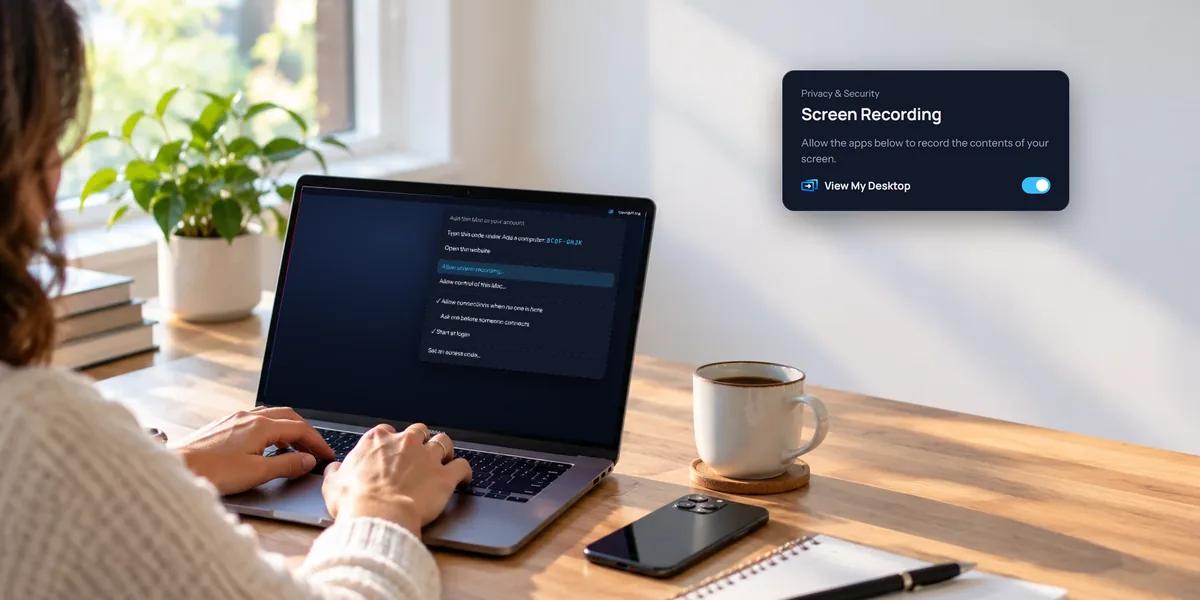
- On their computer, install the host. Our guides for Windows and Mac walk through it.
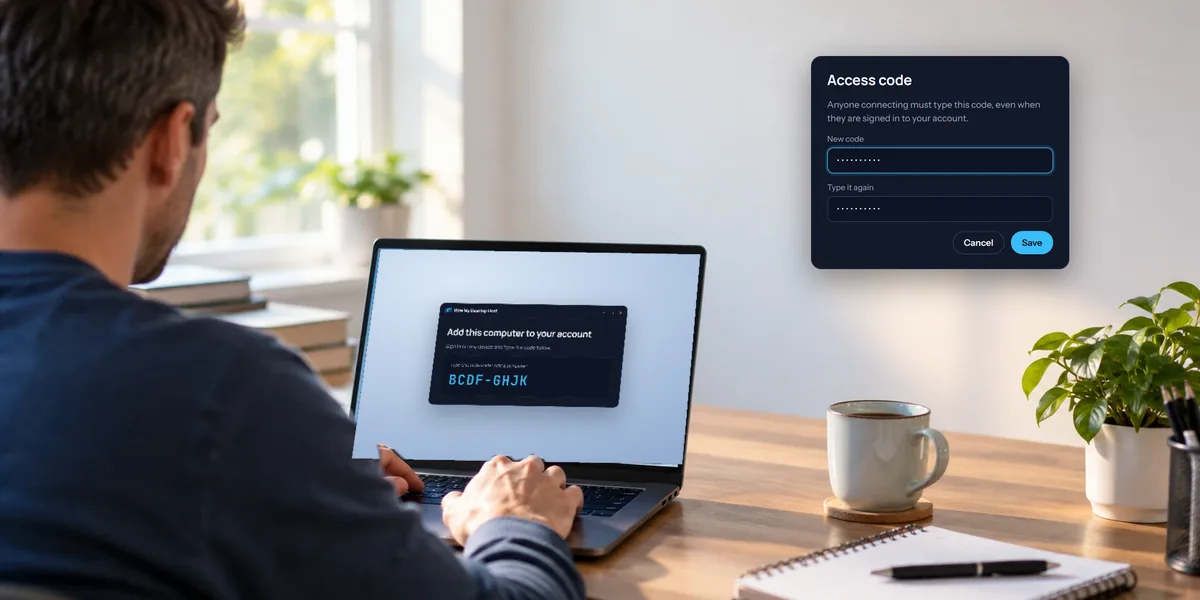
- Choose an access code together. Something they'll remember and nobody else would guess. Write it somewhere private, not on a sticky note on the screen.
- Add the computer to your account. The host shows a short code. On your own phone or computer, sign in, choose Add a computer, and type it. Because you typed the code, the computer is now in your account.
If you're doing this over the phone, have them call you, and stick to the rule you'll be teaching them anyway: the access code only ever goes to you.
The computer counts as one of the computers on your plan, so check you have room.
Let them say yes first
By default, the access code is the only lock, and you can connect whenever you like. For a parent's computer, it's kinder to let them say yes first, so nobody gets a surprise.
In the host window on Windows, or the View My Desktop menu in a Mac's menu bar, find When someone connects and pick one of the two choices that start with Ask me. Now, each time you connect, a question pops up on their screen saying you want to connect, with Allow and Don't allow. One click from them, and you're in.
The two differ in what happens when nobody answers within 30 seconds, or the computer is locked:
- Ask me, and let them in if I'm away lets you in anyway. Useful when they're out and something needs fixing, like a stuck update.
- Ask me, and only let them in if I say yes means you only ever get in when they click Allow. The most reassuring choice for someone wary of the whole idea.
When they call for help
- Open their computer from your list and type the access code.
- They click Allow.
- Stay on the phone if you can. View My Desktop has no voice, so a normal call is easiest, and they can tell you what they were doing. If a call isn't handy, press Chat in the toolbar. Your message pops up in a small window on their screen, and they can type back.
While you're in, they can watch everything you do. Narrate as you go. It's reassuring, and they may pick up how to fix it next time. A few things that help:
- Move a file to or from their computer with Files, like a photo they couldn't attach to an email. See moving files between computers.
- Restart it from the toolbar if it's gone sluggish. See restarting a remote computer.
- Copy and paste between your computer and theirs, handy for a long web address or a confirmation code.
They can end your session whenever they like. On Windows, they open View My Desktop from its icon near the clock and choose Disconnect. On a Mac, it's in the View My Desktop menu in the menu bar.
Before it's set up
Sometimes the call comes before you've had a chance to set anything up, or it's a one-off, like a friend's laptop. On Pro or Team, you can still help a Windows PC or Mac without installing anything on it:
- On My computers, choose Help someone, then Get a code.
- Read them the nine-digit code, or send them the link it shows. Each code works once, for 15 minutes.
- They open the link on their computer, download the small help app, open it, and type the code. On a Mac, the app first walks them through the two permissions macOS asks for.
- They choose Allow, and their screen opens in a tab for you.
You can use their mouse and keyboard and chat. If you need to move a file, copy and paste, or hear a sound, ask them to turn it on in the help app. You can't restart their computer this way. When they close the app, the help ends, and their computer never joins your list. If you'll be helping often, set their computer up properly as above.
Keep them safe from the scam
Remote access scams aim at exactly this group. Someone calls, or a pop-up appears, claiming to be from Microsoft or their bank, and asks to connect to "fix" something.
Make the rule simple, and say it more than once:
- Only you ever connect. No company will call out of the blue asking to get on their computer.
- The access code goes to nobody else. Not to someone on the phone, not to a pop-up, not to anyone who says they're from support.
- When in doubt, hang up and call you.
With Ask me, and only let them in if I say yes chosen, a stranger would also need them to click Allow, which is one more chance for them to stop and call you. Our guide to whether remote desktop is safe has more on how these scams work.
Questions people ask
Do they need to pay for anything?
No. Their computer is on your account, so it's covered by your plan.
Can my brother help too?
Yes, as long as he knows the access code. Add him with Manage on the computer's card, under Share with people, using the email of his own View My Desktop account. Sharing is part of the Pro plan.