Some work needs a record. A bookkeeper fixing the books, a contractor on a client's server, a new hire learning the ropes. With recording turned on, every session with a computer is saved as a video, from the moment someone connects to the moment they leave.
Recording comes with the Pro and Team plans.
Turn it on for your own computer
- Go to My computers and click ⋯ on the computer's card.
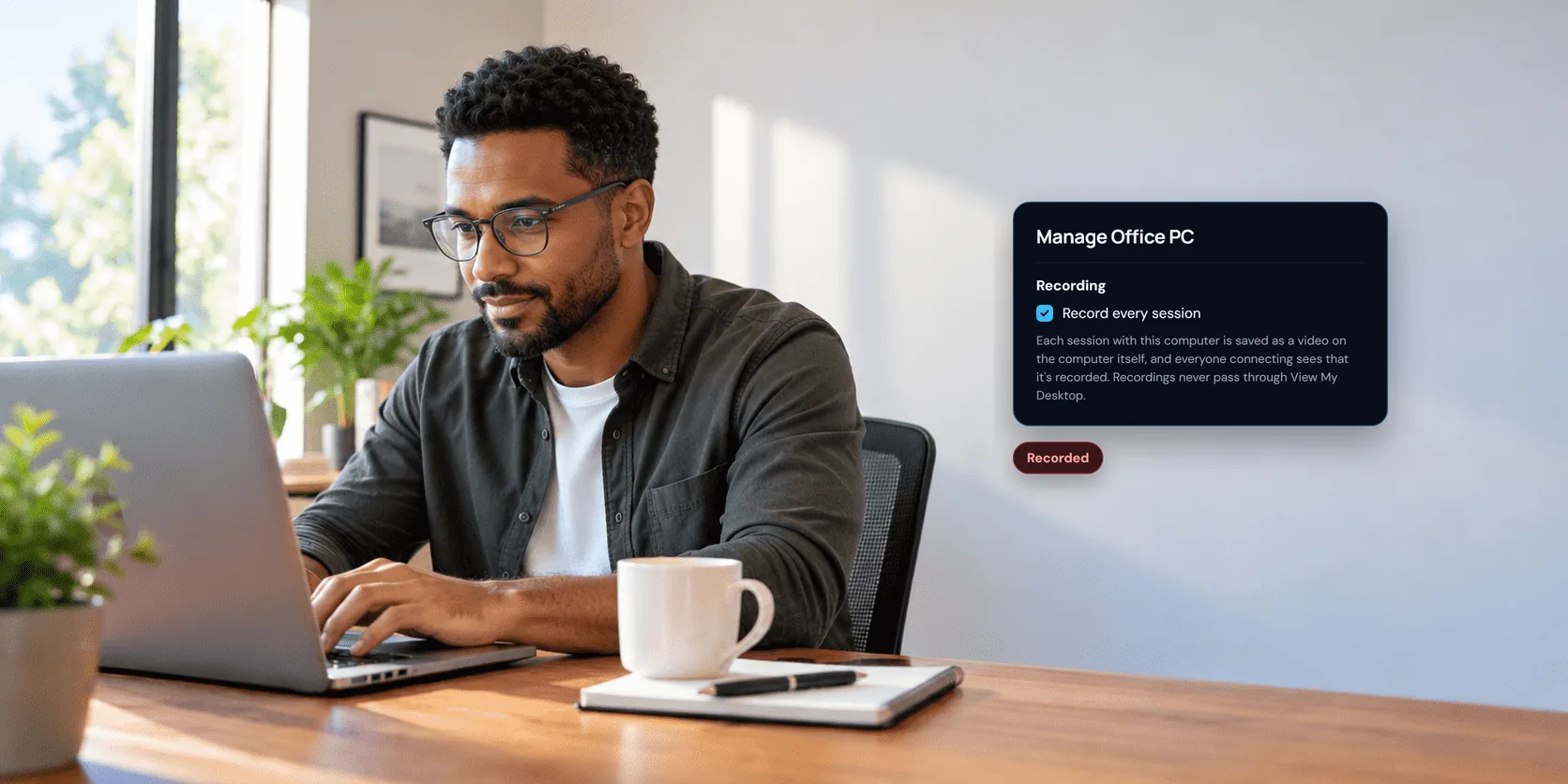
- Under Recording, tick Record every session.
It starts with the next session. Each computer has its own switch, so turn it on for each one you want recorded. You can only change it on your own computers, not on one someone shared with you.
Turn it on for a team's computers
- On the Team page, open Rules.
- Tick Record sessions, then choose Save rules.
It covers every computer in the team, starting with the next session. Only the team's owner and admins can change it.
Everyone is told
Nobody is recorded without knowing it.
- In a browser, a Recorded tag shows at the top of the session the whole time. That includes people watching through a guest link.
- In the app for iPhone, iPad, and Android, someone connecting to a recorded computer is asked once before their first session, and can choose not to connect. The computer's owner isn't asked, since they turned it on. A Recorded tag stays on screen during the session.
- At the computer, the list of people connected says recorded beside each one.
Sessions where you help someone with a one-time code are never recorded.
Where the recordings are
Each recording is saved on the computer that was recorded, never on our servers.
On a Windows PC, they're in C:\ProgramData\ViewMyDesktop\Recordings. ProgramData is hidden, so type that address into File Explorer's address bar. Only the PC's administrators can open the folder. If Windows says you don't have permission, choose Continue and sign in as an administrator.
On a Mac, they're in your Library, which Finder hides. In Finder, choose Go, then Go to Folder, and paste ~/Library/Application Support/ViewMyDesktop/Recordings.
Each file is named for when the session started and who connected, such as 2026-10-28 14.05.33 [email protected]. A few things to know about them:
- If anyone chatted, the conversation is saved beside the video as a text file with the same name, ending in chat.txt.
- If two people connect at once, each gets their own recording.
- If the picture changes size during a session, such as switching to another monitor, the recording carries on in a second file ending in part 2.
- Sound is included whenever the session has sound.
Recordings stay until you delete them. Nothing clears them out, so on a busy computer, check the folder's size now and then.
Play a recording
Recordings are .mkv videos. That format keeps a recording playable even if a session ends suddenly.
- On Windows, the built-in Media Player opens them.
- On a Mac, QuickTime Player can't. Use a free player such as VLC or IINA instead.
- To get an .mp4, for editing or sharing, the free HandBrake app converts them.
Send a team's recordings to your own storage
On the Team plan, each computer can send its recordings to a container in your own Azure storage, instead of keeping them.
- On the Team page, open Rules, and find Where recordings go.
- In the Azure portal, make a link for the container under its Shared access tokens. Allow only Create and Write, since every computer on the team holds the link, and set the expiry well ahead.
- Paste the link and choose Save.
Each computer sends a recording when the session ends, into a folder named after the computer, then deletes its own copy. Turn on versioning for blobs in that storage account too, so a recording that's been sent can't be replaced. The recordings go straight from each computer to your storage, never through us.
If a computer can't send its recordings, it keeps them and tries again. The Rules page lists which computers are waiting and why, and the team's owner and admins get an email. The page also warns two weeks before the link expires. Azure Storage is the only cloud storage this works with for now.
If a session won't start
If a computer must record every session but can't save a recording, nobody can connect, and the message says: "Every session with this computer is recorded, but this computer cannot record." Ask whoever manages the computer.
If recording stops during a session, for example because the disk is full, the session ends rather than carry on unrecorded. Free up space on the computer, then connect again.
Questions people ask
Can I record just one session?
Recording is on or off for a whole computer. To record one session, turn it on, connect, then turn it off again afterwards.
Who can see the recordings?
Whoever can open the folder on that computer: on a Windows PC its administrators, and on a Mac the account View My Desktop runs in. For a team using its own storage, whoever your business gives access to that container. We never see them.