Printing from a remote computer used to mean the paper came out at the office, which is no help when you're at home. With View My Desktop, a document you print on the remote PC comes to you instead, and you print it on whatever printer is next to you.
How it works
The Windows installer adds a printer to the PC called View My Desktop. It isn't a real printer. When you print to it, Windows turns the document into a PDF and the host sends that PDF to your session.
A Mac has no printer to add. Instead, while you're connected, the host puts Send to View My Desktop in the PDF menu of every print dialog, and it does the same job.
Either way, the document then comes to you, ready to print on your own printer or to save.
Nothing goes through our servers. Like files, the document travels straight between the two computers, encrypted.
Print, step by step
- On the remote computer, open the document and print as you normally would, with File and Print, or Ctrl+P (Command+P on a Mac).
- On a PC, choose View My Desktop as the printer, and print. On a Mac, open the PDF menu at the bottom of the print dialog and choose Send to View My Desktop.
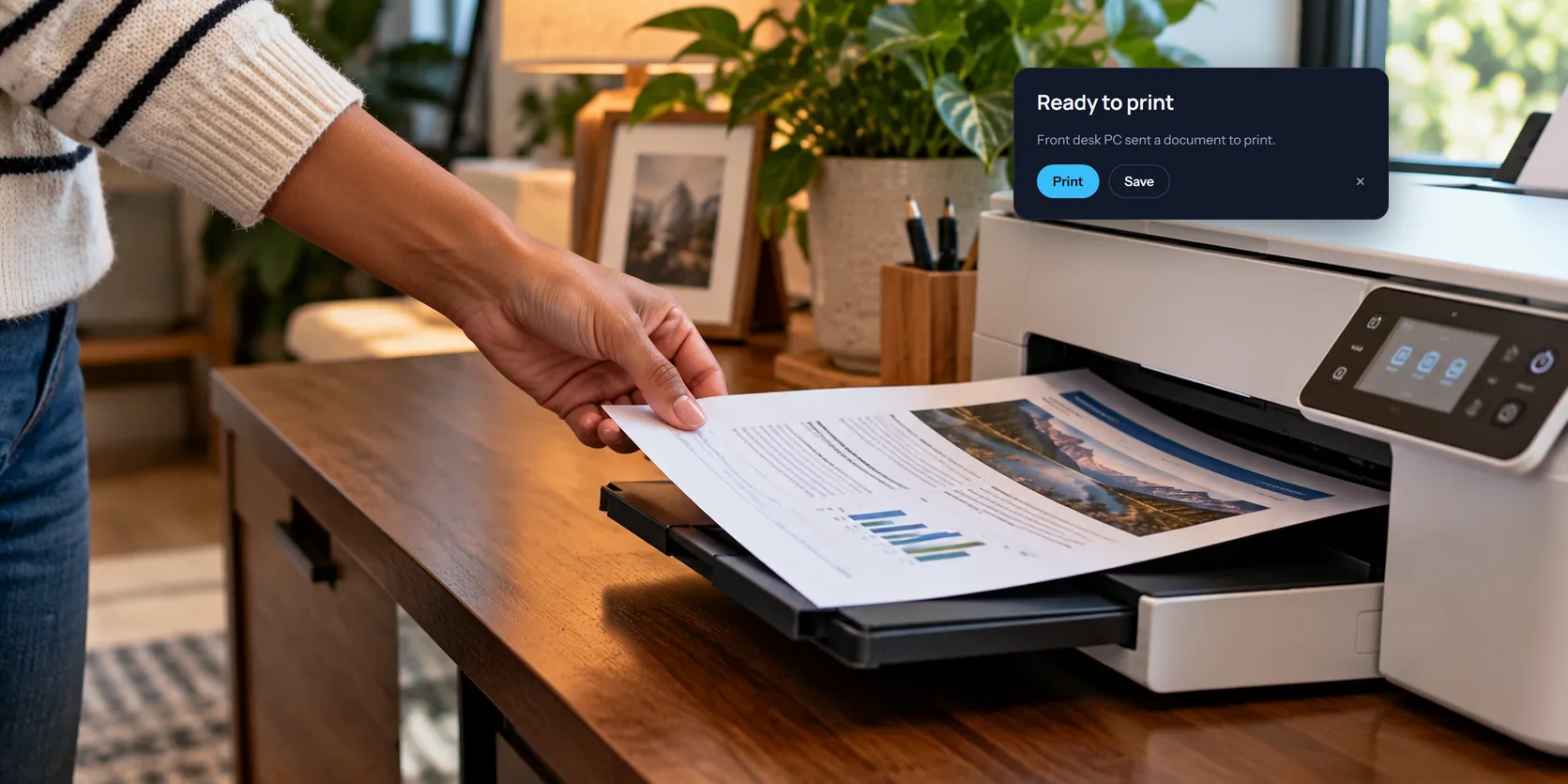
- On your side, a Ready to print card appears with the document's name.
- Choose Print to open the print window, pick your printer, and print. In a browser that's the browser's own; on an iPhone or iPad it's AirPrint, and on Android it's the phone's print screen. Or choose Save to keep the PDF.
It works from any program that can print, from Word and Excel to a web page or an old accounting package.
Things to know
- Print while you're connected. The printer passes documents on to a live session, so print during the session, not before it. On a Mac, the menu item is only there while you're connected.
- On a Mac, the document keeps its name. A PC's documents arrive named with the time they were printed.
- Use the app or a computer's browser. The Ready to print card appears in the app for iPhone, iPad, and Android, and in a web browser on a computer.
For teams
A team's admins can turn printing off for the team's computers under Rules, using Remote printing. When it's off, documents printed to View My Desktop aren't passed on.
If nothing prints
- The printer isn't in the list on the PC. It's added when the host is installed. Installing the host again puts it back.
- Send to View My Desktop isn't in the PDF menu on the Mac. It appears once you're connected, so close the print dialog and open it again.
- No Ready to print card appears. Check that you're still connected, and that your team allows remote printing.
- Your own printer isn't ready. Choose Save on the card, and print the PDF once it is.
Questions people ask
Does the computer need a printer of its own?
No. The View My Desktop printer is all it needs.
Can I print from my phone?
Yes, in the app. Print opens AirPrint on an iPhone or iPad and the print screen on Android, so any printer your phone can reach works.
Can I print from a Chromebook this way?
Yes. Print on the PC and the document comes to the Chromebook. See reaching your Windows PC from a Chromebook.