
Remote desktop that feels like you're at your desk
Everything you'd do at your computer, you can do from wherever you are. Here's what's included and how it works.
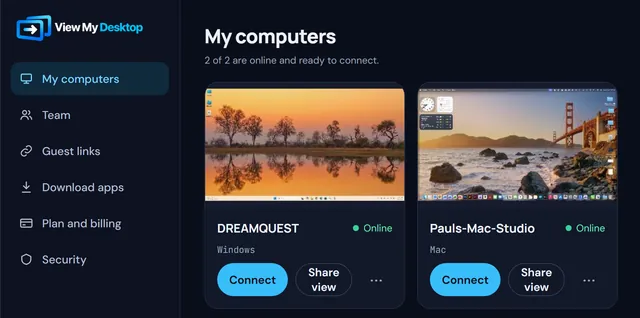
One account, every device you own
Install View My Desktop on the computers you want to reach. Then use whatever is in your hand to get to them.
- Reach Windows 10 and 11 PCs and Macs
- Connect from iPhone, iPad, Android, or any browser
- Nothing to install on a computer you're borrowing
- Your computer list follows you everywhere you sign in
A picture that keeps up with you
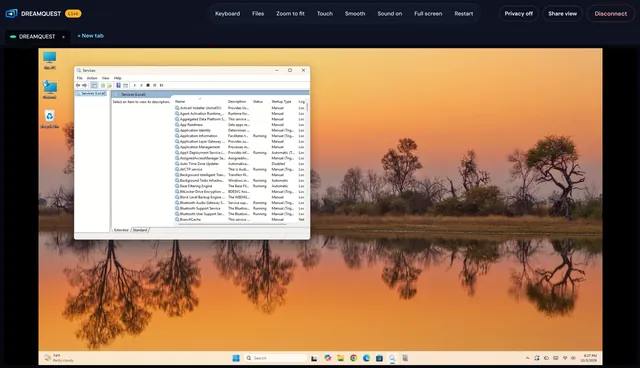
View My Desktop watches your connection and adjusts the picture as it changes, so it stays smooth on hotel Wi-Fi and sharp on a fast line.
- Up to 4K on every plan
- Hear the computer's sound, on Macs and Windows Home too
- Switch monitors, or see them all side by side on Pro
- Connection speed and quality always one glance away
Mouse, keyboard, or fingertips
On a computer it feels like your own keyboard and mouse. On a phone or tablet, pick the mode that suits what you're doing.
- Keyboard shortcuts go to the computer, including Ctrl+Alt+Del
- Copy on one side, paste on the other
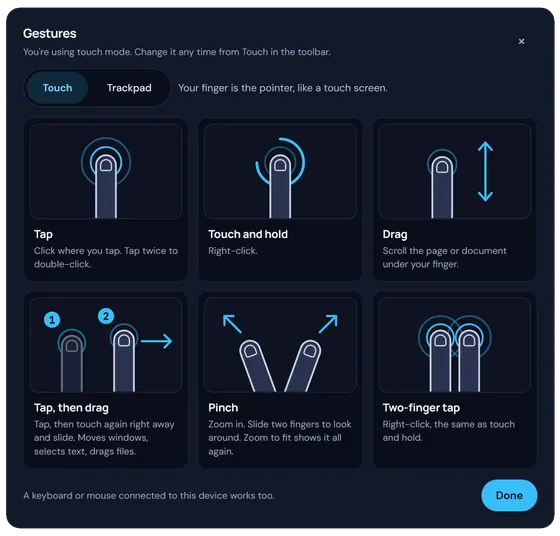
- Touch mode and trackpad mode on phones and tablets
- Pinch to zoom in on small text
- Forget a gesture? They're a tap away during any session
Bring your files with you
Move files in either direction while you work, and print documents on the printer where you are.
- Drag files onto the screen to send them
- On a phone or tablet, tap Files in the app and pick them from your device
- Browse Desktop, Documents, and Downloads to bring files back
- Print from any app on a Windows PC or Mac to the printer next to you
- Print from your phone or tablet too, with AirPrint or Android's own print screen
- Files travel straight between your devices, encrypted
The person at the computer stays in charge
Nobody gets in without the computer's own access code, and you can have someone at the computer say yes first.
- Ask before anyone connects, or let your own account in
- Privacy screen blanks the monitor and blocks the keyboard
- The computer can lock itself when the last person leaves
- Wrong access codes lock the computer for a while

No trip to the office to press a button
Restart a computer that needs it and you're back in when it comes up. Wake one that's asleep from wherever you are.
- Restart from the toolbar and reconnect by itself
- Wake a computer using another one on the same network
- Sign in at the Windows lock screen, Ctrl+Alt+Del included
Help anyone, with a one-time code
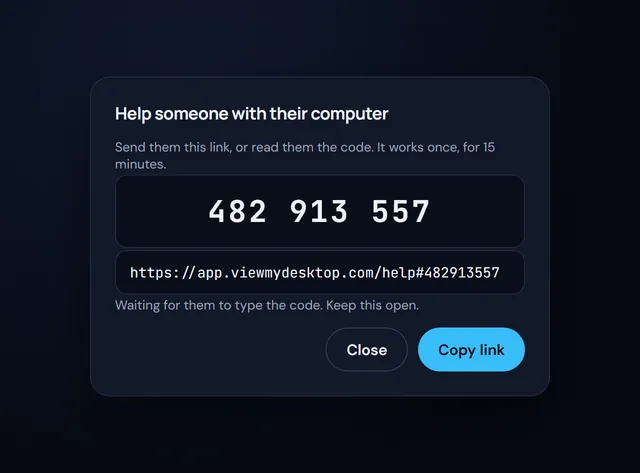
When a friend, a parent, or a customer needs a hand with a computer that isn't yours, choose Help someone and send them the link. They download a small app, type the code, and choose Allow. You can then see their screen and use their mouse and keyboard until they close the app.
- On Pro and Team, and you help from a web browser
- For Windows PCs and Macs, with nothing to install and no account for them
- Each code works once, for 15 minutes
- They choose Allow first, and closing the app ends the help
- The mouse, keyboard, and chat, plus files, copy and paste, and sound when they turn them on
- Their computer never joins your list
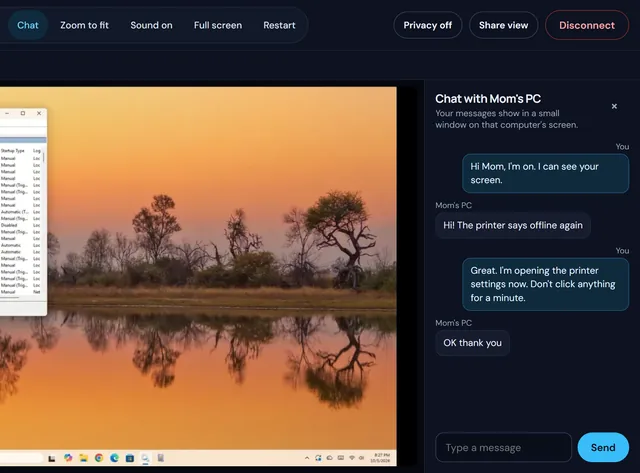
Talk to the person at the computer
Type a message during a session and it pops up in a small window on that computer's screen. The person there can type back, so you don't need a phone call on the side.
- On every plan, from a browser or the phone app
- Guests and people you help with a code can chat too
- Their chat window never covers what you're working on
- Recorded sessions keep the chat in a text file beside the video
- A team can turn chat off for its computers
Running a team?
Add an admin console, rules for every session, an activity log, recording for the whole team, and single sign-on.
See View My Desktop for teams