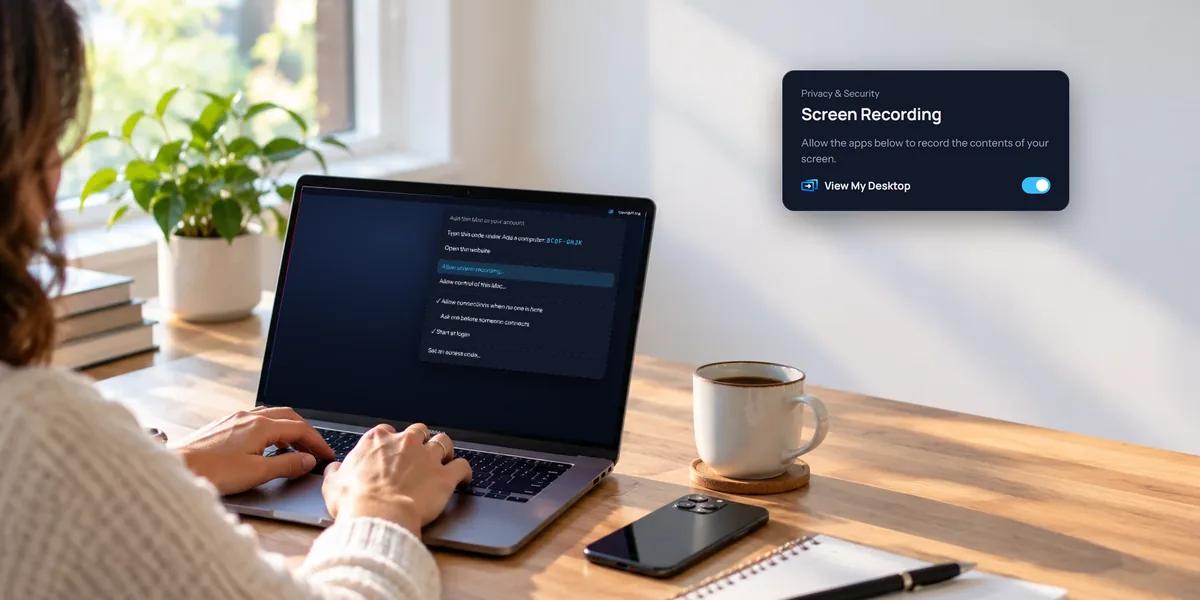
To reach a Windows PC from somewhere else, the PC needs a small program on it, which we call the host. It keeps a line open to View My Desktop so you can find the PC, and it's what shows you the screen when you connect. You set it up once, at the PC, and then you can reach it from your phone, a tablet, or any browser.
It works on Windows 10 and 11, Home or Pro, on Intel, AMD, and Arm PCs.
What you need
- An account with a plan. Make one at app.viewmydesktop.com and choose a plan under Plan and billing. Every plan is free for 14 days. Cancel before it ends and you pay nothing.
- The PC itself, for about ten minutes, signed in as someone who can approve an administrator prompt.
1. Install the host
- On the PC, sign in at app.viewmydesktop.com, open Download apps, and choose Download on the Windows host card.
- Open the zip file, then open ViewMyDesktop-Host.msi inside it and let it install. Windows asks for an administrator's approval, because the host sets itself up as a service.
The service is what lets you reach the PC at its sign-in screen, before anyone has signed in, and after it restarts. The installer also adds a printer called View My Desktop, which sends documents you print on the PC to wherever you are.
When the installer finishes, the View My Desktop window opens. If you ever close it, open View My Desktop from the Start menu. It also starts by itself whenever someone signs in, as a small icon in the notification area near the clock.
2. Choose an access code
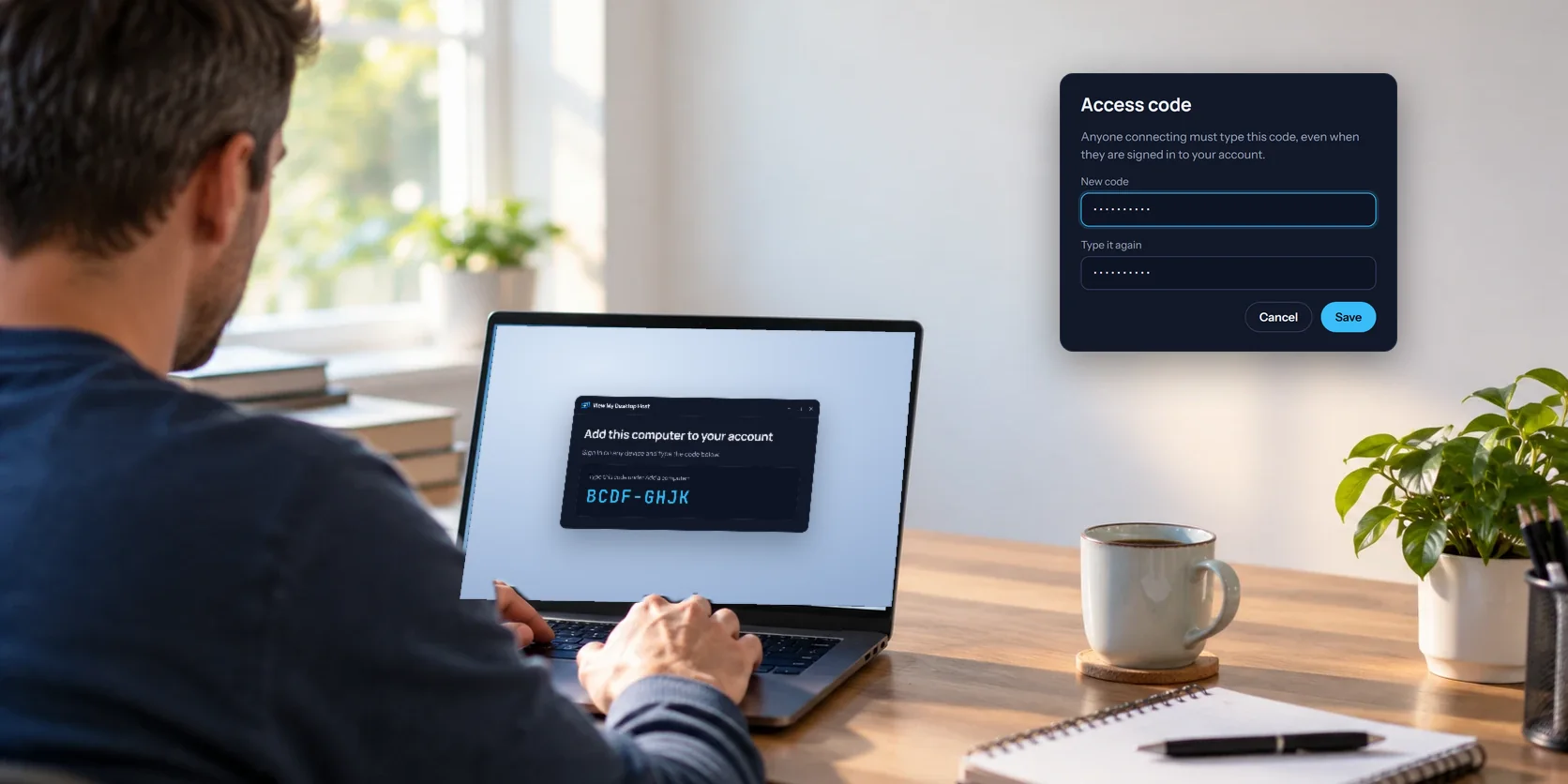
The first thing the host asks for is an access code. Type it twice and choose Save.
Everyone who connects has to type this code, even you, even when you're signed in to your own account. Until it's set, nobody can connect at all. It needs at least six characters, and there's no upper limit.
Some things that make a good one:
- Longer beats cleverer. Three or four ordinary words, like
harbor violet stapler 82, are easier to remember and much harder to guess than a short jumble. - Make it different from your passwords. If one leaks, the other stays safe.
- Go long for a PC nobody watches. If the PC sits alone in an office overnight, treat the code like a passphrase, not a PIN.
The code never travels over the internet, not even to us. When you connect, your device proves it knows the code without sending it, and the PC keeps only a one-way check of it, not the code itself. After five wrong tries, the PC stops taking new connections for 15 minutes, and we email you to say so.
To change it later, open the host window and choose Change next to Access code. If you saved the old one in the phone app, the app asks you for the new one next time.
3. Add the PC to your account
Once the code is saved, the host window shows Add this computer to your account and a short code, like BCDF-GHJK.
- On any other device, sign in to View My Desktop.
- Choose Add a computer. In the phone app, it's the + at the top of My computers.
- Type the code shown on the PC and choose Add, or Add computer in the app. Dashes and capital letters don't matter.
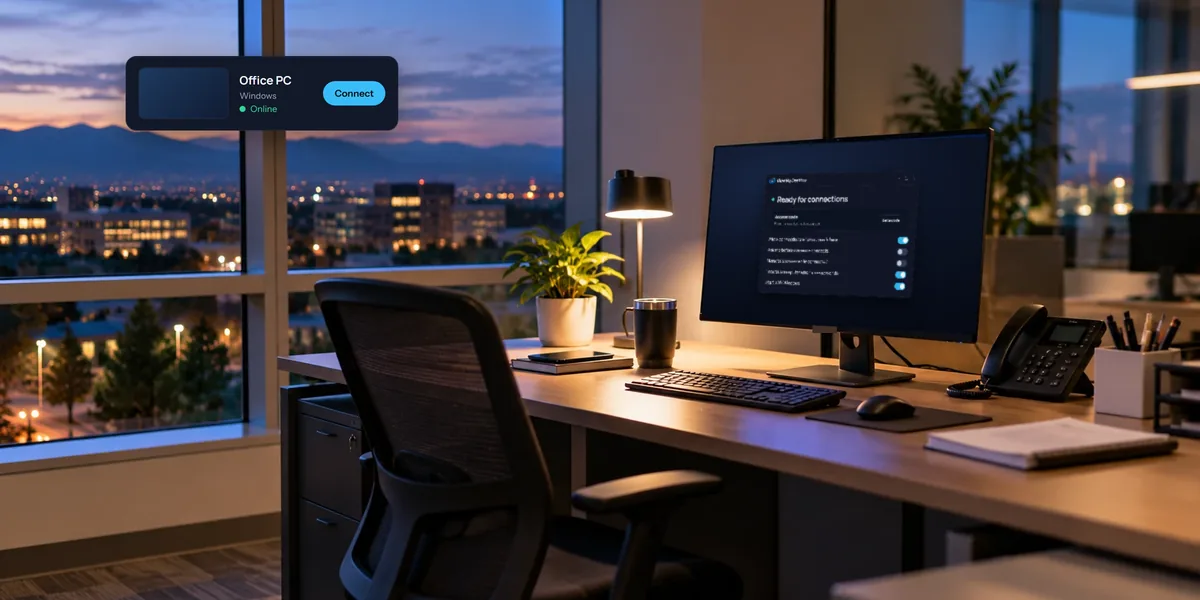
The code lasts 15 minutes, and the host shows a fresh one if it runs out. A moment later the host window says Ready for connections, and the PC shows up in your list as online.
Whoever adds the PC owns it, so add it from your own account.
4. Decide who has to say yes
The host window has a few settings. Out of the box, nobody at the PC is asked before you connect, and the access code is the lock. You can change that under When someone connects:
- Let them in asks nobody. It's the choice out of the box.
- Ask me, and let them in if I'm away puts a question on the PC's screen, with Allow and Don't allow, and waits 30 seconds for an answer. If nobody answers, or the PC is locked, the connection goes ahead.
- Ask me, and only let them in if I say yes asks the same way, but nobody gets in until someone at the PC clicks Allow, every time.
Two more settings there are worth a look:
- Blank this screen while connected turns the PC's own monitors black during every session. See the privacy screen guide.
- Lock this computer when a session ends locks the PC when the last person in control disconnects. It's on to start with.
For a PC you'll reach when nobody's there, the defaults are usually right. Our unattended access guide talks through the choices.
Seeing who's connected
While someone's connected, the host window shows their name and when they connected, with a Disconnect button that ends their session. Hover over the icon near the clock to see how many people are connected.
Choosing Quit from that icon only closes the window. The service keeps running, so you can still connect to the PC. To stop that entirely, uninstall the host.
Removing it
To take the PC off View My Desktop, uninstall View My Desktop Host under Settings, Apps, then remove the PC from your list with the × on its card. Uninstalling also removes the printer.
Questions people ask
Can I install it without administrator rights?
No. The installer sets up a service, and Windows only lets an administrator do that.
I forgot the access code. What now?
Someone at the PC can set a new one with Change in the host window. Nobody can recover the old one, since the PC never kept it.